Contract manager guide
Castles & Coasts Housing Association (CCHA) — Buyer & Platform Documentation Audience: CCHA staff | Platform: Geckr Procure
Who this is for
Staff who own or manage contracts in the register: contracts managers and officers, and department managers who hold contracts. You keep the register current, complete and add actions, log changes and their notices, record KPIs, respond to breaches and exercise extensions; procurement, a senior user or a system administrator terminates a contract. Kate Morrison, Ben Turner, Tom Bell and Owen Fletcher are the contract-manager personas in the demo tenant.
Before you start (sign-in, MFA/magic link, browser)
- Sign in with your CCHA email address and password (SSO once connected). MFA is required only if you also hold a senior, procurement or system administrator role.
- You see the contracts where you are the owner or on the manager team, plus your department's contracts, which members of the department can manage too.
- Alerts are emailed at 06:00 and appear in your task inbox: expiry at 180, 90 and 30 days, actions due within 3 days, overdue actions, KPI readings due, breaches.
Your dashboard and task inbox
Your task inbox (/b/tasks) lists actions due, KPI readings due, contract expiry and breach tasks. Contracts (/b/contracts) is the register with RAG chips; open a contract for its tabs: Overview, Actions, Changes, Payments, KPIs, Social value, Messages, Documents, Notices and Audit. The procurement team's inbox also carries three statutory prompts with their own labels — Section 70 payments to record, Section 70 payments to publish (both open Payments over £30,000 at the quarter concerned) and Part 5A watch (opens the contracts register). Completing or dismissing one of them discharges nothing.
Your contracts
Steps
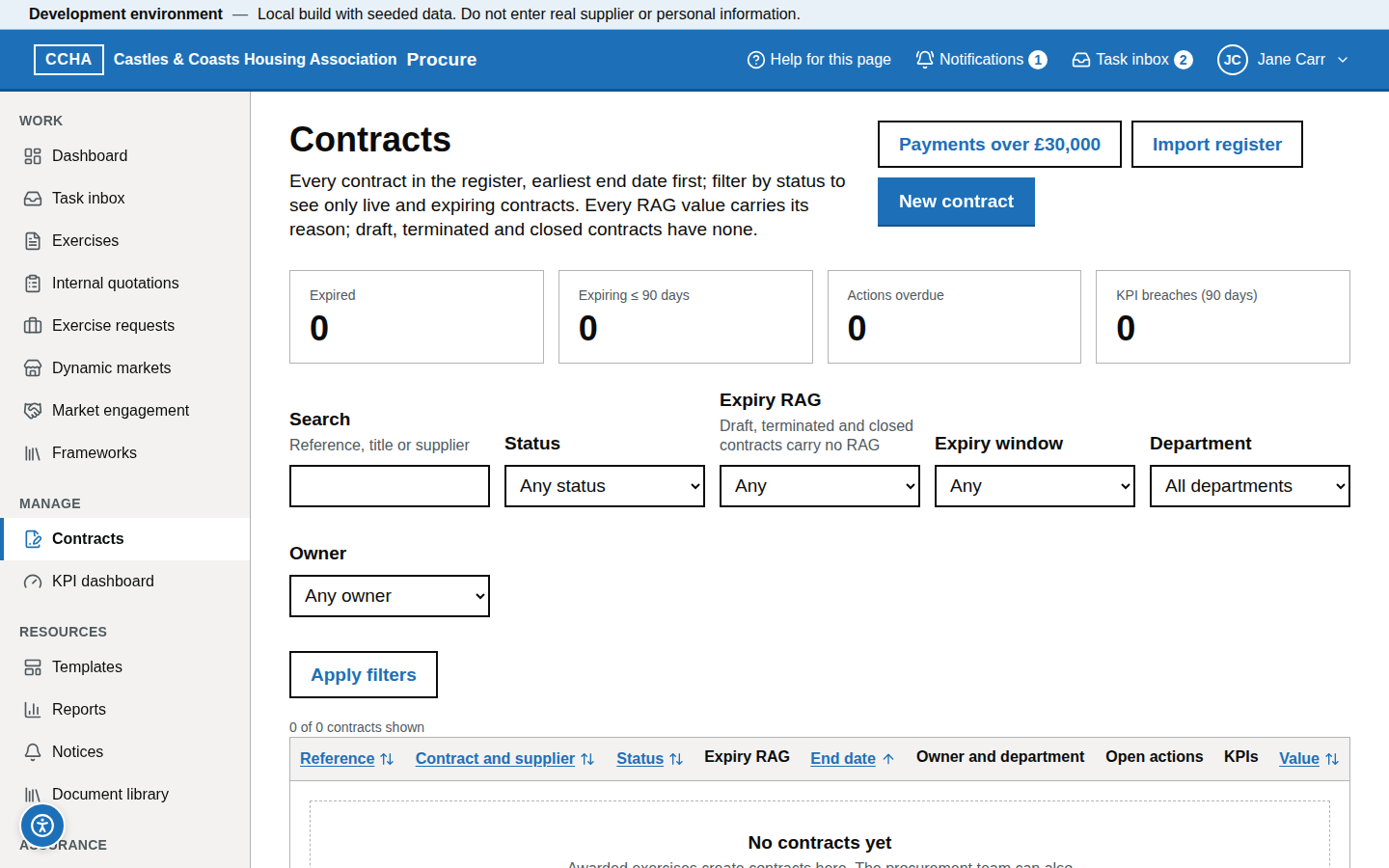
- Open Contracts. The register is ordered by soonest end date; filter by Status, Expiry RAG, Expiry window or Owner (procurement also has Department) and choose Apply filters, or search by reference, title or supplier.
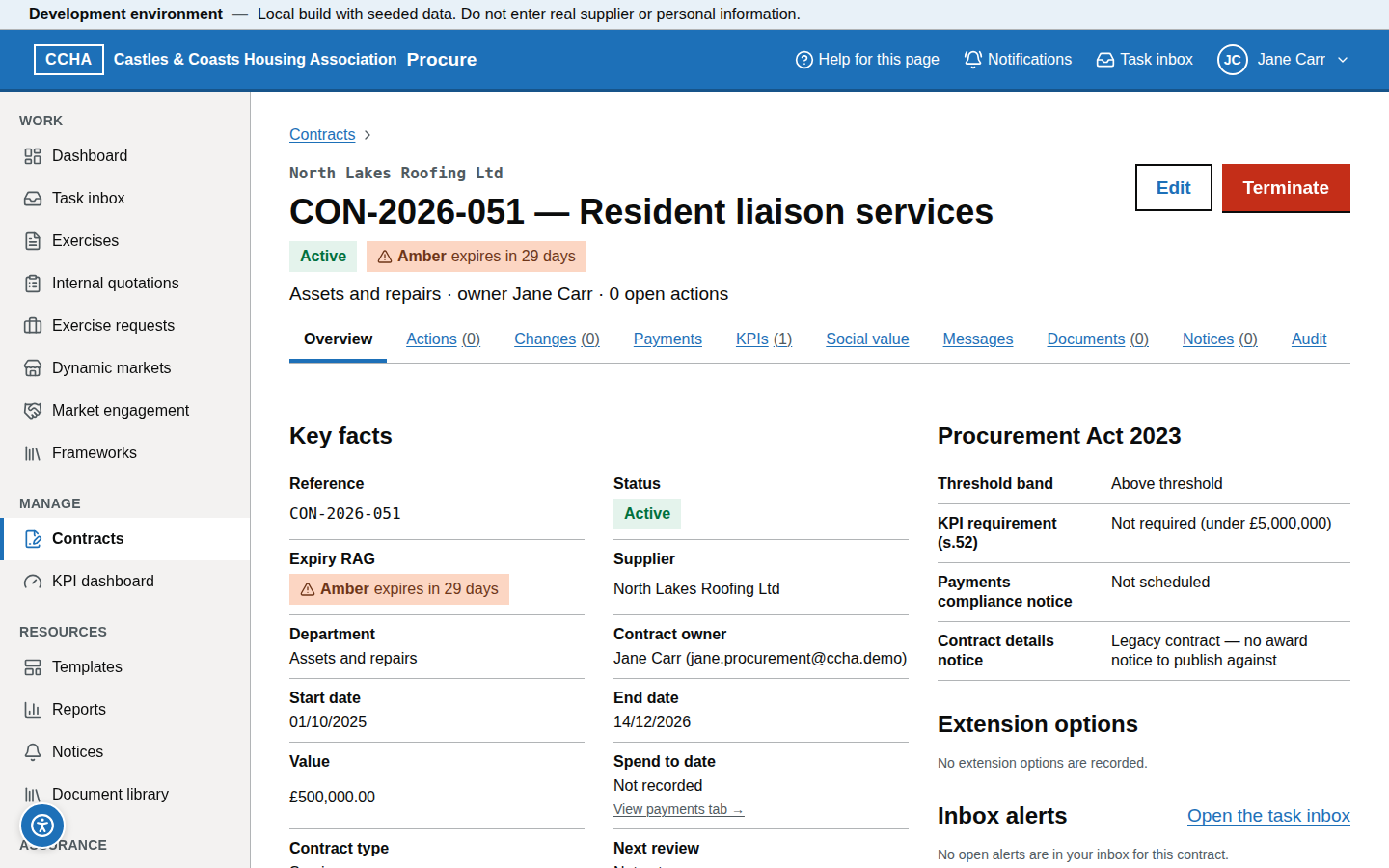
- Read the Expiry RAG: red — expired or an action overdue; amber — ends within 90 days or an action due within 14 days; green — otherwise. Terminated, closed and draft contracts carry no RAG.
- Open a contract for the summary: value and spend to date, dates and extension options, manager team, KPI requirement, next payments notice.
What you should see
The register with summary tiles for Expired, Expiring ≤ 90 days, Actions overdue and KPI breaches (90 days), and an Open actions column.
Common problems
- A contract is amber but nothing is due. It ends within 90 days — start the successor exercise or an extension.
- Spend to date is wrong. Choose Edit on the contract and correct Spend to date; it is not fed from finance automatically.
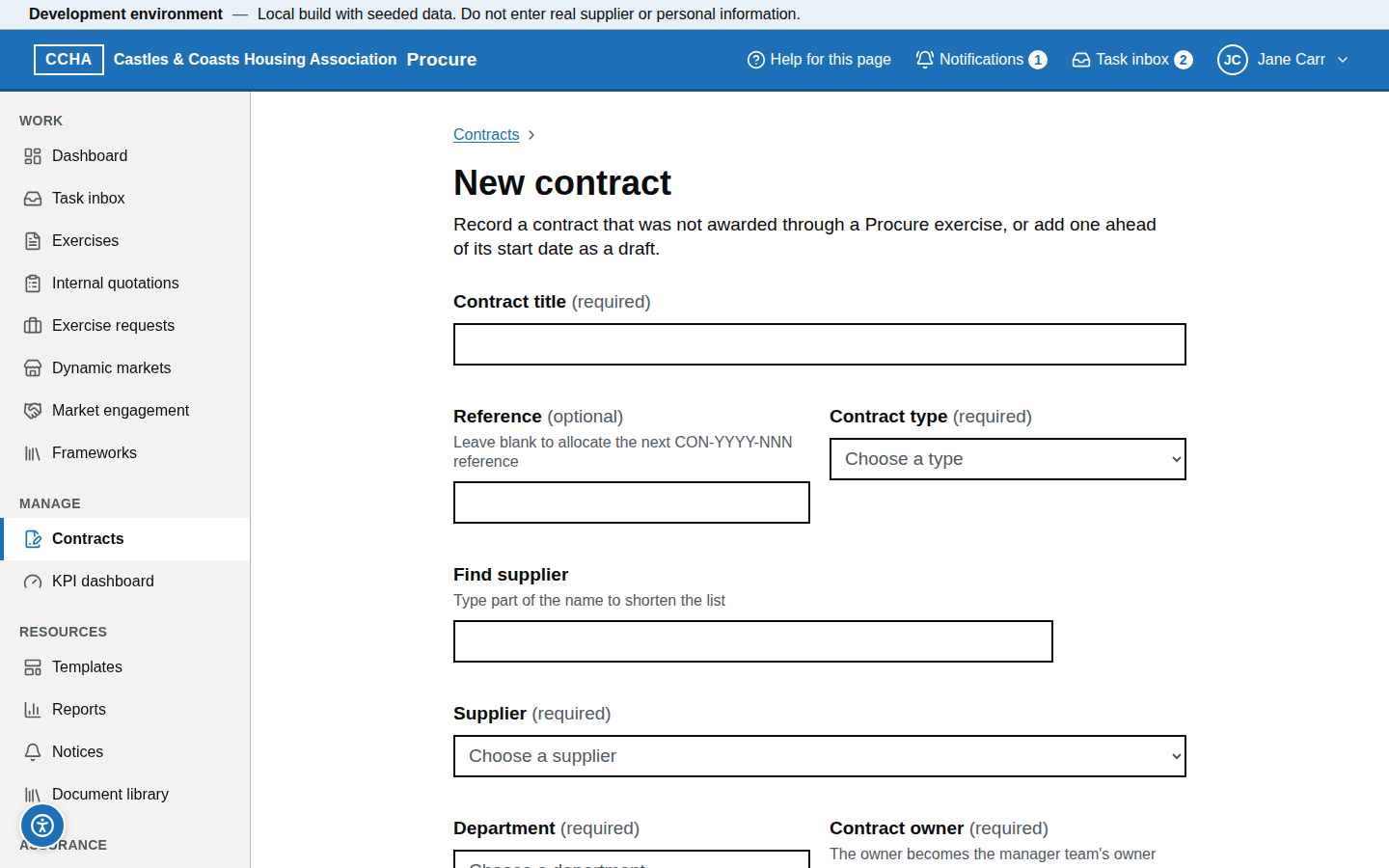
- Where are the payment terms? The contract's Overview tab shows Payment terms — the days within which a valid, undisputed invoice is paid (never more than 30) and the address invoices are sent to. The procurement team records them. A below-threshold contract also shows Supplier registration, the supplier's confirmation that it is registered on the central digital platform, which is needed before its contract details notice.
- I have a conflict of interest in a contract I manage. On an above-threshold contract, use Conflicts of interest → Declare an interest on the Overview tab, or declare that you have none. Procurement reviews each declaration.
- "Correspondence is available once the contract is live". Messages cannot be sent on a draft contract, by you or the supplier: the supplier cannot see a contract until it leaves draft. Make the contract live first.
- What does the supplier see? On its own contract page the supplier sees the overview, its electronic-invoicing route, Performance (each active KPI's definition and target with up to 24 recorded results, newest first, with period, value and rating) and Messages. It never sees tolerances, reading notes, RAG, spend, internal notes or staff details.
Electronic invoices and notice content
The contract's Overview tab (/b/contracts/<id>) holds two records the procurement team keeps and you can read: how suppliers send electronic invoices, and what the contract's notices must state that nothing else records.
Steps
- Electronic invoices (in the Payment terms card,
#contract-payment-terms). Every public contract includes a term that the association accepts and processes for payment an electronic invoice that is in the required electronic form and is not disputed (Procurement Act 2023, section 67). Procurement or a system administrator chooses Change payment terms (or Record payment terms) and, under Electronic invoices, answers How are electronic invoices received? — Peppol network, Invoicing portal, Structured invoice file by email or No route set up yet — then gives the Peppol participant identifier, portal address or mailbox (no personal mailboxes), any System the association requires, Instructions for suppliers, and whether the contract documents state the route. With No route set up yet you must say how a supplier's electronic invoice will be accepted meanwhile. Choose Save payment terms. - The platform does not receive invoices. The supplier sees the route on its own contract page under Sending electronic invoices.
- Notice content (
#contract-notice-content). Procurement chooses Record notice content (or Change notice content) and gives how the goods, services or works are supplied, the estimated amount or quantity in words (not the contract value), where they are delivered (the whole United Kingdom or one or more areas), whether the contract includes options, and whether the United Kingdom has obligations under the GPA and under the CPTPP for this contract. Where the contract came from an exercise, anything left unanswered is taken from the exercise's notice content, and an answer given here replaces it for this contract's notices. A contract with no exercise has nothing to take them from, so record them here. Choose Save notice content. - Part 5A record, in the same panel under Outsourcing (Part 5A): procurement chooses Record the Part 5A answers (or Correct the Part 5A record) and answers the same two questions as on the exercise — whether the contract includes services that the association carries out itself, or has carried out itself in the past, and whether any of that work will be done, for the supplier or a sub-contractor, by people who used to do the same kind of work as workers of the association — with a note (no personal data). Choose Save Part 5A record. It is marked "Advisory only — Part 5A is not yet in force": nothing is enforced.
What you should see
Under Electronic invoices: the route, its identifier, any required system, the instructions, whether it is stated in the contract documents, and who recorded it and when — or "No route for electronic invoices has been recorded for this contract. The term applies whether or not one is recorded." Under Notice content: each answer, or "Not recorded here — the exercise's answer is used".
Common problems
- I cannot change these. Only the procurement team or a system administrator can record them. Payment terms can no longer change once the contract has ended; notice content and the Part 5A record can no longer change once the contract is closed.
- The electronic invoice answers I left blank were lost. Leave every electronic invoice question blank to keep what is recorded; anything you save there replaces the whole record, so fill in every answer that should be kept.
- A contract details notice fails rule CD-020. The two trade-agreement questions (GPA and CPTPP) are unanswered. The finding links to Notice content on the contract; answer them and compile the notice again.
Complete an action
Steps
- Open the contract → Actions (or the task in your inbox).
- Choose Complete on the action's row, add a note if it helps (it is kept on the action record) and choose Mark as done.
- An action that is no longer needed can be closed with Cancel and then Cancel action by someone who manages the contract; its inbox task is removed. An action left past its due date turns the contract RAG red until it is completed or cancelled.
What you should see
The action shown as done; its inbox task closes and the contract RAG is worked out again.
Common problems
- Not my action. Only its owner or someone who manages the contract can complete it. Actions cannot be reassigned: someone who manages the contract cancels it and adds it again with the right owner.
- Completed by mistake. Add a new action; completed actions stay in the audit.
Add an action
Steps
- Open the contract → Actions → Add action.
- Enter the title, description, owner and due date (and, if it matters, the due time).
- Choose Add action. The owner receives an inbox task at once and a "due soon" reminder 3 days before the due date; once the date has passed the action is overdue.
What you should see
The action listed as open with its due date.
Common problems
- Due date in the past. Allowed for recording purposes but immediately overdue.
- Recurring reviews. Add the next review when you complete the current one.
Log a change and its notice
Steps
- Open the contract → Changes → Log a change.
- Enter the description, the modification ground under PA23 s.74 / Schedule 8, the value change (pounds and pence) and the term change (by months or a new end date). The justification and evidence are given when the change is approved.
- For the ground Transfer on corporate restructuring, choose the Supplier taking over the contract now: on a public contract, or one the change makes a public contract, the change cannot be logged without it.
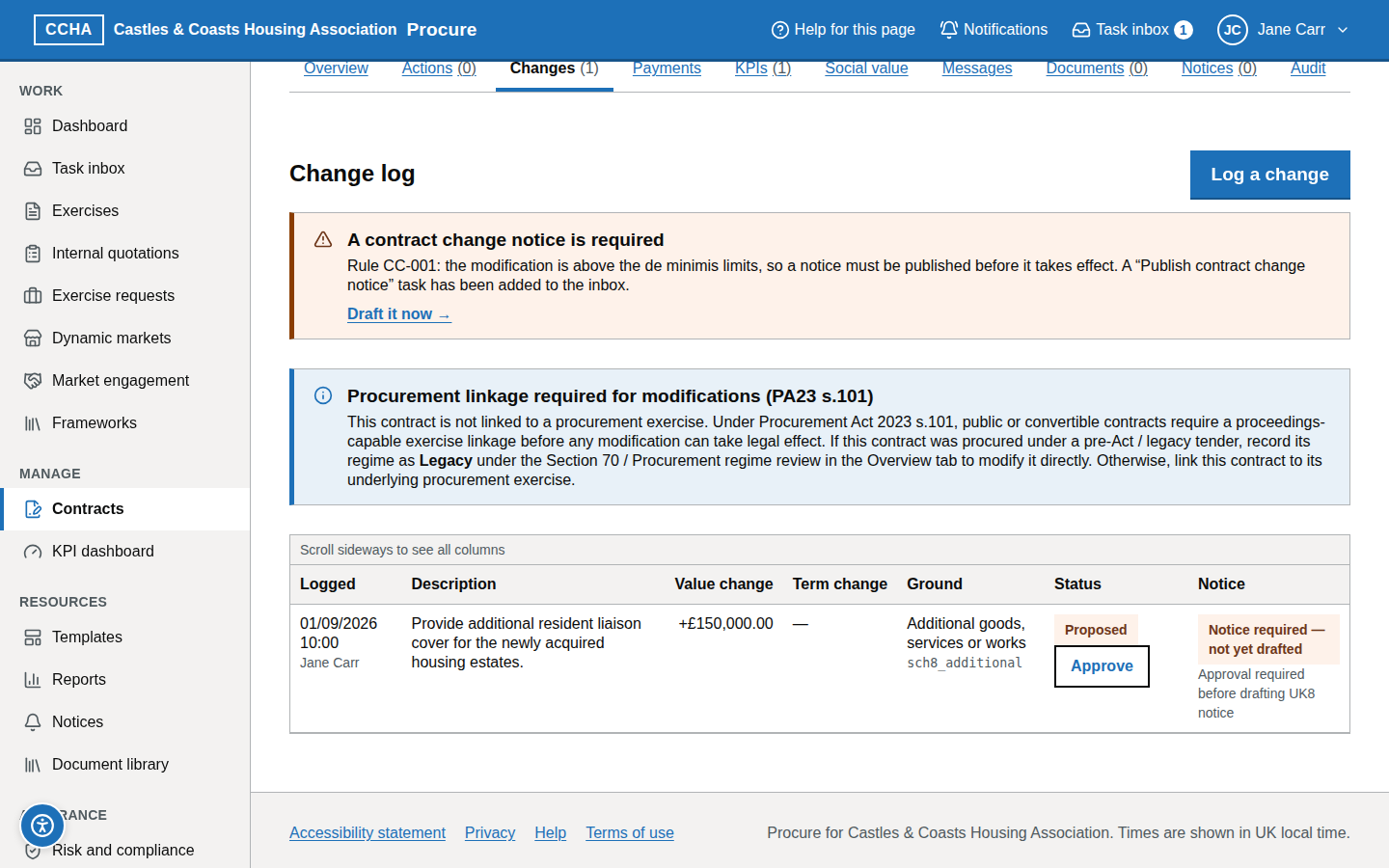
- Choose Log change. You do not decide whether a notice is needed: the service works it out from the rule pack and tells you — "A contract change notice is required" (above the de minimis limits of 10 %, or 15 % for works, with a "Publish contract change notice" task added to the inbox and a Draft it now link) or "No contract change notice is required". For a transfer it adds "If it is approved and takes effect, the contract passes to <supplier>."
What you should see
The change with its ground and, where required, the linked notice and its status.
Common problems
- Notice invalid: "State the permitted-modification ground (Schedule 8 or s.74) relied on" (CC-002). Choose the ground on the change (the D54 list: provided for, urgency, unforeseeable circumstances, materialisation of a known risk, additional goods/services/works, transfer, below-threshold or not substantial) and validate again.
- Below de minimis but material. You can still publish a notice; record the reason.
- "The increase is more than 50% of the contract value". On a public contract the unforeseeable-circumstances, known-risk and additional-supply grounds allow an increase of up to 50% of the value before the change (Schedule 8 paragraphs 4, 5 and 8). The message shows the contract value, the largest increase allowed and your figure in pounds. Reduce the increase or log the change on the ground that applies.
- "The value change is over the below-threshold limit" or "Below-threshold modifications together would reach the threshold". A below-threshold modification may change the value by up to 10% (15% for works) either way, and all such changes together must stay under the threshold for the contract type (section 74(4)). Use a Schedule 8 ground instead where one applies.
- "The term change is more than 10% of the maximum term on award". The not-substantial ground allows a term change of up to 10% of the term on award including every extension option (section 74(3)(a)). If the term on award is not recorded, the ground cannot be used for a change of term.
- Transfer to another supplier. Choose Transfer on corporate restructuring and pick the Supplier taking over the contract. No other ground may change the supplier (section 74(9)), and the contract cannot pass to an excluded supplier — one on the debarment list on a mandatory ground, or recorded as excluded in an exclusion assessment (Schedule 8 paragraph 9; section 57(1)).
- "Defence authority contract" is not in the list. The association is not a defence authority, so that ground is not available. Earlier entries that used it still show their label but cannot be approved; log a new change on the ground that applies.
Approve a change
A logged change is a proposal: it does not alter the contract. Procurement, a senior user or a system administrator approves it from Changes → Approve.
- Check the summary of the change, its ground and the limit that applies.
- Under Conditions of the ground, tick each statutory condition that is true for this change. The wording is the Act's. They are required for a public contract, or one the change turns into a public contract; a light touch contract needs none (section 74(2)). If a condition is not met, the ground does not apply — do not approve on it.
- For a transfer logged without a supplier, choose the Supplier taking over the contract.
- Give the Justification and evidence (at least 20 characters, with document references), tick the approval confirmation and select Approve modification.
The limits are tested again at approval, so a proposal logged earlier can be refused with the same messages as above. After approval the change shows Approved with an Approval record: the figures tested, the conditions confirmed, who approved and when.
After approval: verify the notice, record an exception, bring into effect
Approval still does not alter the contract. On the Changes tab (/b/contracts/<id>?tab=changes) each approved modification says what it needs next, and procurement, a senior user or a system administrator takes the step from its row.
- Where a notice is due the row says "Next: publish the contract change notice, then verify it here." with Draft the notice (or Open the notice). Give the dates of the modification on the notice, check it and publish it (procurement guide, Compile, validate and publish a notice).
- Verify the notice. Once the notice is published the row says "Next: verify the published notice." Choose Verify the notice, check the summary — modification, ground, value change, term change, any supplier taking over the contract, and the notice with its publication date — and choose Verify the published notice. The published notice is checked against the approved modification; nothing is taken on your word.
- Record a notice exception. Where no notice is due the row says "Next: no notice is due, so record the exception that says why." Choose Record a notice exception (it is also offered while a notice is still to be published, for the case where an exception applies instead), pick under Which exception applies? the one that is true of this contract and this modification — for example "Not a public contract, and the modification does not make it one", "Within the limits that need no notice" or "Light touch contract" — and give the Justification (at least 20 characters: why it applies, with evidence references, and how any linked modifications were considered). A suggestion may be offered from what is recorded; choose it only if it is right. Choose Record exception. The service checks the exception against the contract and the modification and decides whether it applies.
- Bring into effect. The row now says "Ready to be brought into effect. The contract has not changed yet." When the modification is to apply, choose Bring into effect, read What happens when the modification takes effect and confirm. The contract's value and end date are updated at once and the change is written to the audit record. It cannot be undone from this screen. If the notice states a voluntary standstill, the modification cannot take effect before it ends.
- A transfer changes the contract's supplier when it takes effect. The dialog is headed "This changes the contract's supplier from <current> to <new>" and you must tick I understand that the contract's supplier will change to <new> when this takes effect. The new supplier is checked again at that moment: the transfer is refused if it is an excluded supplier or is suspended (Schedule 8 paragraph 9; section 57(1)).
Afterwards the row reads "In effect since DD/MM/YYYY." and, for a transfer, "The contract passed from <previous supplier>."
- "No published notice is linked to this modification yet". Publish the contract change notice first, then verify.
- "The last step did not finish". The modification may already have been applied to the contract, but moving the supplier's access did not finish. Choose Bring into effect again: it is never applied twice, and the unfinished step is completed.
- "The supplier taking over the contract is suspended". The contract cannot pass to a suspended supplier. If the suspension no longer applies it is lifted on the supplier's record, then bring the modification into effect again; otherwise the transfer cannot be made.
Record and publish section 70 payments
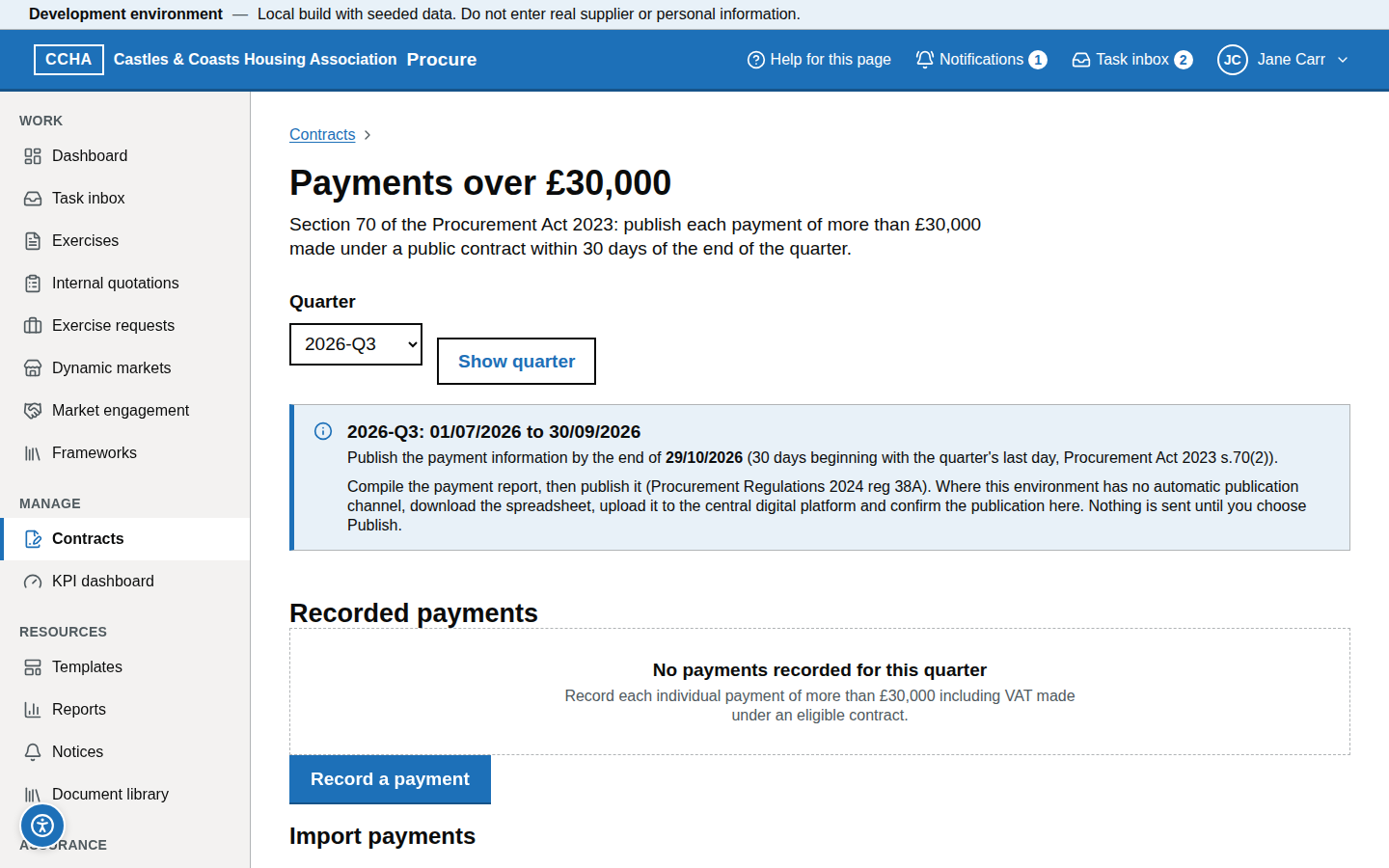
Each payment of more than £30,000 including VAT made under a public contract must be published within 30 days of the end of the quarter in which it was made (Procurement Act 2023, section 70). Contracts → Payments over £30,000 (/b/contracts/payments?quarter=YYYY-Qn) is where the payments are recorded and each quarter's report is published. The tasks Section 70 payments to record and Section 70 payments to publish open it at the right quarter.
Steps
- Choose the Quarter and Show quarter. The page shows the quarter's dates and the day by the end of which the payment information must be published.
- Record payments one at a time with Record a payment (contract, the finance system's payment reference, the amounts including and excluding VAT, the date paid), or in bulk with Import payments.
- Import payments. Choose Download the CSV template; the columns are
contract_ref,payment_reference,paid_on,gross,netandinvoice_references. Dates areYYYY-MM-DD; amounts are pounds with at most two decimal places (grossincludes VAT,netexcludes it); several invoice references are separated by a semicolon; at most 2,000 rows, saved as UTF-8. Choose the file and then Check file — nothing is stored by the check. - Read the result. Problems in the file lists each problem by row and column, with Download the list of problems; if any row is refused nothing is imported. When "The file passed the check — nothing has been stored yet" appears, choose Import payments.
- Read the summary, for example "12 payments recorded, 3 already recorded with the same figures (unchanged), 4 rows skipped at £30,000 or less." Rows skipped lists the rows of £30,000 or less including VAT: they are not published, so they are not recorded. Importing the same file twice changes nothing.
- Once the quarter has ended, choose Compile payment report, resolve anything listed under Resolve before publishing, then choose Publish on the report and Publish payment report. Once published a report cannot be changed; later payments go into a new revision.
- After the deadline you must give the Reason for late publication (no personal data); it is kept with the report, which is marked Published late.
What you should see
"Payment report YYYY-Qn revision N published", and on the report the Channel, the Publication reference and, where there is one, View the published payment information (opens in a new tab).
Common problems
- "Upload this report by hand". This environment has no automatic publication channel. Choose Download CSV, upload the file to the central digital platform, then choose Confirm a manual upload and record the date it was published and the central digital platform reference.
- "The report was not published". The publication channel failed and nothing was recorded. Choose Publish again; it is safe to repeat.
- A row is refused. Correct the file and check it again; a corrected file is treated as a new import.
- A payment is missing from the report. It was £30,000 or less including VAT, or its contract is not recorded as eligible for section 70.
- I completed the task but the duty is still shown. Completing or dismissing a section 70 task discharges nothing; only recording and publishing does.
Record KPI readings
Steps
- Open the contract → KPIs and choose Record reading on the KPI's card.
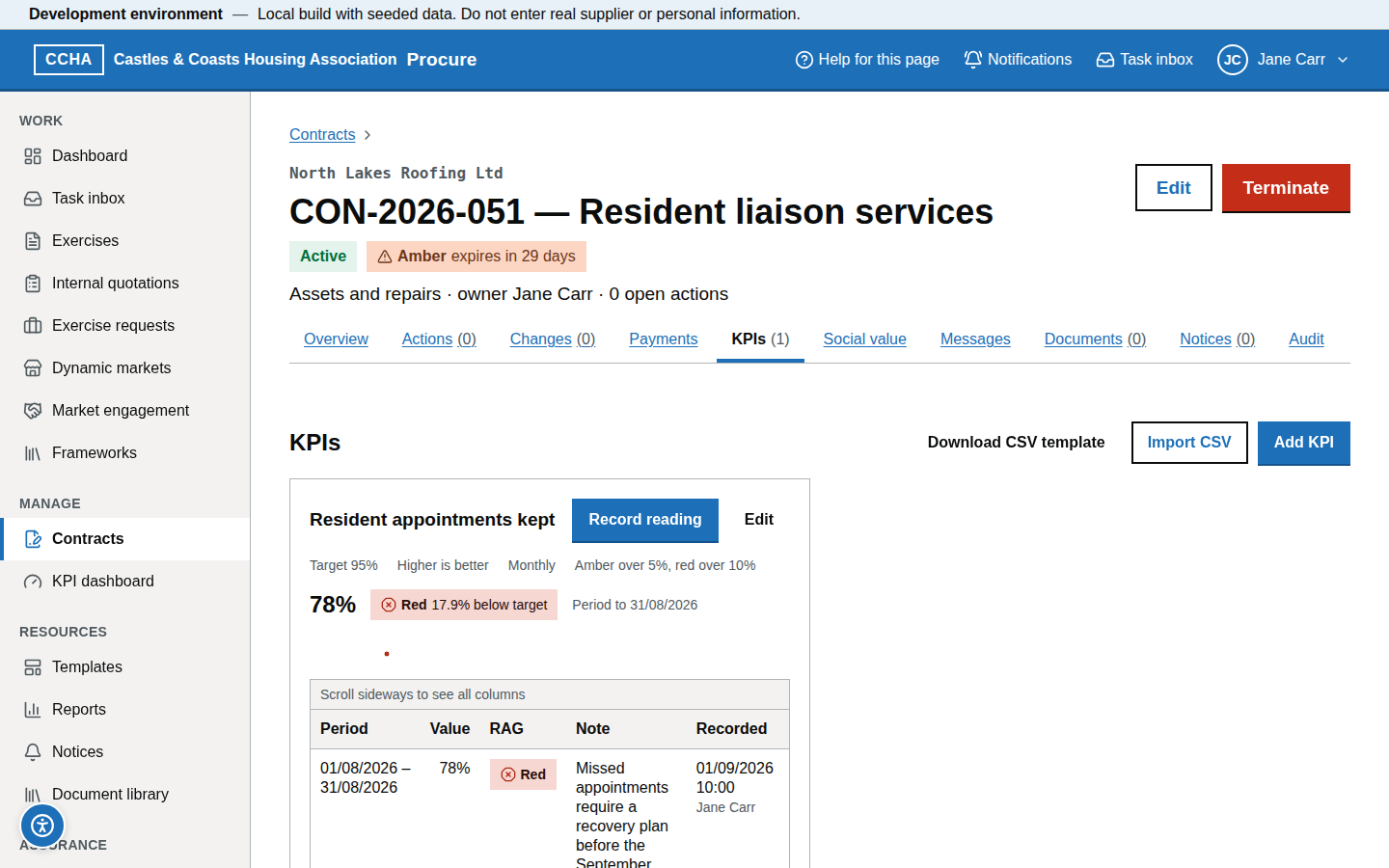
- Enter the period start and end dates and the value for the period that has just closed. The expected RAG is shown as you type. Add a note if the reading needs context.
- Choose Record reading. The RAG is calculated from the KPI's amber and red tolerances; a red reading raises a "KPI breached" task for the contract owner and the contract's managers.
What you should see
The reading on the sparkline and in the readings table with its RAG.
Common problems
- KPI not listed. Someone who manages the contract can choose Add KPI, optionally starting from the KPI library, or ask the contract owner.
- The note is refused. Notes are up to 2,000 characters and cannot start with =, +, - or @.
Import KPI readings from CSV
Steps
- Open the contract → KPIs and choose Download CSV template. The columns are
kpi,period_start,period_end,valueandnote. - Fill it in, choose Import CSV, then choose the file or paste its contents.
- Choose Check the file. Problems are listed by file line and column; when there are none, choose Import to record the readings. The import writes every row or none.
What you should see
The number of valid readings on the import button, then the readings on each KPI card.
Common problems
- Date format. Use
dd/mm/yyyyoryyyy-mm-ddfor the period dates. - Unknown KPI. The
kpicolumn must match the name of an active KPI on the contract.
Respond to a KPI breach
Steps
- Open the task "KPI breached: <contract reference>"; it opens the contract's KPIs tab.
- Record the discussion with the supplier and the improvement action as a contract action with a due date.
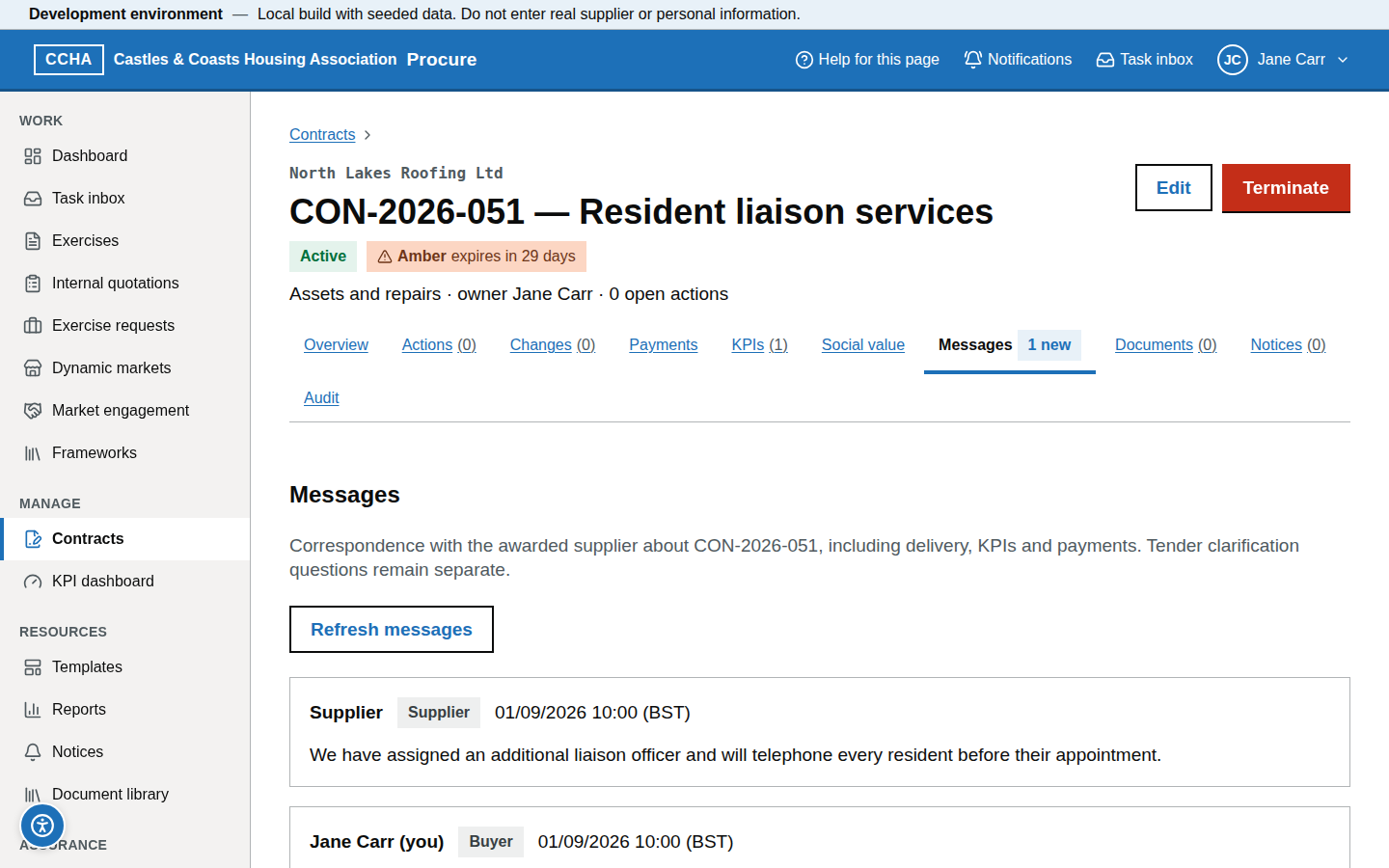
- Whatever the contract's value, a red reading also raises a contract performance notice task, normally in the procurement team's inbox ("Contract performance notice due"). A red reading starts a review; it is not on its own a finding that the notice is required. Where it is required, the procurement team compiles and publishes the contract performance notice from the contract's Notices tab.
What you should see
The red reading in the KPI's readings table, the improvement action on the Actions tab and, in the procurement team's inbox, the contract performance notice task.
Common problems
- The reading was an error. A period can be recorded only once, so record the correction as a new reading with a note that explains it. The breach task does not close by itself: choose Mark done in your inbox once the correction is recorded.
- No notice task. The contract performance notice task normally goes to the procurement team, not to you; ask them whether a notice is required.
Exercise an extension
Steps
- Open the contract's Overview tab and, under Extension options, choose Exercise option N beside the available option. The button is offered only while the contract is active or expiring.
- Check the New end date (suggested: the current end date plus the option's months). The extension is proposed as a change on the ground Provided for in the contract (Schedule 8 paragraph 1).
- Choose Propose extension. The end date changes only once the change is approved by procurement, a senior user or a system administrator, a contract change notice is published or an exception recorded, and it is brought into effect on the Changes tab (see Log a change and its notice). The RAG and expiry alerts then recalculate.
What you should see
"Extension option N proposed on <contract>", with a link to the Changes tab and whether a contract change notice is required. The new end date appears on the contract once the change is in effect.
Common problems
- No option available. Extending without a provision is a modification — log a change with a ground and notice.
- Extension after expiry. Not possible; a new award is needed.
- The option still shows as available after the extension. The governed change does not yet record which option it used, so the option is still listed. Do not propose it a second time.
Terminate a contract
Steps
- Termination is for procurement, a senior user or a system administrator; as contract manager, ask one of them. They open the contract → Terminate, enter the Termination date, choose the Ground and give the Reason (at least 10 characters; it is kept in the contract notes, never in a notice). The Procurement Act s.78 grounds also ask for the s.78 record.
- Choose Terminate contract. The contract becomes Terminated at once, its end date becomes the termination date, open actions are cancelled and the RAG is cleared. For an above-threshold contract a "Contract termination notice due" task is raised: the notice falls due within 30 days.
- The procurement team compiles and publishes the contract termination notice from the contract's Notices tab.
What you should see
"<contract> terminated — Open actions were cancelled. The contract no longer carries a RAG."; status Terminated, with the reason in the contract notes; then the termination notice published.
Common problems
- Termination in the future. The status changes as soon as termination is confirmed, whatever date is entered, so terminate on or after the date the contract actually ends.
- Wrong reason recorded. A terminated contract can no longer be edited, and the termination itself is final.
- There is no Terminate button. Your role cannot terminate; ask procurement, a senior user or a system administrator.
Contract reports
Steps
- Reports → Report library → a contract report: Contract summary, All contracts — register, Contract expiry exposure or KPI status.
- Choose Run, set the parameters and the Format (CSV, Excel (XLSX) or PDF), then Run report and download the file.
- Choose Schedule to run the register monthly if your team reviews it regularly.
What you should see
The run under My runs with its status and download.
Common problems
- Missing contracts. Check the Department, Status and RAG parameters.
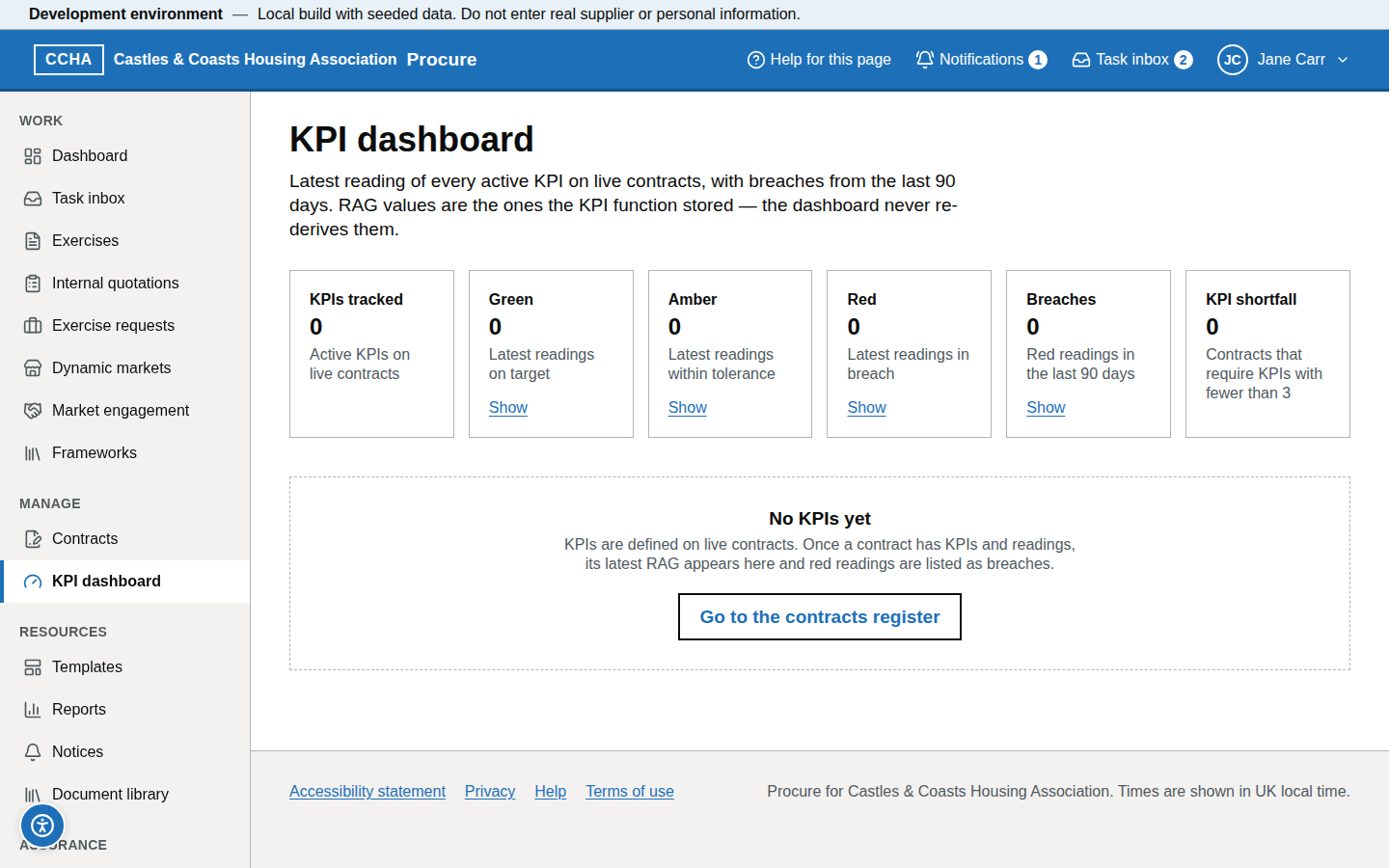
- KPI trends. KPI status gives the latest reading and RAG of each active KPI; for a KPI's history use the sparkline and readings table on the contract's KPIs tab.
- "No reports are available for your role". Reports are limited by team; ask the procurement team if you need one for your department.
Getting help (help panel, knowledge base, helpdesk hours)
The ? button (Help for this page) in the header opens the help panel with the article for that screen and, where one is planned, a Watch the video guide for this page link (the videos are not yet recorded; the link says so). From the panel you can open the full guidance or search the help by title and heading. Take a guided tour, in the same panel (or Guided tours in your account menu), walks you through a task step by step and follows you from page to page (Take a guided tour). Support contact details and hours are on the Help page (/help#contact in Geckr Procure).
Glossary links
Glossary: RAG · action · contract change notice · de minimis · KPI notice · payments compliance notice · contract termination notice · extension option.