Senior user guide
Castles & Coasts Housing Association (CCHA) — Buyer & Platform Documentation Audience: CCHA staff | Platform: Geckr Procure
Who this is for
Directors and heads of service in the senior team: you approve exercises, moderate evaluations (as the assigned moderator or, without a conflict of interest, on any exercise), approve award recommendations after the contract award notice, and can abandon an exercise. You also see organisation-wide reports. Helen Graham (Director of Assets) is the senior persona in the demo tenant.
Before you start (sign-in, MFA/magic link, browser)
- Sign in with your CCHA email address and password (SSO once connected). Senior accounts require MFA: enrol your authenticator on first sign-in at
/auth/mfa/enrol. - A current browser at 100–125 % zoom; the moderation grid is best on a laptop or larger tablet.
- You see every exercise and contract in the organisation. As a senior user you can moderate any exercise unless you have declared a conflict of interest on it or been excluded from it; the Moderate task goes only to its assigned moderators.
Your dashboard and task inbox
Your task inbox (/b/tasks) shows "Moderate CCHA-YYYY-NNNN" tasks (where you are an assigned moderator) and "Approve award CCHA-YYYY-NNNN" tasks. An exercise waiting for approval is not sent as a task; approve it from the exercise's Review and approve step. The dashboard starts with Awaiting your approval (your "Approve award" and "Moderate" tasks), then My tasks, Deadlines in the next 14 days, Exercise pipeline, Notices due, Expiring contracts, KPI breaches (last 90 days) and Pipeline value.
Review scores in moderation
Steps
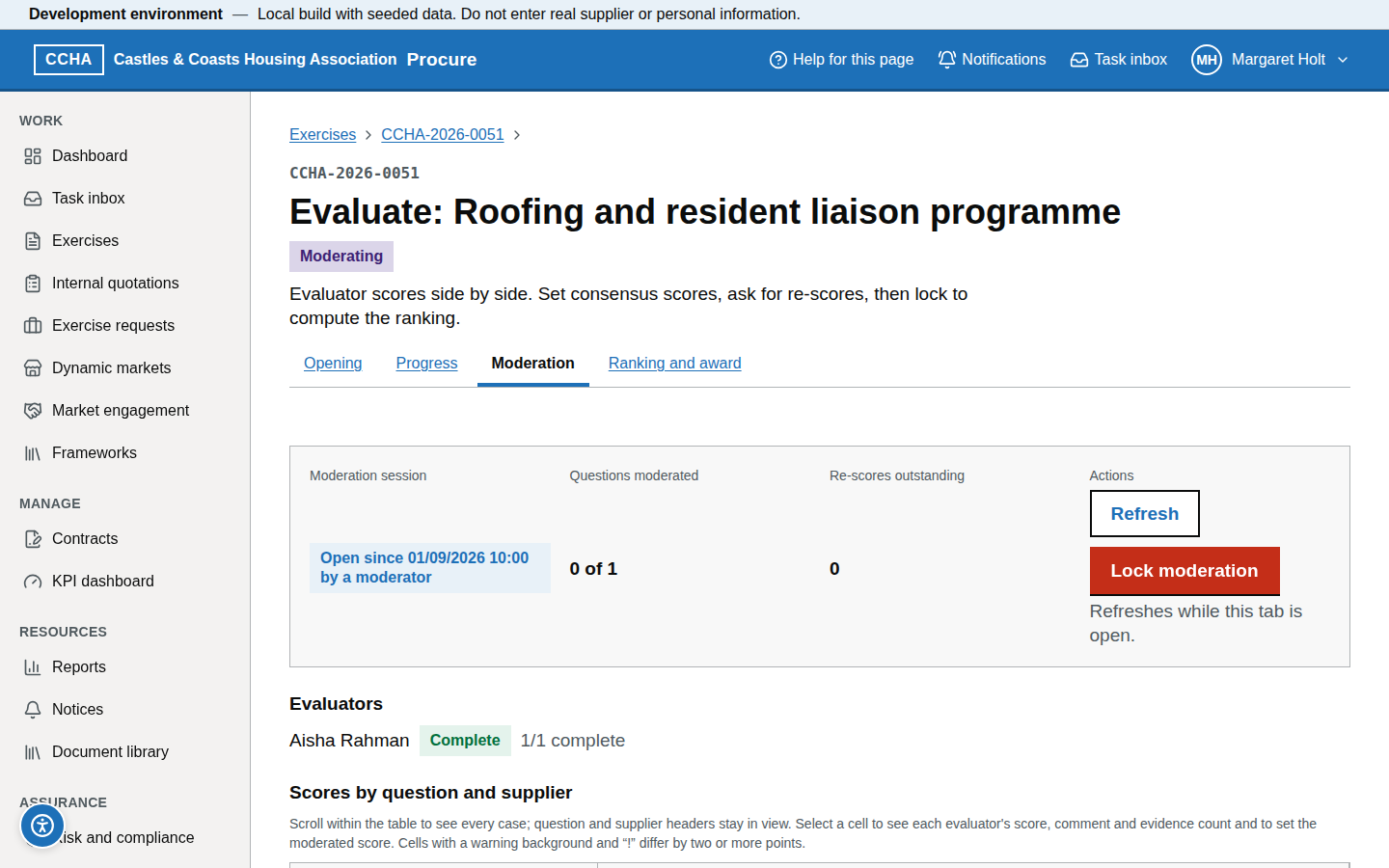
- Open the task "Moderate CCHA-YYYY-NNNN", or the exercise's evaluation page → Moderation tab (the session opens automatically when the exercise reaches Moderating; if it shows "Moderation has not been opened", choose Open moderation).
- The Moderation matrix shows questions (rows) against tenders (columns, by supplier and case code), with each evaluator's score; a variance of 2 or more between evaluators is marked High variance.
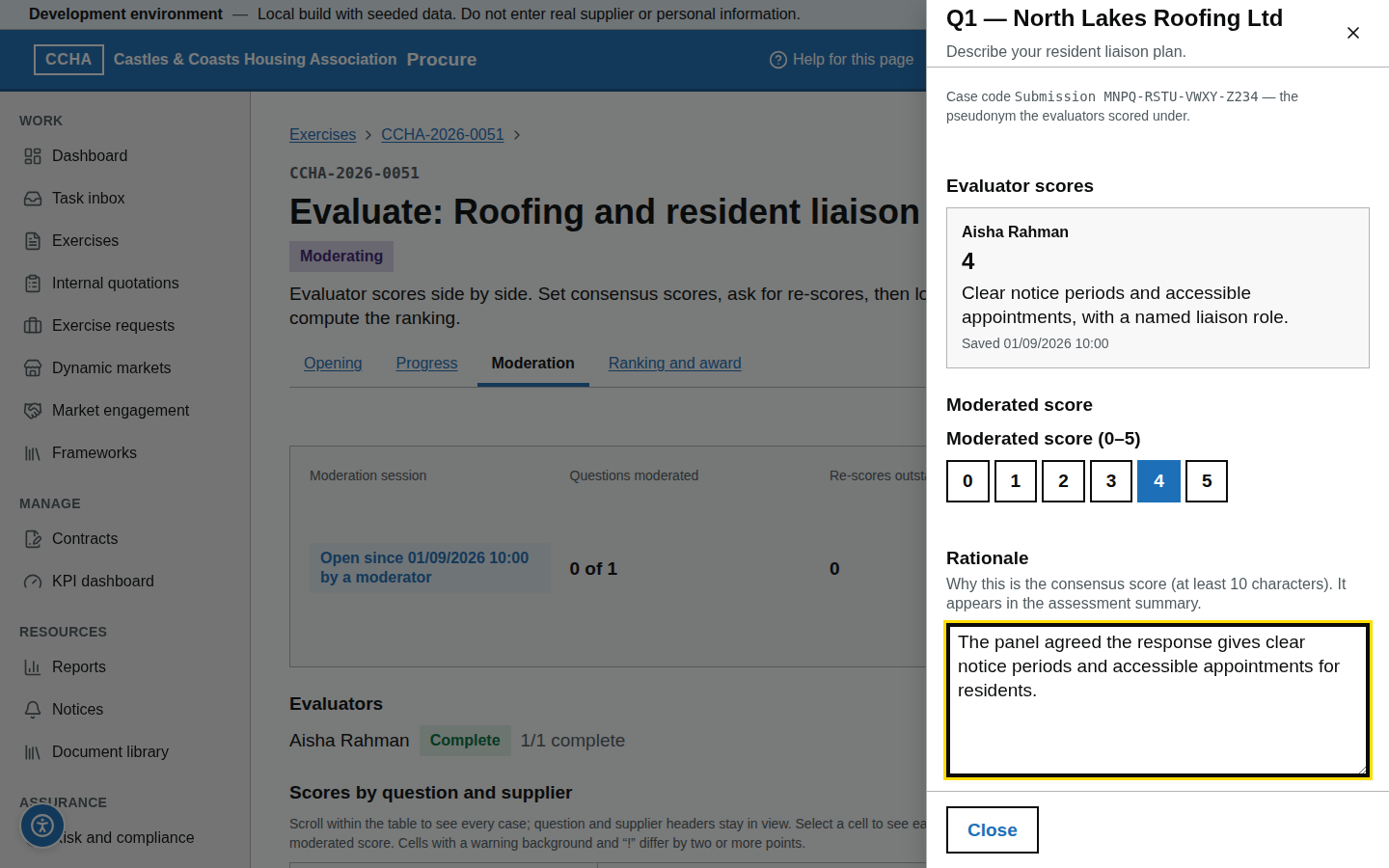
- Open a cell to see each evaluator's score, comment and the number of pieces of evidence cited, side by side.
What you should see
The moderation grid with highlighted variances (in the demo: Q2.3 Westmorland 4 vs 2; Q2.1 Solway 3 vs 5).
Common problems
- No moderation controls. The exercise is not yet at Moderating, or moderation is locked. If you have declared a conflict of interest on the exercise, or been excluded from it, your moderation is refused.
- An evaluator is not complete. The procurement team or a senior user can force the move to moderation with a reason; incomplete cells are marked.
Request a re-score
Steps
- In the cell, choose Request re-score, pick the evaluators under Evaluators to ask (it starts with those farthest from the median) and give a Reason that points at the evidence, then choose Request re-score.
- Each evaluator receives a task (re-scoring blind: it never names the supplier); the cell is flagged until they re-score.
- There is no withdraw button: if the request is no longer needed, save a moderated score on the cell, which clears it and closes the evaluators' tasks. The lock is refused while a request is pending.
What you should see
"Re-score requested", and the cell flagged "Re-score pending (N)".
Common problems
- The evaluator is away. Set a moderated score with a rationale; that clears the request.
- Lock refused. A re-score request is still pending.
Set a moderated score
Steps
- In the cell, choose the moderated (consensus) score, give a Rationale that says how it was reached (at least 10 characters; it appears in the assessment summary) and choose Save moderated score.
- Repeat for every variance you resolve; cells without a moderated score take the evaluators' average only if you tick "Accept the average…" when you lock.
- The individual scores remain in the audit; the moderated score is what the ranking uses.
What you should see
"Moderated: <score>" in the cell beside the evaluators' scores; the rationale is shown when you open the cell.
Common problems
- Rationale required. A moderated score cannot be saved without one.
- Pass/fail questions. Set the moderated pass/fail with a rationale in the same way.
Lock moderation
Steps
- When every variance is resolved, choose Lock moderation. Tick "Accept the average evaluator score for every unmoderated question" (required when any question has no moderated score) and add closing notes.
- Choose Lock moderation in the dialog. Locking computes the ranking automatically (quality, price score, total, gates, abnormally-low flags) and moves the exercise to Award recommended; the lead then records the award recommendation.
- After the lock nothing in the scores can change.
What you should see
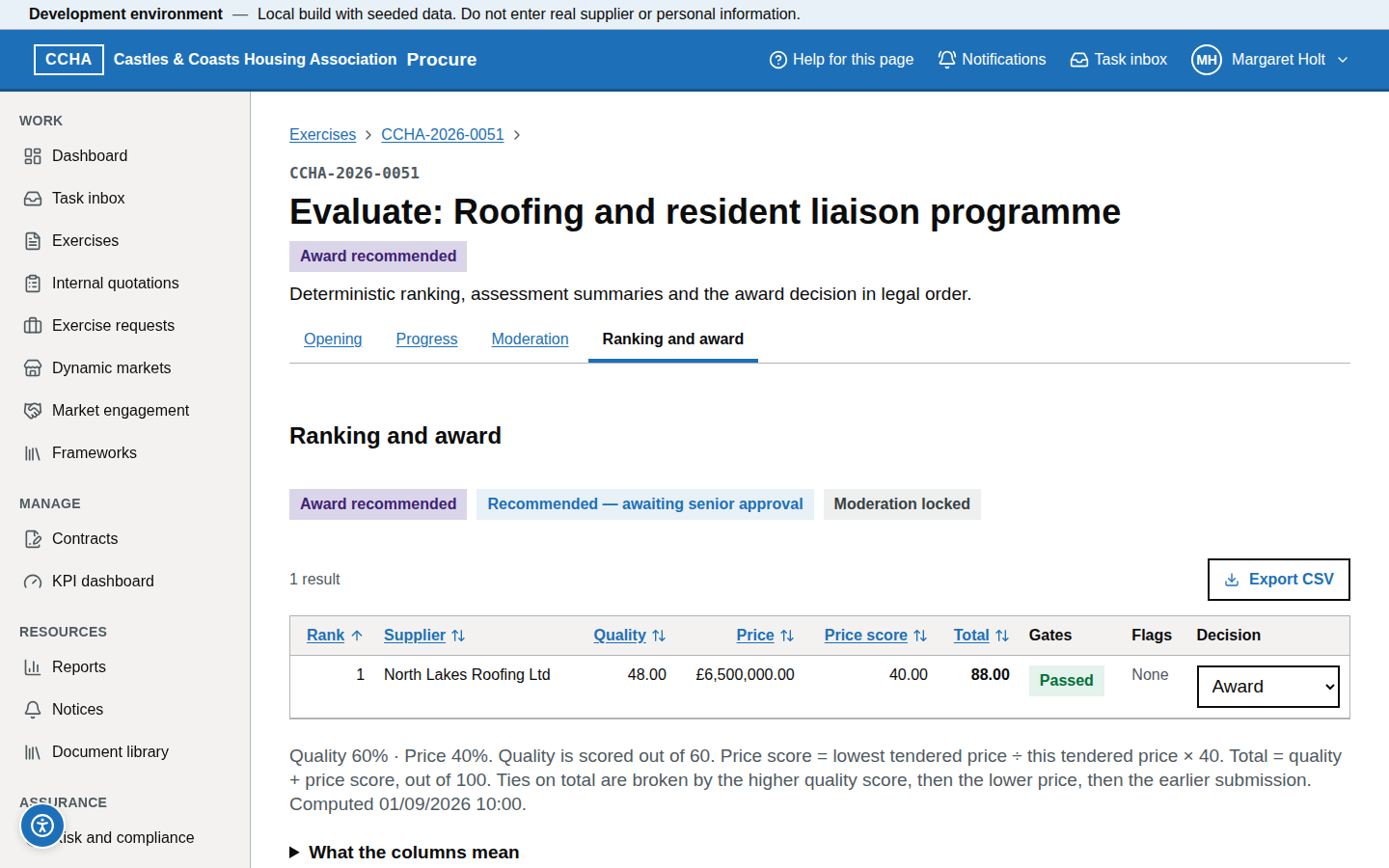
Moderation locked; the Ranking and award tab populated.
Common problems
- Lock refused. A re-score is still outstanding (save a moderated score on that question, which clears the request), an evaluator has not completed, or the "Accept the average…" box is not ticked.
- An error found after locking. The exercise can be abandoned and re-issued; the lock itself is final.
Approve an award recommendation
Steps
- Open the task "Approve award CCHA-YYYY-NNNN" (the line below names the exercise). The Ranking and award tab shows the recommended supplier(s), the ranking, and whether the assessment summaries and the contract award notice are done.
- Approve award is available only once an award is recommended, an assessment summary has been generated for every supplier and, above the threshold, the contract award notice is published; until then the reasons are shown.
- Choose Approve award and confirm. The exercise moves to Standstill with the end date set from the notice's publication date. Below the threshold there is no standstill: approval awards the contract.
What you should see
The approval recorded with your name; on the overview "Standstill ends DD/MM/YYYY 23:59 — N working days remaining".
Common problems
- Approve disabled: "Publish the contract award notice first". Ask the procurement lead to publish it.
- I disagree with the recommendation. There is no decline button. Tell the lead, who can choose Change recommendation on the Ranking and award tab before you approve; you are then asked to approve the new recommendation.
- "A higher-ranked tender has no section 19 ground". Above the threshold a contract may be awarded only to the most advantageous tender. Ask the lead to record the award recommendation again, stating the section 19 ground for each higher-ranked tender that is not awarded; the stored ground and reasons are shown beside each rejected tender.
- A treaty state determination is waiting for you. Under Treaty state determinations on the Ranking and award tab, read the status, the agreement or basis and the reasons, then choose Approve. A determination has no effect until a senior officer approves it, and you cannot approve one you recorded yourself — "A different senior officer must approve this determination".
- Lock refused: "Record an exclusion assessment for every tenderer before the tenders are ranked". The procurement team must record an exclusion assessment for each tenderer listed (sections 26 and 28). Nothing has been locked; lock again once they are recorded. On the evaluation page, Statutory checks on tenders → Exclusion grounds keeps the list: "Exclusion grounds not considered for N tenders" names each tender by its evaluation case reference (tenderers are not identified there), and "Exclusion grounds have been considered for every tender" means nothing there stops the ranking.
- A reserved procedure: who is still to verify? The Eligibility table lists each tender with its status. While the evaluation is blind a tender is shown by its evaluation case label only, with the upload questions its evidence comes from and the number of files; the facts recorded and any reasons are not shown. Only the procurement team can record or change a verification.
Approve an exercise
Steps
- Open the exercise's step 14 Review and approve (the wizard has 15 steps; the number is lower where the exercise has no lots or is a call-off from a framework). Every step shows ✓, ! (warning) or ✕; any step that still blocks approval is listed at the top. The Notice content card may show warnings: they list what the exercise's notice would still be refused for, and do not block approval.
- Choose Approve (
draft → approved) when nothing blocks; until then it is unavailable and "Fix the N steps listed above to approve" is shown. There is no send-back button: tell the lead what to put right.
What you should see
The status moving to Approved.
Common problems
- Steps still block approval. Approval is refused until every listed step is complete; each has a Fix link for the lead.
- Changes after approval. There is no return to draft: once approved, the configuration is read-only apart from documents, invitations and evaluators (and the notice content).
- The first call-off under a framework. An exercise with the procedure Call-off from a framework must be approved by a senior user the first time each framework is used. Check the framework panel on the exercise overview: the framework, the lot, how the contract is to be awarded and, for an award without competition, the explanation of why section 45(4) of the Procurement Act 2023 applies.
- Award without competition under a framework. Where the approved call-off's route is award without competition, Award without competition on the exercise overview is yours to use: it records the award to the supplier named in the call-off record, with your reason (at least 20 characters). No tender notice is published for a call-off; the contract award notice, any standstill and the contract follow as usual.
- Correcting the published explanation of an award without competition. If a contract details notice fails rule CD-012, open the notice from Notices: under the notice form, Explanation of the award without competition lets you correct the section 45(4) explanation (at least 50 characters) with a reason (at least 10 characters) that is kept in the audit trail. Nothing else about the award changes. Choose Correct explanation and recompile: every draft notice that states the explanation is compiled again from the records, which replaces any unsaved edits to it and returns it to draft, so the procurement team checks compliance and publishes it. The result lists the draft notices that were recompiled and now carry the recorded explanation, any that still carry the earlier text (use Try the recompile again, or ask the procurement team to choose Recompile from source), and the notices that have already been published and stay as published.
- Terminating a framework that still has call-offs in progress. On Frameworks, only a senior user can tick Terminate even if call-offs are still in progress. Those call-offs can then no longer be awarded.
Abandon an exercise
Steps
- On the exercise overview choose Abandon exercise and give the Reason for abandoning (required; it is recorded on the exercise and stated in the procurement termination notice).
- Tick "The authority has decided not to award this contract" and choose Abandon exercise. Suppliers are told the exercise has been abandoned; if a tender or transparency notice has been published, a procurement termination notice becomes due.
- The exercise is retained for the audit and the retention period.
What you should see
Status Abandoned with the reason on the overview.
Common problems
- Cannot abandon after award. Contract termination applies instead.
- Reason refused. The reason cannot be blank and is at most 2,000 characters. It is stated in the procurement termination notice, so write it for publication.
- Only one lot is not going ahead. Do not abandon the exercise. On the exercise overview, under Lots, choose Cease this lot and give the reason (at least 20 characters; it is kept on the lot and in the audit log, and is not published or sent to suppliers). This is available to senior users and system administrators from publication until the award is decided. The other lots continue; suppliers who tendered or were invited are told the lot will not be awarded; the contract award notice lists it as a ceased lot. It cannot be undone.
- "This is the last active lot". Ceasing the last lot would end the whole procurement, so abandon the exercise instead; that publishes the procurement termination notice.
- "An award is recommended in this lot". Ask procurement to replace the award recommendation so that no tender is awarded in the lot, then cease it.
Record exceptional circumstances for a Dynamic Market call-off
Before a call-off under a Dynamic Market is opened, every application to join the market made before the tender deadline must be decided (Procurement Act 2023, section 34(4)). The only exception is where exceptional circumstances arising from the complexity of the particular procurement made it impossible to consider an application in time (section 34(5)). Recording that exception is reserved to senior officers.
Steps
- Open the Dynamic Market → Call-offs tab. A call-off that has not been opened shows how many applications are undecided.
- Choose Record exceptional circumstances (section 34(5)) beside the call-off and describe the circumstances (at least 20 characters).
- If you are asked while the tender is being opened, the same form is on the exercise's Opening tab, in the section Applications to join the dynamic market. While an application is undecided that section is headed "N applications to join the market must be decided before opening" and sets out the two ways forward — the procurement team decides each application, or you record exceptional circumstances — and confirming the opening is not available until one of them is done.
What you should see
"Exceptional circumstances recorded", and the record beside the call-off with its date. The Opening tab then shows "Exceptional circumstances are recorded for the market applications" with your name, the time and the reason. The procurement team can then confirm the opening. The applications still have to be decided.
Common problems
- Workload or timing alone. The exception is for complexity of the particular procurement. If the applications can simply be decided, ask the procurement team to decide them instead.
- "The tenders of this call-off have already been opened". The record can be made only before opening.
Org-wide reports
Steps
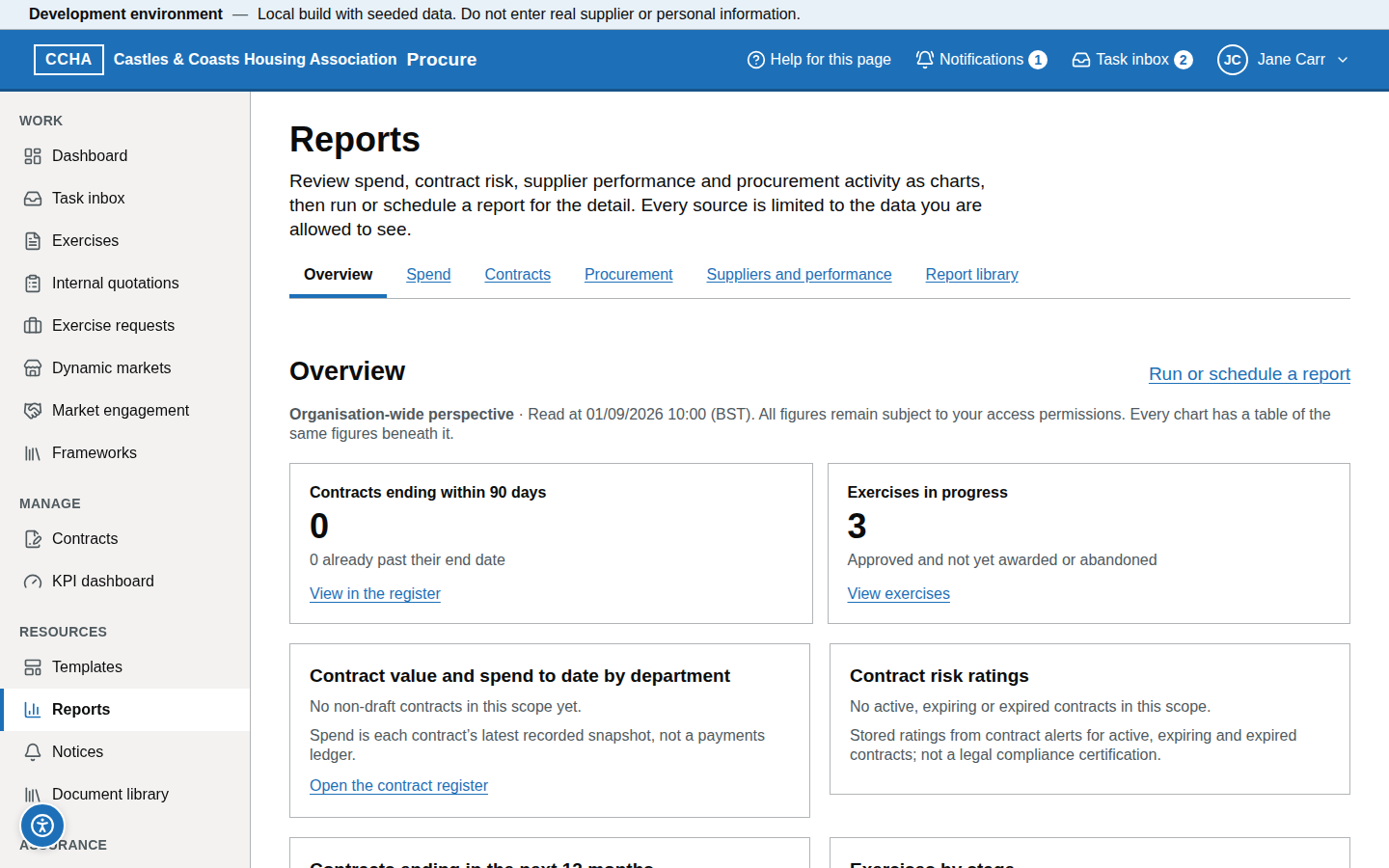
- Reports → Report library → any definition, without a department restriction.
- Choose Run, or Schedule to run it daily, weekly or monthly at 07:00 (Europe/London). You can keep up to 10 schedules, and the organisation up to 200; you can have one report running at a time.
- Choose the Format (CSV, Excel (XLSX) or PDF) in the same dialog, then download the file.
What you should see
Runs listed under My runs with status and downloads; schedules under Schedules.
Common problems
- A PDF report is refused as too large. Narrow the date range, or choose CSV or XLSX.
- A schedule is refused. You already have 10 schedules (or the organisation has 200): delete one under Schedules first.
- Need a new report. Ask for a definition to be added.
Getting help (help panel, knowledge base, helpdesk hours)
The ? button (Help for this page) in the header opens the help panel with the article for that screen and, where one is planned, a Watch the video guide for this page link (the videos are not yet recorded; the link says so). From the panel you can open the full guidance or search the help by title and heading. Take a guided tour, in the same panel (or Guided tours in your account menu), walks you through a task step by step and follows you from page to page (Take a guided tour). Support contact details and hours are on the Help page (/help#contact in Geckr Procure).
Glossary links
Glossary: moderation · moderated score · variance · standstill · award recommendation · assessment summary · abandon.