Procurement team guide
Castles & Coasts Housing Association (CCHA) — Buyer & Platform Documentation Audience: CCHA staff | Platform: Geckr Procure
Who this is for
Members of the procurement team at CCHA: you create and publish exercises, run clarifications and openings, coordinate evaluation, publish PA23 notices, manage standstill and create contracts from awards. Senior users approve; evaluators score; you run the process. Jane Armstrong and Mark Dixon are the procurement personas in the demo tenant.
Before you start (sign-in, MFA/magic link, browser)
- Open the buyer sign-in page and enter your CCHA email address and password, then the code from your authenticator app.
- Procurement accounts require MFA. On first sign-in you are taken to
/auth/mfa/enrol: scan the QR code with your authenticator app and enter the six-digit code. Keep the recovery codes somewhere safe. - Use a current Chrome, Edge, Firefox or Safari at 100–125 % zoom. The product works to 360 px wide and with the keyboard alone (see Accessibility).
- You are signed out after 30 minutes without activity. What you have saved is kept, so sign in again and carry on.
Your dashboard and task inbox
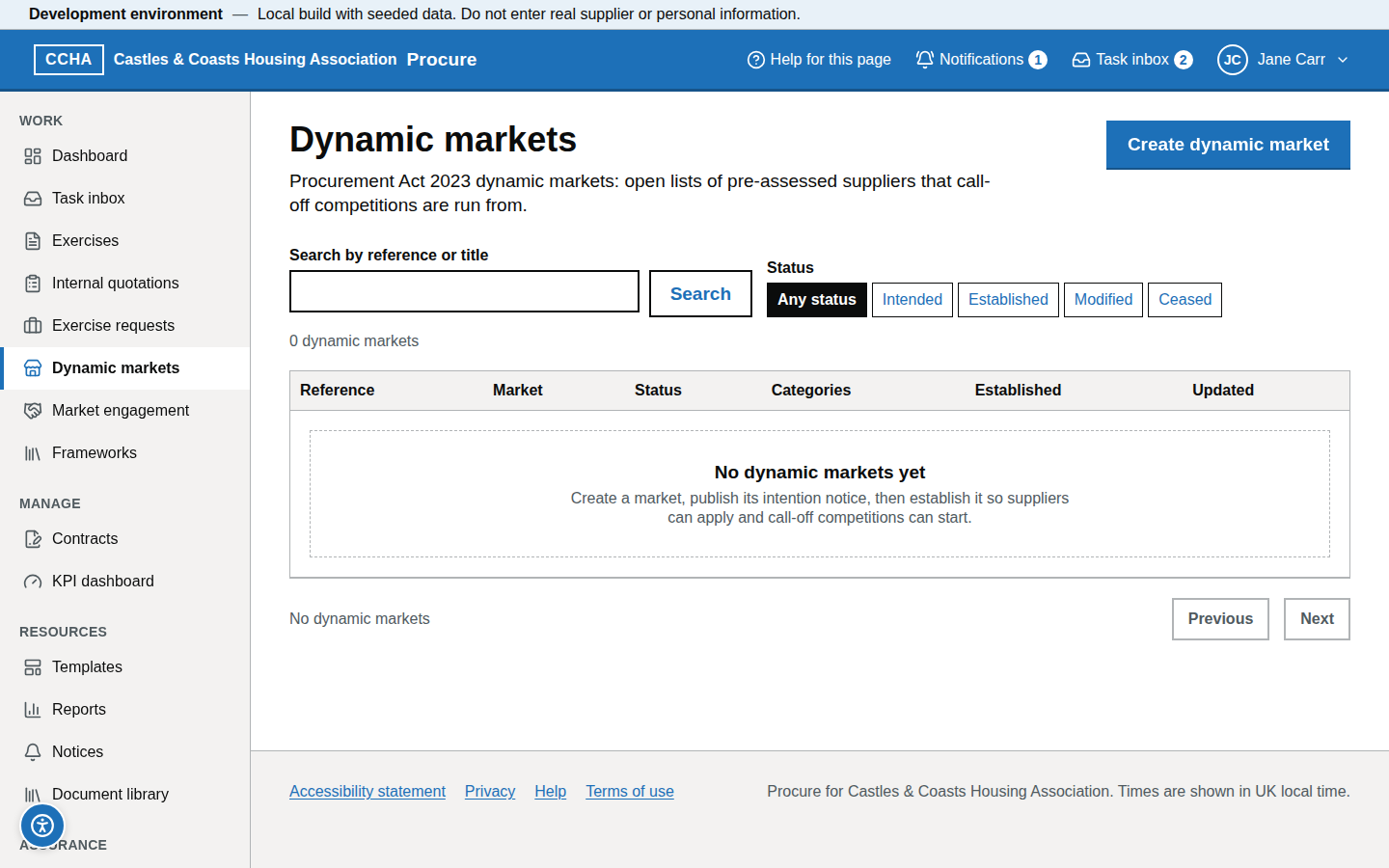
The buyer area is at /b. Its menu has Work (Dashboard, Task inbox, Exercises, Internal quotations, Exercise requests, Dynamic markets, Market engagement, Frameworks), Manage (Contracts, KPI dashboard), Resources (Templates, Reports, Notices, Document library) and Assurance (Risk and compliance, Audit explorer, Transparency and FOI, Sealed export approvals). What you see depends on your roles.
The dashboard shows what awaits your approval, your tasks (older overdue items are collapsed under "Overdue for more than 30 days"), deadlines in the next 14 days, the exercise pipeline by stage, notices due, expiring contracts and KPI breaches, with a department filter. Task titles show the exercise reference, for example "Open tender CCHA-2026-0004"; the line below names the exercise. The task inbox (/b/tasks) is the list of things that need you: clarifications to answer, tenders to open, notices due, standstill ending. Open a task to go straight to the work; a task is completed by doing the work, not by dismissing it.
Three statutory prompts are raised for the procurement team and carry their own label in place of "Task":
- Section 70 payments to record and Section 70 payments to publish name the quarter in words, for example "July to September 2026 (2026-Q3)". On the task, Open section 70 payments for July to September 2026 goes to Contracts → Payments over £30,000 for that quarter (
/b/contracts/payments?quarter=2026-Q3); see the contract manager guide, Record and publish section 70 payments. - Part 5A watch is a monthly check that Part 5A of the Procurement Act 2023 (outsourcing) is still not in operation. Open the contracts register goes to Contracts.
Completing or dismissing one of these prompts discharges nothing: the duty is met only by recording and publishing the payments.
Create an exercise from a template
Steps
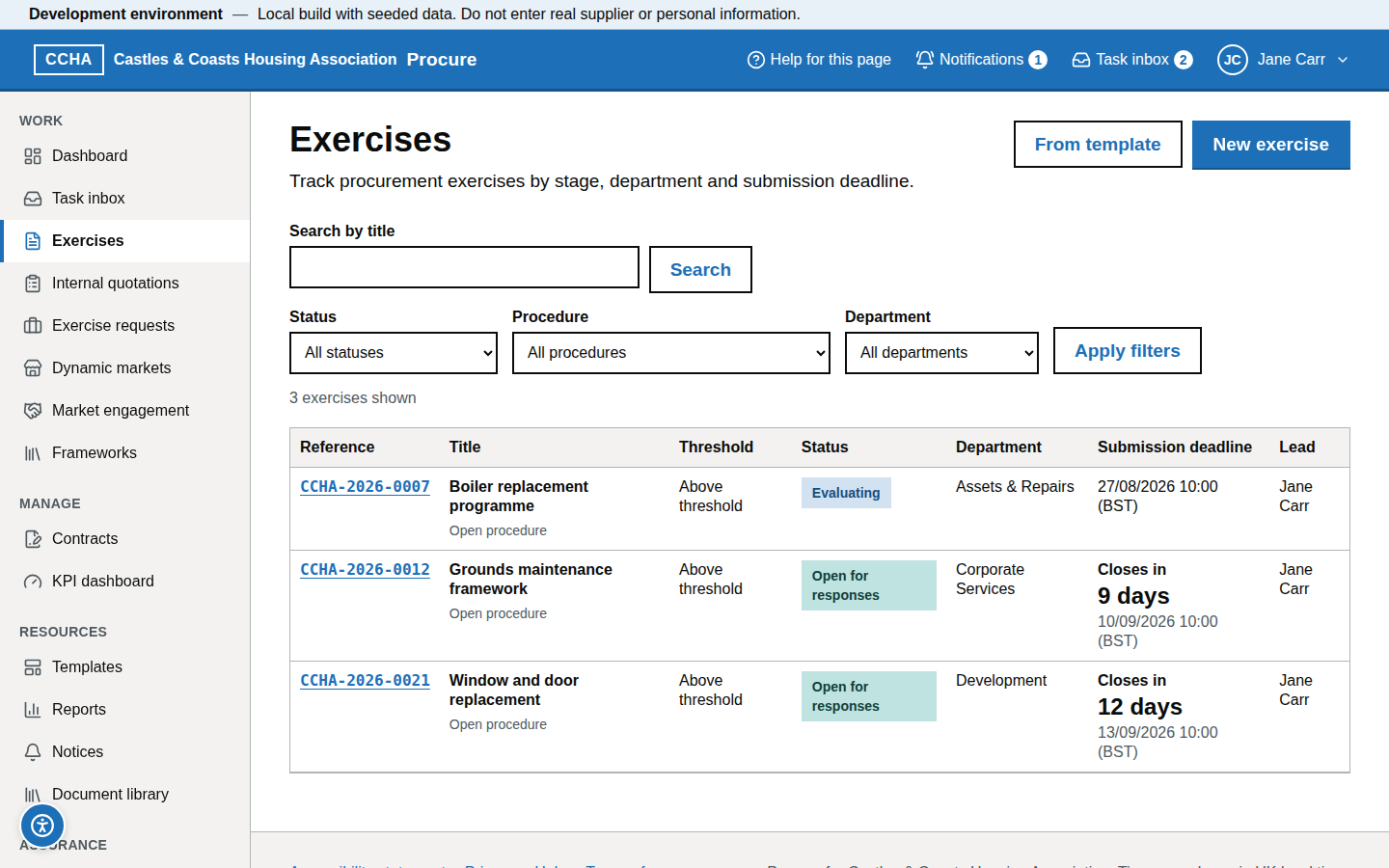
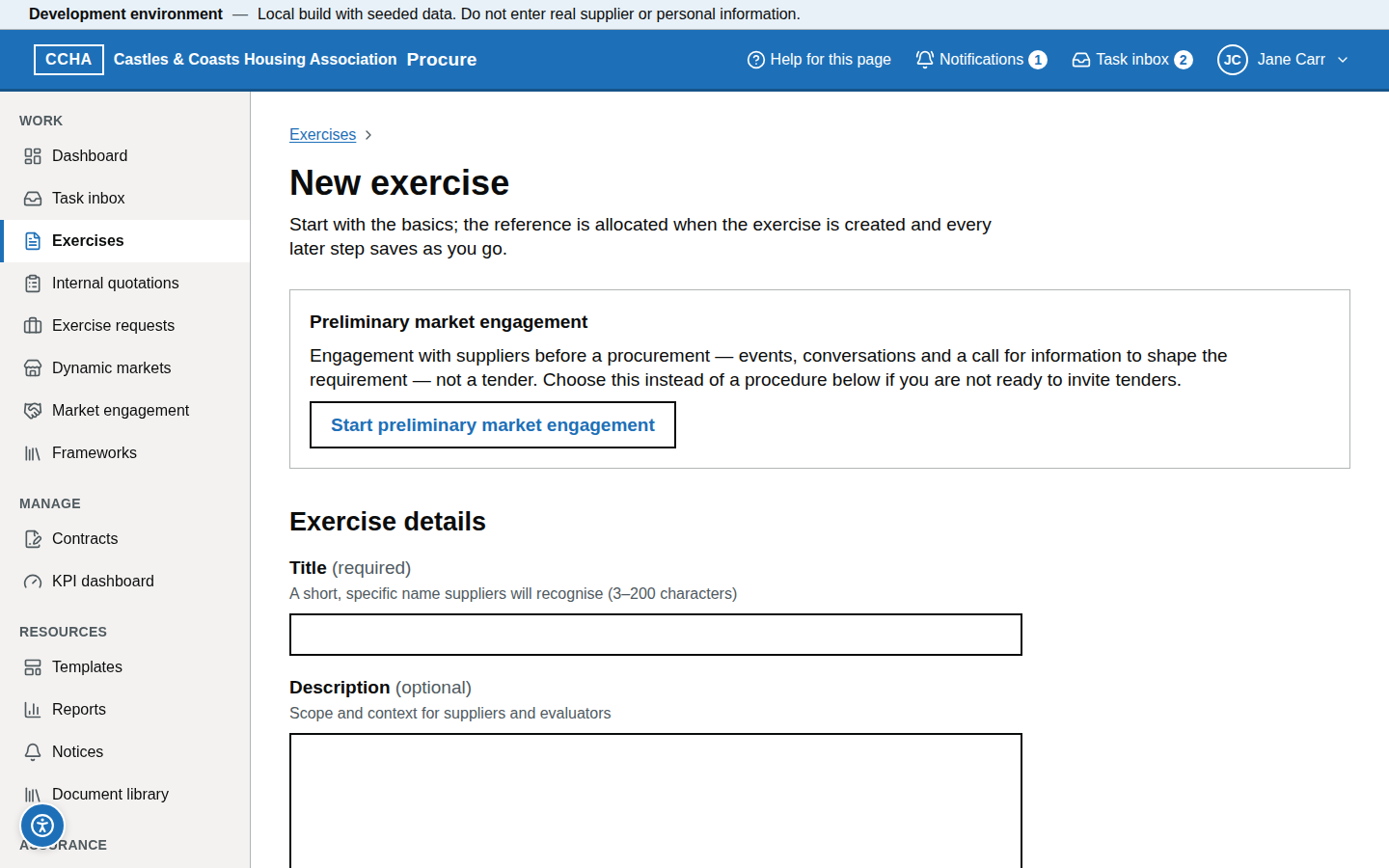
- Exercises → From template → Use template on the procedure template you want (Open — Works, Competitive flexible — Services, Below-threshold RFQ, Dynamic Market call-off). The Internal quotation template offers Log a quotation instead (see Log an internal quotation).
- On the form, enter the title, department, contract type, CPV codes and a first estimated value (in pounds; stored to the penny), then choose Create from template. The valuation you record on step 2 replaces this first figure (see Record the valuation and the contract type). The exercise receives its reference
CCHA-YYYY-NNNNnow. - The wizard opens at step 1 Basics, so you can check what the template filled in. On step 2 Procedure and threshold the threshold band is computed from the PA23 rule pack and the applicable threshold is shown (for works, £5,193,000.00 inc. VAT).
- To divide the requirement into lots (PA23 s.18), tick Divide this exercise into lots on step 1 Basics; step 3 Lots then lets you add each lot with a value and an award strategy. Under the table, Lot rules records the optional limits the tender notice must state: the maximum number of lots one supplier may tender for (section 20(7)); the maximum number one supplier may be awarded, with the objective mechanism that decides which lots it is awarded if it is ranked first in more than the maximum (section 23(4)); and whether several lots may be awarded to the same supplier in accordance with criteria, with a summary of them. Choose Save lot rules. The rules can be changed only while the exercise is a draft; untick every answer and save to remove them.
- Continue through the 15 steps: Basics, Procedure and threshold, Lots, Timetable, Visibility and invitations, Evaluation model, Questionnaire and pricing, Documents, Evaluators and moderators, Objectives and conflicts, Statutory checks, Notice content, Social value, Review and approve, Publish. Each step ticks when its requirements are met, not just when opened. Only the steps that apply are listed and counted: Lots appears once the exercise is divided into lots, and Notice content is not shown for a call-off from a framework or an internal quotation. This guide numbers the steps as they are for an exercise with lots.
- There is no Save button for the exercise draft: every step saves as you go (Save and continue or Save and return later). The questionnaire builder has its own Save draft.
What you should see
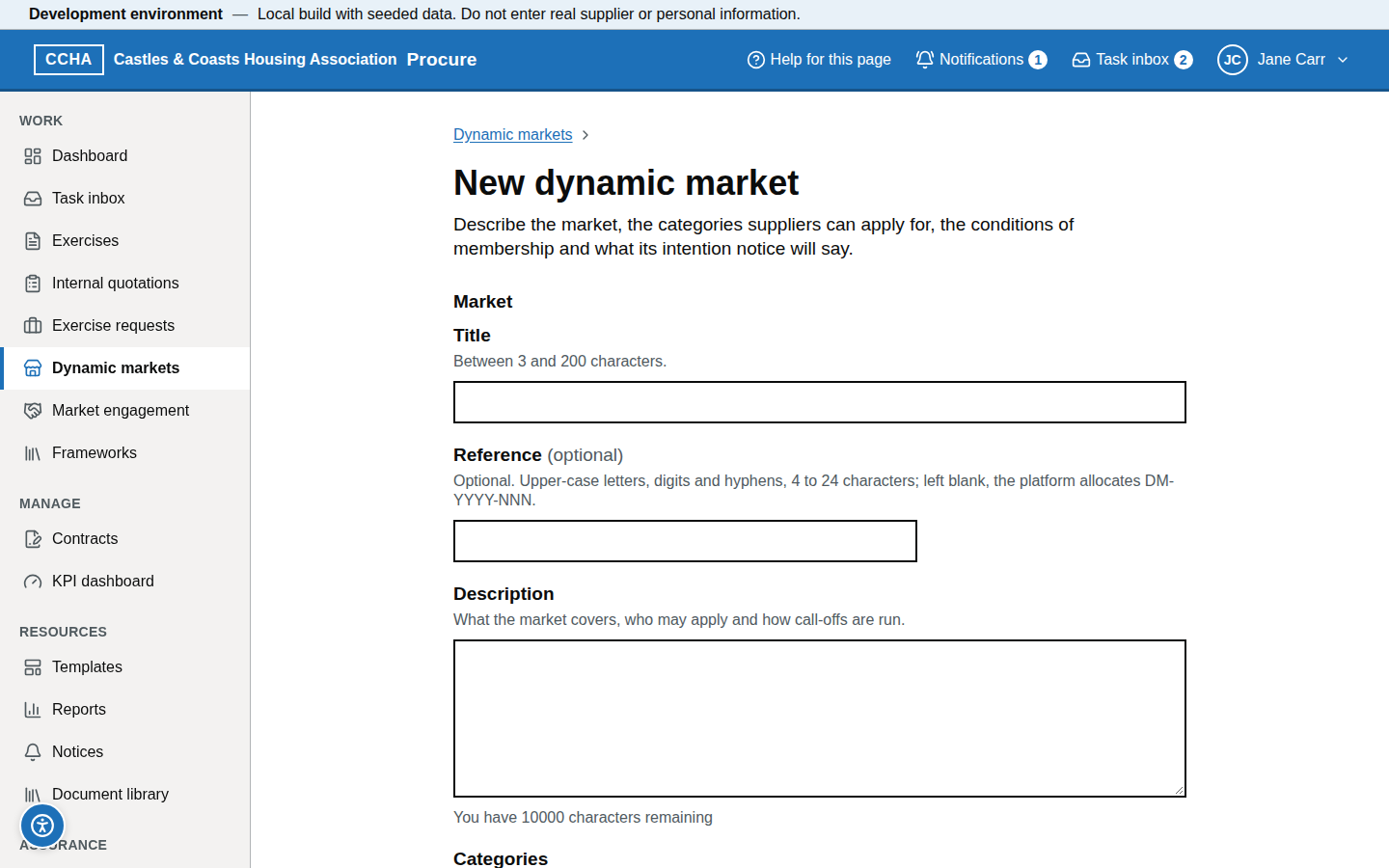
The wizard at /b/exercises/[id]/edit/basics ("Step 1 of 14: Basics" for an exercise without lots; "of 15" once it is divided into lots), pre-filled from the template; on step 2, "Applicable threshold: … inc. VAT" and the suggested band.
Common problems
- The band looks wrong. Check the contract type — works and services have different thresholds. The rule pack version is shown with each notice compliance check and in the Compliance log.
- I cannot find the template. Templates are managed by administrators under Templates; ask for it to be made active.
- The lot rules cannot be changed. They are fixed once the exercise leaves draft, because the tender notice publishes them. The exercise overview shows them under Lots.
- The tender notice fails rule TN-033. The notice's statement about lot limits does not match the lot rules; compile the notice again. A notice compiled before lot rules existed needs recompiling too.
- A lot will not be awarded. A senior user or a system administrator can cease a single lot from the exercise overview (Lots → Cease this lot) once the tender notice is published. The other lots continue, suppliers are told, the ceased lot is not ranked or awarded, and the contract award notice lists it as a ceased lot (rule CA-014). If no lot will be awarded, a senior user abandons the exercise instead.
- A supplier is ranked first in more lots than the award limit. The platform never chooses the lots. When you record the award recommendation it asks you to tick the lots that supplier is awarded and to say how the published mechanism was applied.
Set the timetable
Steps
- Open step 4 Timetable in the wizard.
- Enter the Publication date and time, Clarification deadline, Submission deadline, Opening, Evaluation deadline and Contract start, and, above threshold, the Contract term (months). Times are Europe/London; the server checks deadlines in UTC, so the change to and from BST is handled for you.
- Read any inline error: the minimum tendering period for the procedure and band is enforced at entry (for example, 25 days for competitive flexible above threshold, PA23 s.54).
- Save and continue. The standstill end is not entered here: it is set when the contract award notice is published (eight working days) and copied into the read-only Standstill ends field.
What you should see
The step saved with no errors and ticked in the step list; the read-only Standstill ends field.
Common problems
- "Submission deadline must be at least N days after publication" error. Move the submission deadline to or beyond the Earliest date shown, or change the procedure.
- Bank holiday in the way. The working-day calendar excludes bank holidays in every part of the UK (England and Wales, Scotland and Northern Ireland), as the Procurement Act requires; a deadline on a bank holiday is allowed and is not flagged, so check the date yourself.
Build the questionnaire
Steps
- Open step 7 Questionnaire and pricing. The template gives you Compliance, Quality and Price sections.
- Add questions with Add question: pass/fail (gates), scored (weight, maximum score, scoring guidance 0–5, word limit), priced (a price schedule), upload (file types and count), text, choice.
- Set the section and question weights; each set must total 100 before the questionnaire can be published (a draft still saves). The split between quality and price is set on step 6 Evaluation model.
- For a priced section, add or import the price schedule lines (reference, description, unit, quantity, evaluated multiplier).
- Save draft as you go; Publish questionnaire when it is final. Publication creates version 1 and locks it for suppliers.
What you should see
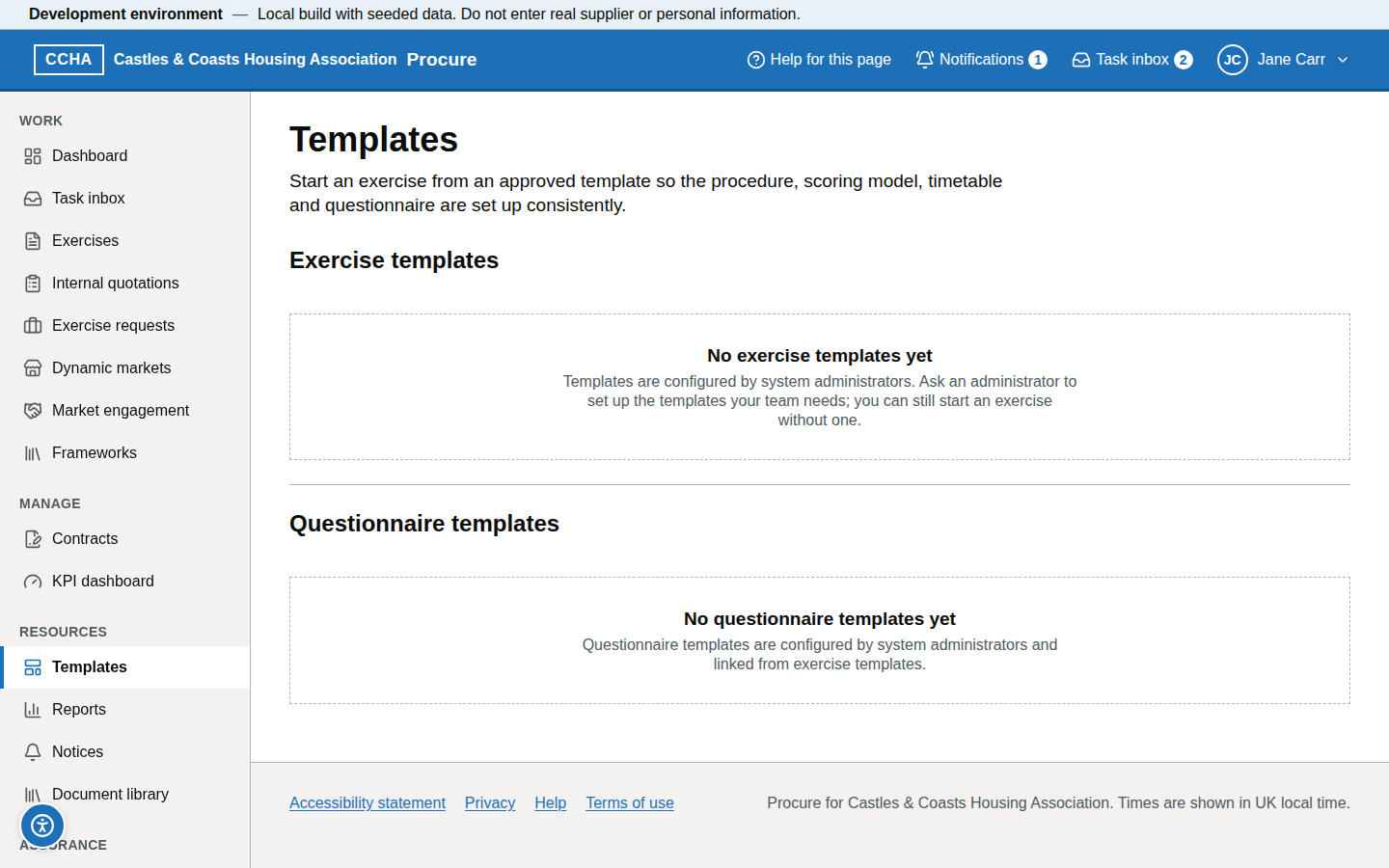
"How the total score is made up" and the section totals; the question types 'Pass / fail', 'Scored (0–max)', 'Priced' and 'File upload'; the version number after publishing.
Common problems
- "Saved, but check these points". Your draft is saved, but something still needs fixing before approval — for example, the question weights in a section must total 100. Adjust them; the message clears.
- Suppliers cannot see a question. The questionnaire has not been published, or the exercise is still in draft.
Attach documents
Steps
- Open step 8 Documents → Choose from library, tick the documents and choose Add N documents. Only the latest version of each document is offered.
- Confirm each document's category, tick Visible to suppliers for anything suppliers must see (leave it unticked for evaluation guidance), then choose Attach N documents.
- To add a new file, use Upload a new document; it is virus-scanned before it can be attached.
What you should see
Each attached document with its category, visibility, "size · Version N" and "Virus scan: Clean".
Common problems
- Scan status stays "Virus scan: Being scanned". Wait a moment and refresh; large files take longer. An infected file is deleted and you are told.
- Wrong version attached. Upload the right version in the library, then Detach and attach again; the exercise records the version it attached.
Invite suppliers
Steps
- For a closed exercise (below-threshold RFQ, call-off), open step 5 Visibility and invitations, choose Closed — invited suppliers only and, under Invited suppliers, use Add a supplier for each registered supplier (for a Dynamic Market call-off, tick the members or choose Invite all members), then Save and continue. The list can be changed while the exercise is a draft or approved; once published it is fixed.
- Invited suppliers receive an email and see the opportunity when they sign in; they accept or decline, and that answer is final (see below).
- Open exercises need no invitations — any registered supplier can respond once the tender notice is published.
What you should see
Each invited supplier listed under Invited suppliers with its status: Invited, Accepted or Declined. A supplier still at Invited can be removed with × while the exercise is a draft or approved; a revoked invitation is listed separately.
Common problems
- The supplier is not listed. They must register first (with or without a CDP share code); send them the registration link.
- A declined supplier wants back in. An invitation response is final: a supplier that has declined cannot be re-invited to the same exercise, and one that has accepted cannot be removed. Record the request and consider whether a fresh exercise is appropriate.
Assign evaluators and moderators
Steps
- Open step 9 Evaluators and moderators. Use Add evaluator for each evaluator, with the sections they score and, for lotted exercises, the lots; use Add moderator for the moderator.
- Each evaluator must declare conflicts of interest before scoring; the table shows "Not yet declared" until they do.
- On step 10 Objectives and conflicts, record the procurement objectives and how the national procurement policy statement was taken into account, and confirm that the conflicts assessment has been prepared (PA23 s.83).
What you should see
"Evaluators (N)" and "Moderators (N)" tables with sections, lots and conflict status.
Common problems
- An evaluator cannot see the exercise. They only see it after assignment and after their conflict declaration.
- "Price sections must be evaluated separately from quality sections". One evaluator assignment cannot cover both price and quality sections. Assign the price sections separately so that price stays apart from quality scoring.
- "At least one moderator is required before the exercise can be approved". Use Add moderator.
Approve and publish
Steps
- Open step 14 Review and approve. Every step shows ✓ or ✕; any step that still blocks approval is listed at the top with what is missing and a Fix link. Notice content never blocks approval: what its notice would still be refused for is listed on its card as warnings (see Record the notice content).
- When nothing blocks, a member of the procurement team or a senior user chooses Approve (
draft → approved). Where the organisation's approval policy is switched on, the content and correctness approvals it requires must also be recorded on the exercise overview before publication. - Open step 15 Publish. Before the exercise can be published lists the notice that must be published first, and why. Publish now compiles, checks and publishes that notice and then publishes the exercise; to review or edit the notice first, follow the link to create it on the Notices tab (below).
What you should see
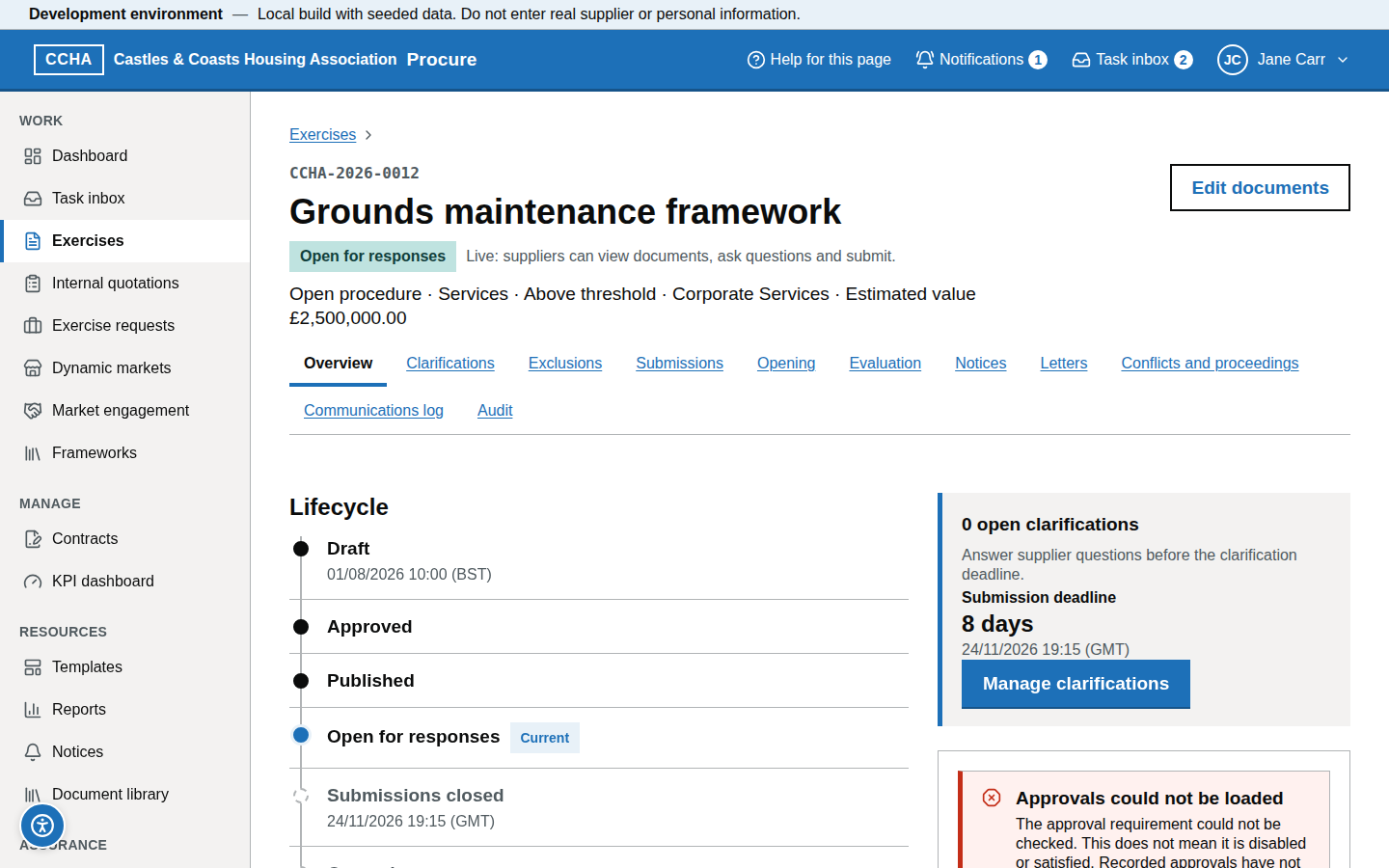
The status moves to Open for responses; the exercise is visible to suppliers.
Common problems
- Approve or Publish is not available. A step is still listed as blocking, or the tender notice is not published.
- "Record the estimated value" blocks approval. A below-threshold exercise needs an estimated value that is itself below the threshold. A contract whose value cannot be estimated is treated as above threshold (Procurement Act 2023, Schedule 3 paragraph 5). The estimate is the total of the valuation record, so the Fix link opens Valuation of the contract on Procedure and threshold (
/edit/procedure#valuation): correct the amounts there, or change the threshold band to above threshold. Only an exercise that has no valuation record — a call-off from a framework — records the figure on Basics. - "Publish the below-threshold tender notice first". An exercise that is open to every supplier and worth £30,000 or more including VAT — or with no estimated value — may not be advertised without a below-threshold tender notice (section 87). A closed exercise, sent only to the suppliers you invited, does not need one. An open below-threshold call-off under a Dynamic Market is treated the same way: the notice is offered on the exercise's Notices tab and listed on the Publish step.
- "Publish the tender notice first" on a dynamic market call-off. An above-threshold call-off needs a tender notice even though only market members are invited; the notice names the market. Notices call this route a "competitive flexible procedure under a dynamic market" — it is the same thing as the exercise's Dynamic market call-off.
- I need to change something after publishing. Timetable extensions are allowed with a reason; the questionnaire is locked.
Answer and publish a clarification
Steps
- Open the clarification task or the exercise's Clarifications tab.
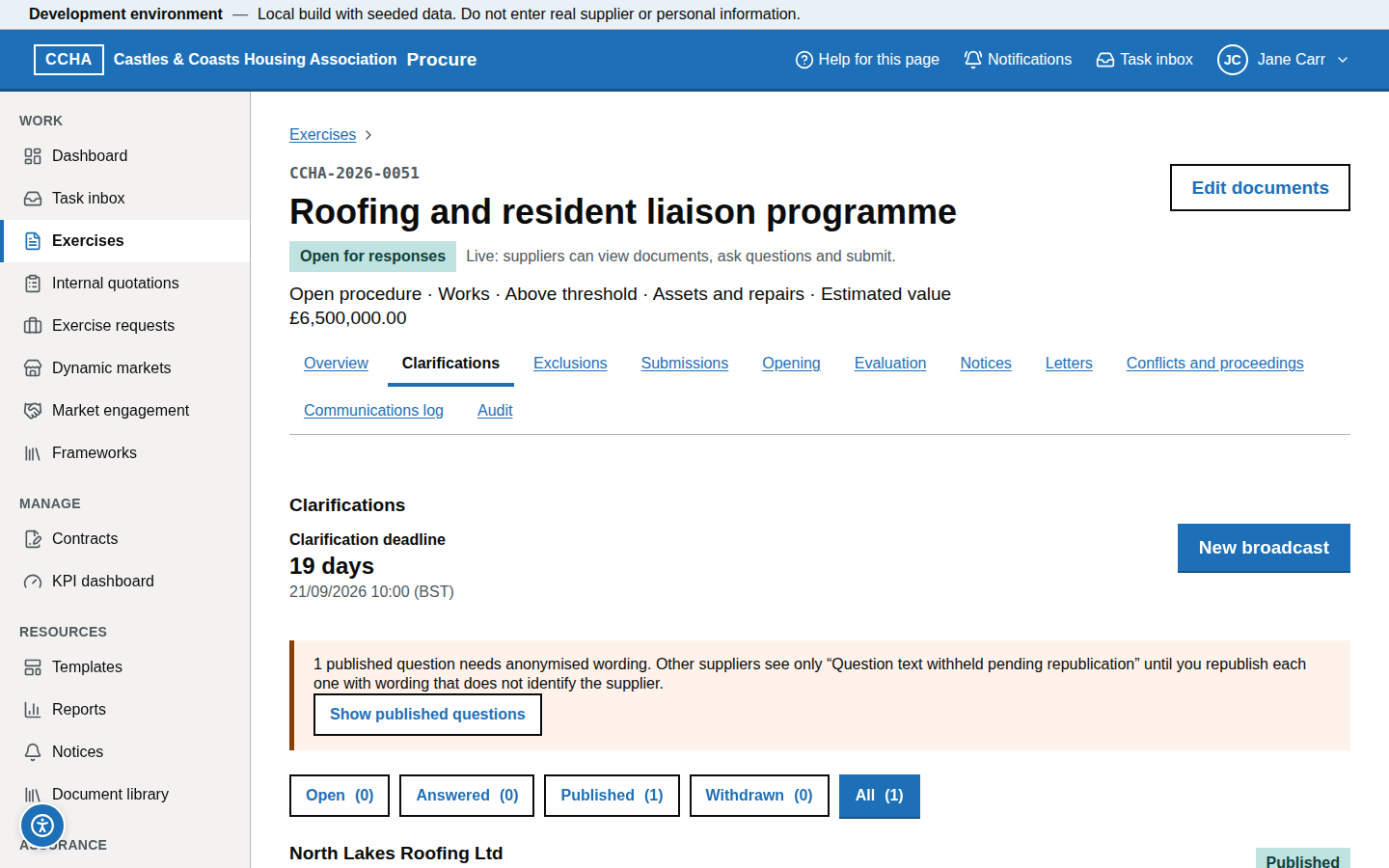
- Write the answer. Check Question as published to all suppliers: remove anything that would identify the asker (the asker still sees its own wording).
- Choose Save and publish to all suppliers (every supplier sees it and the asker is not named) or, only when the question concerns the asker alone, Save and publish to asker only. Save answer keeps a draft.
What you should see
The question moves to Published; suppliers' pages show the answer within 15 seconds without refreshing; the broadcast e-mail is recorded in the exercise's Communications log.
Common problems
- The clarification deadline has passed. Late questions are refused by the server; answer offline only if the exercise is extended.
- The answer changes the requirement. Extend the deadline and amend the notice rather than answering informally. To change a published date, open the exercise's Overview, find Delivery timeline and choose Change submission deadline (or the clarification, opening or evaluation date). Enter the new date and time and a reason of at least 10 characters. The reason is shown to suppliers with the old and new dates, and a live tender notice is amended for you. Dates can be changed only while the exercise is published or clarifications are open; the publication and standstill dates cannot be changed.
Extend a deadline
Steps
- Open the published exercise's Overview, find Delivery timeline and choose Change submission deadline (the Timetable step is read-only once the exercise is approved).
- Enter the New date and time and a Reason for the revision of at least 10 characters, then choose Publish revision. Suppliers see the reason with the old and new dates.
- A live tender notice is amended for you: the amendment is compiled, checked and published with the revision.
What you should see
"The revised date and reason have been recorded." (and "The notice was amended." where a notice is live); the new deadline in the supplier view.
Common problems
- Bringing a deadline forward. A date can move earlier only if the timetable still meets the minimum tendering period and the other timetable rules; otherwise the revision is refused with the reason.
- Extension after the deadline. Not possible; the exercise has closed. Re-issue if necessary.
Open a tender (two-person)
Steps
- After the deadline the exercise is Submissions closed and each procurement user has a task "Open tender CCHA-YYYY-NNNN".
- The first user opens the Opening tab and chooses Confirm opening as <name>.
- A second, different Procurement Team member does the same. Only then are the submissions decrypted and the status moves to Opened; the team gets a "Tender opened CCHA-YYYY-NNNN" task. Once every evaluation case is ready (on a blind exercise, after the independent review) the status moves to Evaluating and evaluators receive "Evaluate CCHA-YYYY-NNNN" tasks.
What you should see
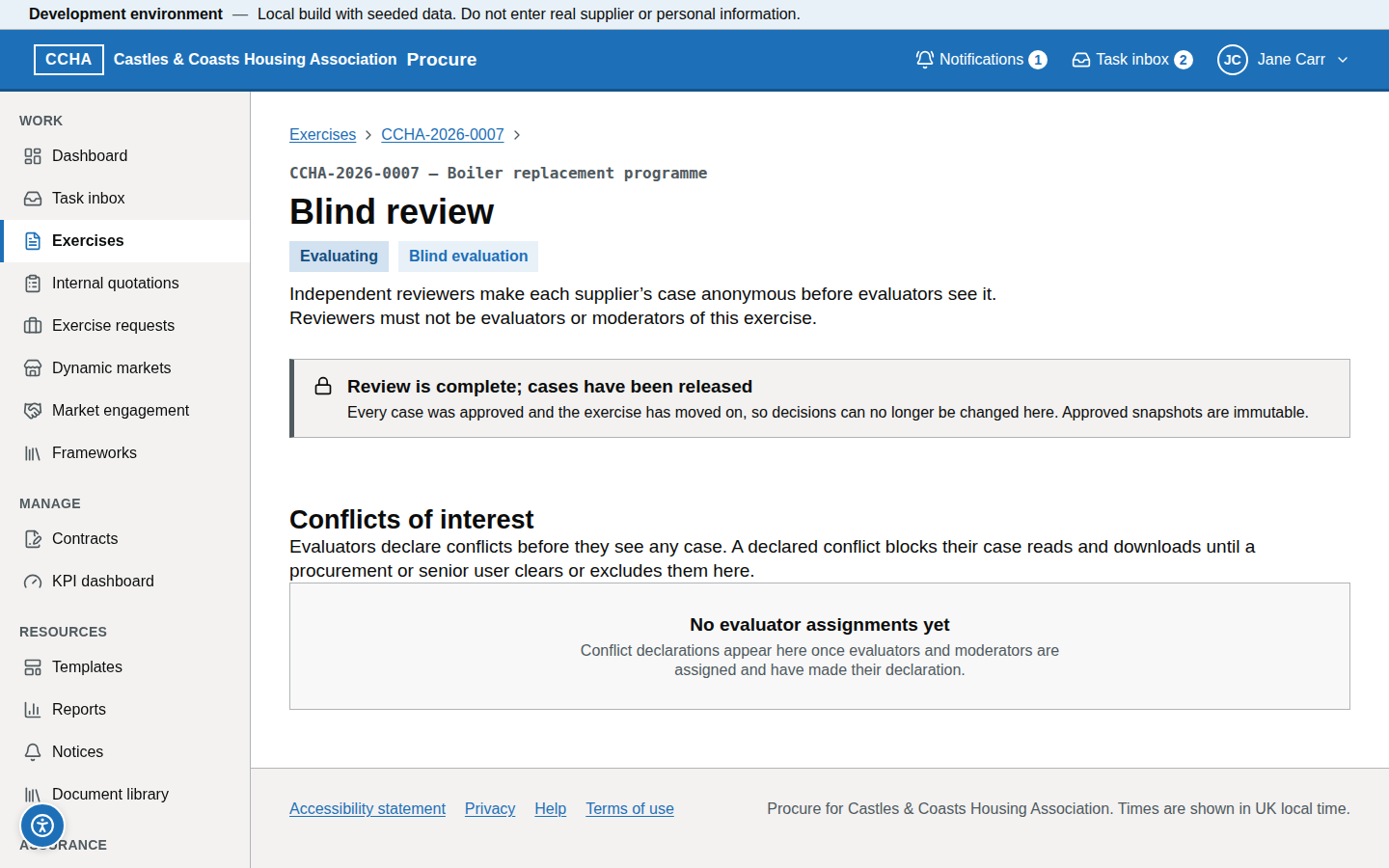
"You have confirmed — waiting for a second member of the Procurement Team" after the first confirmation; "Tender opened" and the submissions list after the second.
Common problems
-
The same person tries both confirmations. It does not count twice: the button is unavailable once you have confirmed, and a second, different Procurement Team member must confirm.
-
Opening before the deadline. Not possible; until the exercise is Submissions closed the Opening tab shows "Opening is not available yet" in place of the button.
-
"N applications to join the market must be decided before opening" on a Dynamic Market call-off. The Opening tab of the evaluation workspace (
/b/evaluate/<id>?tab=opening) has a section Applications to join the dynamic market (#market-applications). An application made before the tender deadline must be considered before a supplier is excluded, or its tender disregarded, for not being a member (Procurement Act 2023, section 34(4)), so Confirm opening there is not available while one is undecided. Do one of two things, then return to that Opening tab (reload it) and confirm:- Decide each application. Follow Decide the applications to join the market to the market's Applications tab, choose Assess on each application, accept or reject it and choose Record decision.
- Or record exceptional circumstances. Only where exceptional circumstances arising from the complexity of this procurement made it impossible to consider an application before the deadline, a senior officer or a system administrator records them (section 34(5)) — in the form on that Opening tab, or on the market's Call-offs tab in the row for the call-off (Go to the market's call-offs). The section then reads "Exceptional circumstances are recorded for the market applications"; each application must still be decided.
When nothing is undecided the section says so: "Nothing here prevents the opening." If the refusal arrives when you confirm ("Applications to join this market are undecided"), nothing has been opened; decide the applications and confirm the opening again.
Follow the evaluation progress
Steps
- Once the tender is opened, choose Evaluation progress on the exercise (or open the evaluation workspace's Progress tab,
/b/evaluate/<id>?tab=progress). It is where the workspace opens for the procurement team, senior users and the exercise's moderators while evaluators are scoring. - Read the headline ("2 of 3 evaluators have completed their scoring") and the Still outstanding list. It names each evaluator who has work left and what it is: declaring a conflict of interest, waiting for a decision on a declared conflict, or the number of cases still to complete. It also lists tender cases still being prepared for release, and moderators whose declared conflict awaits a decision.
- The Evaluators table shows, for each evaluator, the scores they give (quality or price), their status and how many of their cases are complete ("1 of 3").
- Act on what is outstanding: decide declared conflicts on the evaluation workspace, and chase evaluators who have cases left. When nothing is outstanding the page says so and the exercise can move to moderation.
What you should see
Counts only: no score, answer or tenderer is shown, so the page is safe to use while the evaluation is blind. A price evaluator shows Nothing to score, because the price score is calculated by the formula.
Generate assessment summaries
Steps
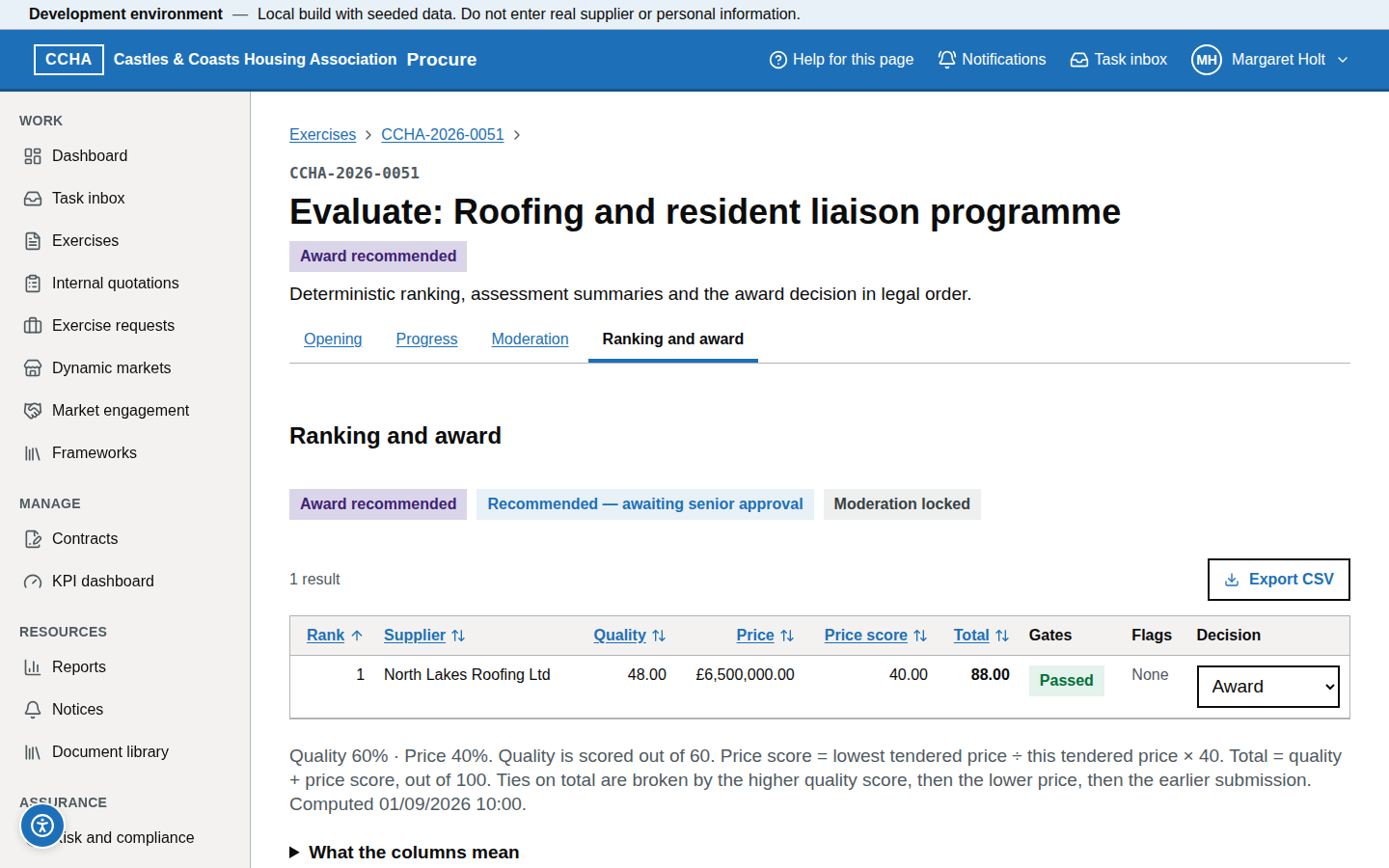
- After moderation is locked and the ranking computed, open the Ranking and award tab.
- Set the decision for each supplier (Award, Reject, Reserve) and choose Recommend award. This comes first.
- Choose Generate assessment summaries; one PDF per assessed supplier is produced, each with Download PDF.
- Choose Send to suppliers now. The contract award notice's compliance check requires the summaries to have been sent to every assessed supplier.
- Generate letters (award, unsuccessful, standstill) from the letter templates on the exercise's Letters tab. Sending checks that the supplier's award decision is still the one the letter was generated for; each kind of letter can be sent to a supplier at most three times in 24 hours.
What you should see
"Recommended — awaiting senior approval"; each summary with "Generated DD/MM/YYYY HH:mm", a "Draft — not yet sent" or "Sent …" badge and Download PDF; letters on the Letters tab. Once summaries exist the button reads Regenerate summaries.
Common problems
- Generate is disabled. The award has not been recommended yet (recommending needs moderation locked and the ranking computed). Send to suppliers now stays unavailable until the summaries have been generated.
- A summary needs a correction. Regenerate; the previous file is kept in the audit.
- "Ground under section 19" is asked for. Above the threshold in an open, competitive flexible or Dynamic Market call-off procedure, a contract may be awarded only to the most advantageous tender. If you award a tender that is not ranked first, each higher-ranked tender must be rejected with its ground — does not satisfy the requirements (section 19(2)(a)), conditions of participation not satisfied (19(3)(a)), not a UK or treaty state supplier (19(3)(b)), abnormally low price (19(3)(c)) or breach of a procedural requirement (19(3)(d)) — and reasons of at least 20 characters. Elsewhere the ground is not offered and a written reason for the award is asked for instead.
- "No abnormally low tender review is recorded" or "…is not decided". Before a tender is disregarded for an abnormally low price you must notify the supplier and give it a reasonable opportunity to show it can perform for the price offered. Under Abnormally low tender reviews on the Ranking and award tab choose Record review for the tender: enter when and how you notified the supplier and when its response is due (London time), and save as pending. Come back to record the response and your decision. A decision cannot be saved until the supplier has responded or the due date has passed. If the review is decided Demonstrated, the tender may not be disregarded on that ground (section 19(5)).
- The ground "Not a UK or treaty state supplier" cannot be chosen. The platform never disregards a tender on this ground itself. Under Treaty state determinations record a reasoned determination for the tenderer (or a supplier it intends to sub-contract to): the status, the Schedule 9 agreement or other basis, and your reasons. A senior officer who did not record it must approve it. Only an approved determination of "neither" enables the ground; a treaty state supplier may not be treated less favourably (section 90).
- "Record an exclusion assessment for every tenderer before the tenders are ranked". The ranking, and the moderation lock that runs it, are refused until every tenderer has an exclusion assessment for the exercise (sections 26 and 28). The message lists who is missing; follow Go to the exclusion assessments for this exercise, record each one, then compute or lock again. Moderators see case references only and are told to ask the procurement team. The same list is kept on the page under Statutory checks on tenders → Exclusion grounds: "Exclusion grounds not considered for N tenders" names each tender by its evaluation case reference, "Further information awaited for N tenders" lists assessments that have been started, and "Exclusion grounds have been considered for every tender" means nothing there stops the ranking.
- A lot shows "(ceased)" on the Ranking and award tab. The lot will not be awarded. Its ranking stays visible for the record, no decision is recorded for it and it is left out of the recommendation.
- "Lot allocation under the award limit" appears when you recommend. A supplier is ranked first in more lots than one supplier may be awarded. The mechanism you published is shown; tick the lots the supplier is awarded (ticking sets that lot's decision), award each released lot to the next tender, and record how the mechanism was applied (at least 20 characters). Above the threshold the released lot's ground is "Left out by the lot award limit (s.23(4))".
- When does "Unavoidable unfair advantage from a conflict of interest" apply? Record it in the exclusion assessment where a conflict of interest puts the supplier at an unfair advantage in relation to the award and either the advantage cannot be avoided or the supplier will not take the steps you consider necessary. The supplier must then be treated as an excluded supplier for that award (section 82(3) and (4)). It applies to the supplier itself and needs the date you invited its representations. Record the conflict in the conflicts assessment as well; the two records are not linked automatically.
Compile, validate and publish a notice
Steps
- Open the subject (exercise, contract, Dynamic Market or organisation) → Notices tab → New notice. The menu says which notices are "Available now" for that subject, for example "Available now: UK4 Tender notice". For a contract award notice you can also use Compile contract award notice on the exercise's Ranking and award tab.
- Choose Check compliance. Errors block publication and warnings advise; each carries a PA23/Regulations citation and a link to the field.
- Fix the fields and check again until there are no errors.
- Read Published content compiled from the records, below the form. It shows, grouped, the prescribed information the notice will publish in addition to the fields above: the contracting authority's contact postal address and notice contact, award criteria and weightings, the numbers of tenders submitted and assessed, unsuccessful suppliers, the date assessment summaries were sent, a direct award justification, key performance indicators, a contract modification or termination, payments compliance figures, Dynamic Market details, the framework a call-off is awarded under, and the published copy of a contract. It also shows what was recorded as notice content and with the notice: Tender details and Procurement details (how and where the contract is supplied, options, suitability, trade agreements, risks, electronic auction, languages, the process and the estimated award date), Limits on lots, Ceased lots, Contract identifiers, What the contract is for, Contract performance (including breach details), Contract modification and Contract termination dates and outcomes, Dynamic market intention notice answers and the suppliers admitted and removed, Pipeline, Reserved contract and Estimated contract date. This content is rebuilt from the records every time the notice is compiled, so it is not edited here: correct the exercise, contract, Dynamic Market or organisation settings and choose Recompile from source.
- For a payments compliance notice, complete Finance officer's approval: the name and job title of the director or similar officer responsible for the organisation's finances, and their statement that they approve the notice (Procurement Regulations 2024, regulation 38(2)(e)). All three are published. Choose Record approval and recompile. The approval is recorded against the reporting period and figures the notice shows. It is kept when the notice is compiled again only while the reporting period and figures are unchanged; if they change, record it again. If the figures have changed since the notice was compiled, nothing is recorded: the notice is compiled again with the current figures and you are asked to have the officer review them before you record the approval.
- For five notice types the editor (
/b/notices/<id>) has a form, under the notice form, for the statements no record holds. Fill it in and choose Save and recompile the notice. Saving compiles the notice again from the records with what you entered and replaces any unsaved edits to the fields above, so save this form first and run Check compliance afterwards. The procurement team can change these details while the notice is a draft or has been checked, not once it is published. Recompile from source rebuilds the notice from the records alone, so enter the details again afterwards.- Dates of the modification (contract change notice,
#compile-contract-change): the estimated date the contract will be modified, the estimated date the modification will have effect (not before the first), and any voluntary standstill period in working days — at least eight if there is one. - Performance details (contract performance notice,
#compile-contract-performance): what the notice reports — an annual assessment against key performance indicators, a breach of contract or failure to perform, or a termination. For an annual assessment give the first and last day of the assessed period and, under Rating against each key performance indicator, the rating for each KPI: each shows "The notice states: …" and is published as the association's own assessment. Leave Take the rating from the latest reading or choose your own: Good, Approaching target, Requires improvement, Inadequate (performance significantly below the indicator) or Other. For a breach, complete Breach details; anything left empty is not stated. - Termination details (contract termination notice,
#compile-contract-termination): the date of and reason for termination and whether the contract was terminated because the supplier breached it; if so, the breach details. - Modification of the dynamic market (dynamic market modification notice,
#compile-market-modification): the date the modification has effect and what changed. Suppliers the notice will name — admitted to and removed from the market — are worked out from the market's membership records when the notice was last compiled. To change the list, admit or remove the supplier on the market's Members tab, then save here to compile the notice again. - Pipeline of procurements (pipeline notice,
#compile-pipeline): the financial year, the expected spend and each procurement — title, estimated value, the estimated date its notice will be published and which notice that is (a tender notice unless you choose transparency notice for a direct award), main category, description, main CPV code, how and how much will be supplied, the supply period, where it will be delivered and, if it is already run here, the exercise, so the entry carries that procurement's unique identifier.
- Dates of the modification (contract change notice,
- Choose Publish to Find a Tender (in stub mode, Publish to Find a Tender (stub)). The status moves to Published with the Find a Tender identifier and link; a Failed notice shows the error, the attempts used and Retry publication. Where the notice carries the published copy of a contract, the copy is uploaded at this point: before publication the notice shows the document's name with no link, and afterwards the public link.
- If Procure cannot publish the notice — Find a Tender is unavailable, or the publication keeps failing — publish the same notice on the Find a Tender website and record it: see Publish a notice yourself on Find a Tender. A notice already on Find a Tender that is not in Procure is brought in with Import a notice from Find a Tender.
Three ways a notice reaches Procure as published
| Route | When | What Procure checks |
|---|---|---|
| Publish to Find a Tender | Normally: Procure sends the notice | Find a Tender's answer to the submission |
| Publish it yourself on Find a Tender, then record the number | Procure cannot send it | Reads the notice from Find a Tender: it exists, your buyer identifier, the same type, not already recorded; warns where the title, description or value differ from the prepared notice |
| Import a notice from Find a Tender | The notice is on Find a Tender but not in Procure | The same reading of Find a Tender, with the type taken from the Find a Tender form |
Whichever route is used, the notice is recorded once, the audit trail says which route, and everything that follows publication (standstill, due-notice tasks, the register) happens the same way. The guided tour Publish a notice yourself, or import one from Find a Tender walks through the second and third routes.
What you should see
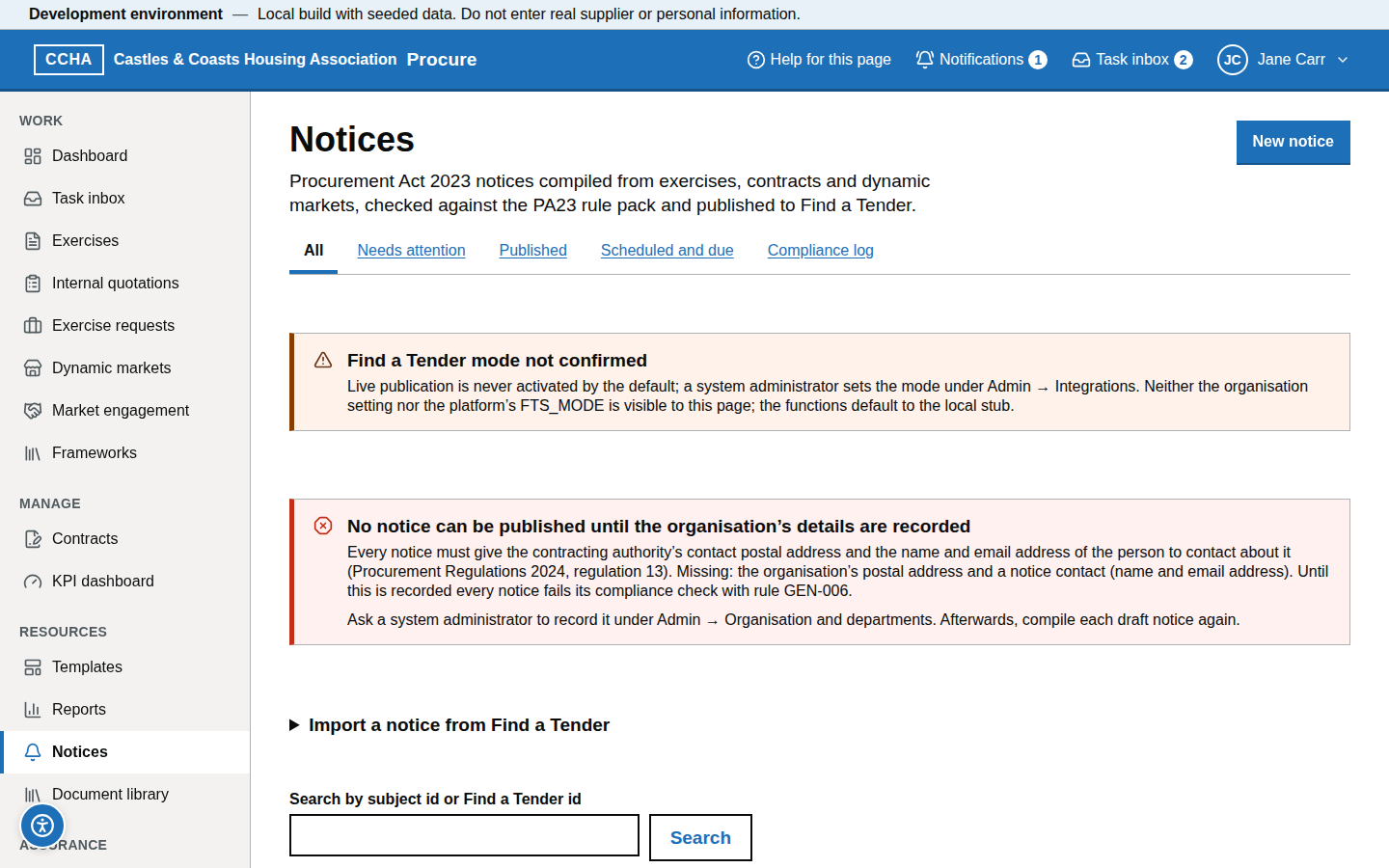
The compliance panel with counts of errors and warnings; the notice row with its status and identifier. A finding about content compiled from the records has Show in the notice, which takes you to the group that holds it, and where the answer lives on another screen a link to that screen. The notices centre (/b/notices) has the tabs All, Needs attention, Published, Scheduled and due and Compliance log (every rule-pack check, newest first).
Common problems
- Status stuck at publishing. The publisher has not acknowledged; the scheduled check retries and raises a task if it stays there.
- Which mode am I in? The banner on the notice screens shows it: Find a Tender: local stub on a training or test site (nothing is sent to Find a Tender), Find a Tender sandbox (test publications only), or no banner when notices go to the live service. Administrators set it under Integrations; see Find a Tender by environment.
- "Stub publication is not permitted in production." The organisation's Find a Tender mode is still stub on the production site. Ask a system administrator to set it to sandbox or live.
- "Live publication to Find a Tender is not activated for this organisation". Only the organisation's own Find a Tender mode, set to live by a system administrator, activates live publication.
- "No notice can be published until the organisation's details are recorded" (rule GEN-006). Every notice must give the contracting authority's contact postal address and the name and email address of the person to contact about it (Procurement Regulations 2024, regulation 13). Ask a system administrator to record the address and the Notice contact under Admin → Organisation and departments, then recompile each draft notice. The same message is shown on the Notices tab of an exercise, a contract, a Dynamic Market and a market engagement.
- A payments compliance notice fails with PC-005. The finance officer's approval has not been recorded, or the period or figures changed after it was. Record it in the Finance officer's approval panel under the notice.
- "The copy of the contract is too large to publish". The published copy must be 2 MiB (2,097,152 bytes) or less. The notice has not been published. On the contract's Documents tab upload a smaller copy — for example a compressed or text-based PDF rather than a scan — designate it as the published copy, answering the redaction question again, then recompile, check and publish.
- "The redaction answer for the copy of the contract is no longer on record". The copy can be published only once the section 94 question is answered: designate the copy again on the contract's Documents tab, either confirming that no redaction is needed or choosing the approved redaction record for that document.
- "The published copy of the contract has changed since the notice was compiled". A different document is now designated. Check the designation on the contract's Documents tab and recompile the notice.
- A finding sends me to another page. Where the answer lives outside the notice, the finding links to the exact field: the exercise's Notice content step, the contract's Notice content panel, the market's Settings tab, or the form under the notice described in step 6 (for example CC-011 for the dates of a modification, CP-010 and CP-011 for a performance notice, CT-010 for a termination for breach, DM-013 for a market modification, PL-010 and PL-011 for the pipeline). Answer it there, then recompile and check again.
- My edits to the notice form disappeared. You saved the details form under it, which compiles the notice again. Make the edits again and check compliance.
- A supplier is missing from, or wrongly named in, a dynamic market modification notice. The lists are not typed in. Admit or remove the supplier on the market's Members tab, then save the modification form again.
- A contract award notice fails with CA-016, or a procurement termination notice with PT-004. The numbers of tenders submitted and assessed, and the date of the decision not to award, are taken from the exercise. Check them there and recompile.
Publish a notice yourself on Find a Tender
Use this when Find a Tender cannot take a notice from Procure — for example while its interface for a notice type is not available — and you publish it on the Find a Tender website instead. Procure records it afterwards, so it is never published twice.
Steps
- Compile the notice and choose Check compliance until it has no errors, as in Compile, validate and publish a notice. The option is offered for a notice that has passed the check, and for one whose publication failed.
- On the notice (
/b/notices/<id>), find Publish it yourself on Find a Tender below the notice form. - Open Content to enter on Find a Tender. It lists the notice's content field by field, as it is shown in the form, and the published content compiled from the records. Copy all the content copies it as text; Download the OCDS package (JSON) saves the whole notice.
- Sign in to Find a Tender, start a notice of the same type, enter the content and publish it. Note the notice number shown on the published notice, for example 012345-2026.
- Back in Procure, enter it in Find a Tender notice number (you can paste the notice's web address instead) and choose Check and record the publication.
Procure reads the notice from Find a Tender's public register — it never relies on what is typed — and checks that the notice exists, that it was published by this organisation (its buyer identifier), that it is a notice of the same type and that no other notice in Procure already has that number. Only then does it record the notice as published, with the Find a Tender number, link and publication date. Everything that follows a publication happens as it does when Procure publishes the notice: the standstill period starts for a contract award notice, the next payments compliance due date moves on, the due-notice tasks close and the notices register shows the notice.
Import a notice from Find a Tender
Use this for a notice that is already on Find a Tender but not in Procure — for example one published before you used Procure, or published on the Find a Tender website without first being compiled here.
Steps
- Open the record the notice is about: the exercise or contract Notices tab, the Dynamic Market's Notices page, the market engagement's notice section, or the notices centre (
/b/notices) for an organisation notice such as a pipeline notice. - Open Import a notice from Find a Tender, enter the Find a Tender notice number (or paste its web address) and choose Check and import the notice.
- Procure reads the notice from Find a Tender, checks it is this organisation's, works out its type from the Find a Tender notice form (a UK4 or UK7 notice is read as below threshold when the notice says so) and checks it is about this kind of record. The new notice opens, published.
A contract change notice is not imported, because it must be linked to the change it describes: log the change, compile the contract change notice from it and use Publish it yourself on Find a Tender to record its number.
What you should see
The notice is Published, with the Find a Tender number, link and date. Checked on Find a Tender at the top says that it was published by hand or imported and found in the register. Under Compliance: for a notice you published yourself, the checks of the notice Procure prepared still stand, and Procure warns you if the title, description or estimated value on Find a Tender differ from it; for an imported notice, a note says that Procure's checks apply to the notices it prepares, so check an imported notice against the Procurement Act 2023 yourself if it was not prepared in Procure. None of this undoes the record, because the notice is already published. If something must be put right, correct it on Find a Tender or publish a further notice such as a change notice — do not publish the same notice again.
Common problems
- "Find a Tender has no published notice with this number". Check the number on the notice page. A notice you have just published can take a few minutes to appear in the register.
- "…was not published by this organisation". The notice's buyer is not identified by this organisation's buyer identifier. Only your own notices can be recorded.
- "The organisation's Find a Tender buyer identifier (PPON) is not recorded". A system administrator records it in the organisation settings; Procure needs it to confirm who published the notice.
- "…is not the type of this notice". The number belongs to a different notice. Check it, or import that notice on the record it is about.
- "…is already recorded in Procure as notice …". The notice is already in Procure (published from Procure, or recorded or imported earlier), so it does not need to be published or recorded again. Follow Open the notice it is recorded on.
- "Find a Tender could not be reached to check the notice". Nothing was recorded. Try again later.
- "Check the notice against the compliance rules … before you publish it yourself". Only a notice that passed the compliance check, or whose publication failed, can be recorded this way.
Manage standstill
Steps
- Publish the contract award notice; publication sets the standstill start and end (8 working days beginning with the publication day, bank-holiday aware).
- A senior user approves the award recommendation (
award_recommended → standstill). - Watch the countdown on the exercise overview. At the end of the standstill the scheduled check moves the exercise to Awarded.
- The contract details notice is due within 30 days of contract entry; a task tells you when.
What you should see
"Standstill ends DD/MM/YYYY 23:59 — N working days remaining" on the exercise overview; a "Standstill period CCHA-YYYY-NNNN" task for the team.
Common problems
- Approve award is not available. It says why: "Publish the contract award notice first — publication sets the standstill dates."
- A challenge is received. Record it on the exercise's Conflicts and proceedings tab with Record notified proceedings. While it is active the contract must not be entered into (section 101), even after the standstill ends, until a senior user chooses Record release.
Record the below-threshold duties
Two duties apply to a below-threshold exercise that invites tenders or quotations — an open or competitive flexible procedure, a request for quotation, an internal quotation or a dynamic market call-off. Neither applies to a direct award.
Steps
- Open step Statutory checks. Under Barriers for small and medium-sized enterprises, record the barriers small and medium-sized enterprises may face in competing for the contract — for example insurance levels, turnover or experience requirements, short timescales or long documents — and how you removed or reduced them, or why you could not (Procurement Act 2023, section 86). Both answers are required.
- Tick any of the optional prompts you checked. They are reminders kept with the record and do not replace the two answers.
- If preliminary market engagement informed your answer and is linked to the exercise, choose it under Market engagement that informed this record.
- Save. The exercise cannot be approved until the record is complete.
- For an internal quotation the same two answers are on the quotation form.
What you should see
Statutory checks shows ✓ on the review step. If the exercise is open to every supplier and worth £30,000 or more, the Procedure and threshold and Publish steps say that the below-threshold tender notice must be published first.
Common problems
- The panel is not there. The exercise is above threshold or a direct award, so section 86 does not apply.
- An internal quotation will not finish logging. It was logged before this record existed. Choose Finish logging, enter the two answers and choose Record and finish logging.
- Can I use a selection questionnaire stage? Not below threshold, except for works at or above the goods and services threshold: suitability may be assessed only with the tenders.
Record the valuation and the contract type
Every exercise except an internal quotation and a call-off from a framework needs a valuation record before it can be approved (Procurement Act 2023, section 4 and Schedule 3). The estimated value and the threshold band are worked out by the service from this record; you do not enter them separately.
Steps
- Open step 2 Procedure and threshold. Under Valuation of the contract, enter each amount the association could expect to pay, in pounds and including VAT: the amount payable under the contract (including amounts already paid); goods, services or works the association will provide other than for payment; options to buy more; options to extend or renew; premiums, fees, commissions or interest; and prizes or payments to participants. Leave an amount blank where it does not apply. The total is shown as you type.
- Tick This estimate includes VAT, give the basis of the estimate (the facts and sources it rests on) and the date of the estimate.
- Under Related requirements, the service lists this organisation's other exercises from the last 12 months that share a CPV group with this one. The list is a prompt, not a rule, and nothing is blocked on it. For each one you considered, choose Aggregate (its value is added to this contract's when the band is worked out) or Do not aggregate and give your good reasons — avoiding a requirement of the Act is never a good reason. Use Add another related contract or requirement for anything the list cannot know about, such as a contract. Then tick I have considered whether other requirements could reasonably be supplied under a single contract.
- Tick the confirmation that no discretion was exercised in estimating the value with a view to avoiding a requirement of the Act (section 4(3)).
- If the value really cannot be estimated — for example because the duration of the contract is unknown — choose No — the value cannot be estimated and say why. The contract is then treated as above threshold (Schedule 3 paragraph 5).
- Choose Save valuation. Result recorded by the service then shows the estimated value, the value with aggregated requirements and the threshold band.
- On step 1 Basics, check the CPV codes. A works contract needs at least one code that is a works activity, and a light touch contract at least one that is a light touch service (Procurement Regulations 2024, Schedules 3 and 1). Under the codes, How each CPV code counts towards the contract type shows the status of every code you chose — "Works activity", "Light touch service" or "Neither a light touch service nor a works activity" — and says where a code "does not support a works contract on its own". The comparison is by the first eight digits, and a code that is not listed is not covered by a listed parent code. The service makes the same check each time you save and when approval is requested; a code it refused is marked "Refused when you saved".
- If the contract type is Mixed, or it is works or light touch and some of its CPV codes are outside that type, record the Mixed contract determination on step 2: each element with its own value, whether it could reasonably be supplied under a separate contract, your reasons and the main purpose. The elements must add up to the estimated value.
What you should see
Step 2 ticks once the valuation is saved. If a related requirement you aggregated takes the value to the threshold, the band shown is Above threshold even though the contract's own value is lower. Under Mixed contract, the service shows Treated as above threshold when a separable element is at or above the threshold for a contract of its own type (section 5(3)), and Not a light touch contract when that element is not a light touch service (section 10(3)).
Common problems
- Approval is refused with "Record how the contract was valued". The valuation has not been saved, or a confirmation is missing. The review step links to it.
- The estimated value cannot be typed on Basics or step 2 any more. Once a valuation is recorded the estimate is its total. Change the amounts in the valuation instead.
- "None of the CPV codes is a works activity" (or "a light touch service"). The contract type does not fit the codes. The status list on Basics marks each refused code "Refused when you saved: not a works activity" (or "not a light touch service"). Correct the codes or choose another contract type; the works or light touch threshold does not apply otherwise.
- The band changed to above threshold after saving. A related requirement was aggregated, the value cannot be estimated, or a separable element of a mixed contract is at or above its own threshold. A request for quotation cannot be used above threshold; choose another procedure.
- An exercise approved earlier has no valuation. None is asked of it: the record is required only when a draft is approved.
Record the notice content
Some things a notice must state are recorded nowhere else on the exercise: how and where the contract is supplied, options, suitability for smaller suppliers, trade agreements, risks, how tenders are submitted and the estimated award date (Procurement Regulations 2024, regulations 13, 14, 16, 18, 19 and 24). Step 12 Notice content (/b/exercises/<id>/edit/notice-content) holds them. Nothing is assumed for you: a question you leave unanswered is recorded as not answered, and the notice that must state it cannot be published until you answer. The step is not shown for a call-off from a framework or an internal quotation.
Steps
- Open step 12 Notice content, between Statutory checks and Social value. Only the groups that apply to the exercise are shown.
- What is being bought, and where. Summarise how the goods, services or works will be supplied and give the Estimated amount in words (for example "about 1,200 boiler services a year"). Under Where will it be supplied? choose the whole of the United Kingdom or the ITL regions and areas where the contract will be performed; give the country and region for any supply outside the United Kingdom. Say whether the contract includes options — to supply more, or to extend or renew — and describe them.
- Suitability and trade agreements. Four yes or no questions, none pre-selected: whether the contract may be particularly suitable for small and medium-sized enterprises, and for value-driven non-governmental organisations (voluntary, community and social enterprises); and whether the United Kingdom has obligations for this contract under the Agreement on Government Procurement (GPA) and under the CPTPP. The trade-agreement statements are yours to make — the platform does not work them out — and the notice states your answers.
- Risks, recurrence and electronic auction. Describe any known risk that could require the contract to be modified later (a risk described in the tender notice can later support a modification under Schedule 8 paragraph 5); say whether the requirement is expected to recur, with the estimated date of the next tender notice, and tick the box if you may later award a similar contract directly to the same supplier under Schedule 5 paragraph 8; say whether an electronic auction will be used and, if so, how suppliers take part.
- Tenders, documents and dates. Say how tenders are submitted (for example through this portal by the submission deadline); add each language in which tenders or enquiries may be submitted — nothing is selected for you, so add English; describe the technical specifications or leave that blank if the specification is attached as a tender document; give any additional payment terms beyond the statutory 30 days; and give the estimated date the contract will be awarded.
- Competitive flexible process (competitive flexible procedures and Dynamic Market call-offs). Describe the stages in the order suppliers will meet them and say whether the process may include negotiation. If you limit the number of suppliers taken forward, give the maximum and the criteria used to select them. If the notice invites requests to participate, say how they are submitted and the deadline (UK time). If some tender documents are provided later, say where or how.
- Planned procurement notice (above threshold only, optional). Tick We intend to publish a planned procurement notice for this exercise and give the estimated date by when tenders or requests to participate will be asked for, how documents may be obtained, and how and when an interest may be expressed.
- Below-threshold reservation (below threshold only). Answer both questions: whether the contract is reserved to small and medium-sized enterprises, and to value-driven non-governmental organisations.
- Other contracting authorities and Someone acting on your behalf. Add each authority procuring jointly with you (name, central digital platform identifier, contact postal address and email; at most one is the lead authority), and anyone carrying out the procurement on the association's behalf, with a summary of their role. Leave both empty if you procure alone.
- Lots. For a lotted exercise there is a panel for each lot. Answer for a lot only where it differs from the answers above; a lot you leave empty takes the answers given for the whole contract.
- Choose Save notice content. You can save part-way and return. Every save replaces the whole record, so what is on the form when you save is what is kept — clearing an answer and saving removes it.
What you should see
"Notice content saved." At the top of the form, The notice cannot be published until these are answered lists what the exercise's notice would still be refused for; the step ticks in the step list only when that list is empty. The same items appear as warnings on the Notice content card of Review and approve — they do not block approval. After approval the answers can still be recorded or changed at every status except abandoned: the exercise overview has a Notice content panel (#notice-content-panel) with Record notice content or Change notice content. What you save is used the next time a notice is compiled; a notice already published is not changed.
Common problems
- The step has no tick although nothing blocks approval. An answer a notice needs is missing. Open the step and work through the list at the top.
- A notice fails rules TN-040 to TN-049 or TN-051 (tender notice), BT-010 or BT-011 (below-threshold tender notice), TR-020 (transparency notice) or PP-010 (planned procurement notice). The notice content is incomplete. The finding links to the field on the Notice content page: answer it, save, then choose Recompile from source on the notice and check compliance again.
- Warnings TN-050 and TN-052. The options, known risks and recurrence questions, or the supply summary, estimated amount and area of supply, are unanswered. Answer them so far as known.
- "Describe the options the valuation includes amounts for". The valuation on Procedure and threshold carries an amount for options to buy more or to extend, so the notice must describe them: answer Yes under options and describe them.
- An answer I saved earlier has gone. A colleague, or you in another window, saved the form without it. Each save replaces the whole record; enter the answer again.
- "You can read the notice content but not change it". You do not have permission to edit this exercise; ask the procurement team. An abandoned exercise's notice content can no longer be changed by anyone.
Answer the outsourcing questions (Part 5A)
For an above-threshold services, light touch or mixed contract, the Statutory checks step shows Outsourcing and workers (PA23 Part 5A). Part 5A of the Procurement Act 2023 is not yet in force for contracts, so the section is advisory: nothing is enforced and nothing is blocked on it.
Steps
- Open Statutory checks and find Outsourcing and workers (PA23 Part 5A).
- The section is optional: answer both questions — whether the contract includes services that the association carries out itself, or has carried out itself in the past, and whether any of that work will be done, for the supplier or a sub-contractor, by people who used to do the same kind of work as workers of the association — each Yes, No or Not sure yet, or leave both blank. Answer yes to the first even if only part of the contract is work of this kind, or another contractor does it now. Add a Note if it helps (for example which service and which staff, or what you still need to find out). No personal data.
- Save the step. The service works out from the two answers whether this is "Likely to be a relevant outsourcing contract" (both answers are yes), "Not a relevant outsourcing contract on these answers" (at least one is no) or "Not yet clear whether this is a relevant outsourcing contract". While the exercise is a draft, Clear these answers removes the record.
What you should see
The result under the questions, with "Nothing is enforced: Part 5A is not yet in force for contracts". After approval the same section is on the Notice content page instead, with Save outsourcing answers.
Common problems
- The section is not there. The exercise is below threshold, or is a goods or works contract.
- The answers cannot be removed after approval. Once the exercise is approved the answers can be changed but not removed: choose yes, no or not sure yet for both and save.
- Where is this on the contract? The contract page has a Part 5A record under Notice content (see the contract manager guide); it too is advisory.
Record a direct award justification and its conditions
Above threshold, a contract may be awarded directly only if a direct award justification applies (Procurement Act 2023, section 41(1) and Schedule 5). Choosing the justification is not enough: each paragraph of Schedule 5 sets conditions, and the record must show that they are met.
Steps
- Open step Statutory checks of the direct award exercise. Under Direct-award justification, choose the basis and the Schedule 5 justification.
- Read the status boxes headed Checked from the record. These are the conditions the system tests itself from the contract type and CPV codes — for example that a commodities award (paragraph 10) is a goods contract. You cannot tick them; if one says "not met", change the contract type or CPV codes on the Basics step, or choose a different justification.
- Fill in the facts the paragraph names: what the contract concerns and its purpose (paragraph 2); the existing contract, or its reference if it is not held here, and for repeat goods, services or works the date the earlier contract was awarded (paragraphs 7 and 8) — when you choose a contract held on the platform the date is not asked for, because the service takes it from that contract's record and shows it "as recorded"; you enter it only for a contract given by reference, or where the platform holds no award date for the chosen contract; the commodity market (paragraph 10); the supplier in insolvency proceedings and which proceedings (paragraphs 11 and 12); the enactment and which of paragraph 17(a) applies (paragraph 15).
- Under Confirm each condition, tick each statement the association confirms. They are the words of Schedule 5.
- Save. You can save a part-finished record; the review step lists every condition still outstanding and the exercise cannot be approved until none is.
- After approval, the same record is on the exercise overview under Direct-award record. Until the award is made, procurement or a system administrator can choose Record direct award conditions or Change justification there. If you change the justification, the transparency notice must state the new one before the award.
What you should see
The review step shows Statutory checks with ✓. On the overview, Direct-award record says that every condition is recorded. For a user choice contract (paragraph 15) on a light touch contract whose CPV codes are all light touch services, the notice screens say that no transparency notice or contract award notice is required (sections 44(3) and 50(6)(b)).
Common problems
- User choice contracts or Commodities cannot be chosen. The list says why: paragraph 15 covers light touch services only, and paragraph 10 covers goods bought on a commodity market. Correct the contract type on the Basics step if it is wrong.
- The record is refused when I save. The contract details contradict the justification — for example the earlier contract was awarded more than five years ago, or was not awarded by a competitive tendering procedure. The message names the paragraph. Change the facts if they were entered wrongly, or choose another justification.
- The award is refused: "The direct award justification does not apply as recorded". The exercise was approved before its conditions were recorded, or the supplier to be awarded the contract is not the existing supplier (paragraphs 7 to 9). Open Direct-award record on the overview and record the conditions or change the justification.
- A user choice award still asks for a transparency notice. The contract is not recorded as a light touch contract, or one of its CPV codes is not a light touch service, so the exemption does not apply. Notice findings TR-011 and TR-012 link to the direct-award record.
Run a reserved procedure
A competitive flexible procedure can be reserved to supported employment providers (section 32) or to qualifying public service mutuals (section 33). A tender from a supplier outside the reservation must be disregarded, so each tenderer's eligibility is verified before the tenders are ranked.
Steps
- On Statutory checks, choose the reservation under Competitive flexible options.
- On Questionnaire and pricing, the Statutory questions panel lists the questions the exercise must carry: RES1 (the declaration, pass/fail), RES2 (the facts behind it, text) and RES3 (a supporting statement, upload). Choose Add question for each one that is missing; you may reword a question but keep its reference, type and the mandatory tick. Publish the questionnaire.
- After the tenders are opened, open the evaluation workspace (the exercise's Evaluation tab → Evaluation progress) and its Moderation tab. The Eligibility table lists each submitted tender. Until moderation starts the evaluation is blind, so each tender is shown by its evaluation case label only, with its status and, under Evidence cited, the upload questions its evidence comes from and the number of files (for example "2 files, from RES3 and RES4"); the facts recorded and any reasons read "Not shown on this page". Once moderation has started the table names each tenderer and shows what was recorded. Choose Record and enter what you verified: for a supported employment provider, which workforce the 30 per cent test is applied to and the percentage; for a public service mutual, each of the four elements. You do not attach evidence: the service records the files the tenderer uploaded in answer to RES3 (name another upload question in Upload questions the evidence comes from if the evidence was asked for elsewhere). A tenderer that uploaded no such file cannot be verified.
- Set the decision to Verified as eligible or Not eligible (with reasons, which the supplier receives in its assessment summary). Recorded — not yet decided keeps the facts without a decision.
- Lock moderation. The ranking is computed once every tenderer is verified or recorded as not eligible.
What you should see
The Eligibility heading shows "Every tender decided". A tenderer recorded as not eligible is left out of the ranking. The same table is on the Ranking and award tab. Moderators of the exercise see the status of each tender in the table, but only the procurement team or a system administrator can record or change a verification.
Common problems
- "Verify reserved-contract eligibility for every tenderer…" when locking, ranking or approving the award. The message lists who is still to verify — by name where the page shows the tenderer, otherwise by case reference, which matches the table; follow Go to the eligibility table.
- Updating a record on the blind table. What was recorded earlier is not shown while the evaluation is blind, so Update opens with empty fields under "Only what you change is saved". Choose the decision and fill in only what you want to change: anything you leave untouched keeps what is already recorded, including the evidence already cited. To take away reasons recorded earlier, tick Remove the reasons already recorded.
- A public service mutual cannot be verified because of a comparable contract. The service found a contract for the same kind of services awarded to it under section 33 in the last three years; it must be recorded as not eligible.
- What evidence can I record? Percentages and statements only — never names, lists of individuals or anything that identifies a disabled or disadvantaged person.
- The contract award notice fails rule CA-015. An awardee is not verified; the finding links to the eligibility table.
Create a contract from an award
Steps
- When an exercise reaches
awarded, a contract is created automatically from the award. It isdraftuntil its start date and thenactive; where KPIs are required it staysdraftuntil at least three active KPI definitions are recorded, or a determination that KPIs are not appropriate is made. - Open the contract and complete the manager team, KPI requirement, payments-notice schedule and documents.
- On the Overview tab check Payment terms: the days within which a valid, undisputed invoice is paid, and the address invoices are sent to. Thirty days is implied by statute; a shorter period can be recorded, a longer one cannot (Procurement Act 2023, sections 68 and 88). The contract details notice uses the figure recorded here. In the same card record Electronic invoices — how suppliers send them (section 67) — and, lower on the tab, the contract's Notice content (including the GPA and CPTPP answers a contract details notice needs, rule CD-020) and its advisory Part 5A record; see the contract manager guide, Electronic invoices and notice content.
- For a below-threshold contract, record under Supplier registration what the supplier confirmed: that it has registered on the central digital platform and submitted its information, its unique identifier, and whether it is an SME or a VCSE (Procurement Regulations 2024, regulation 36A).
- For an above-threshold contract with no procurement on the platform, or whose conflicts assessment is out of date, use Conflicts of interest on the Overview tab: each person managing the contract declares, and Procurement reviews.
- Publish the contract details notice from the contract's Notices tab.
What you should see
The contract with its reference CON-YYYY-NNN, linked to the exercise and the award.
Common problems
- No contract appeared. The exercise has not reached
awarded(the standstill has not ended). - Legacy contract without an exercise. Use Contracts → New contract and enter the details; migrated contracts keep their references.
- The below-threshold contract details notice fails rule BD-004. The supplier's registration confirmation is not recorded. The finding links to Supplier registration on the contract; there is no exception to the requirement.
- A contract details or contract change notice fails rule CD-010 or CC-008. No current conflicts assessment stands behind the notice. Review the procurement's assessment, or record a contract-stage assessment under Conflicts of interest on the contract; the finding links there. The badge on that section uses the same test as the rule and says which assessment is current — the procurement's or the contract-stage one — or that none is.
- The payment terms cannot be edited on the notice. Once the contract records its payment terms the notice always uses them. Change them on the contract and recompile the notice.
Manage the procurement pipeline
The procurement pipeline (Procurement pipeline in the Work menu, /b/pipeline) lists the procurements you expect to start (Procurement Act 2023, section 93). Each one gets its procurement reference when it is added, for example CCHA-2027-0004. The market engagement, the exercise and every notice from the pipeline notice to the contract award keep that reference, so a supplier sees the same reference on Find a Tender at every stage.
Steps
- Add a procurement with Add a procurement, or accept an exercise request with Add it to the procurement pipeline when you triage it. A request's title, need, value and department fill the entry.
- Record the expected notice and its date, the estimated value, the CPV codes, the supply period and the delivery areas. The financial year follows the expected notice date unless you set it.
- When the procurement is due, choose Start engagement to begin preliminary market engagement, or Create exercise to go straight to a draft exercise. Both take the entry's reference. A second exercise from the same entry or engagement is numbered with a suffix, for example
CCHA-2027-0004-2. - To publish the pipeline notice (UK1), compile a pipeline notice in Notices for the financial year and leave its planned contracts empty: it lists that year's entries.
- Withdraw an entry you no longer expect to start, with the reason. Its reference is never reused.
What you should see
- Every entry with its reference, the expected notice, the estimated value and its status: Planned, Started or Withdrawn.
- Links from a started entry to its exercise request, engagement and exercise.
Common problems
- "This is not possible while the pipeline entry is started." An entry starts one engagement; a started entry can still create its first exercise. An exercise that follows a concluded engagement is created from the engagement, and keeps the same reference.
- "The pipeline entry has changed; refresh before continuing." Someone else changed it since you opened the page.
Run preliminary market engagement
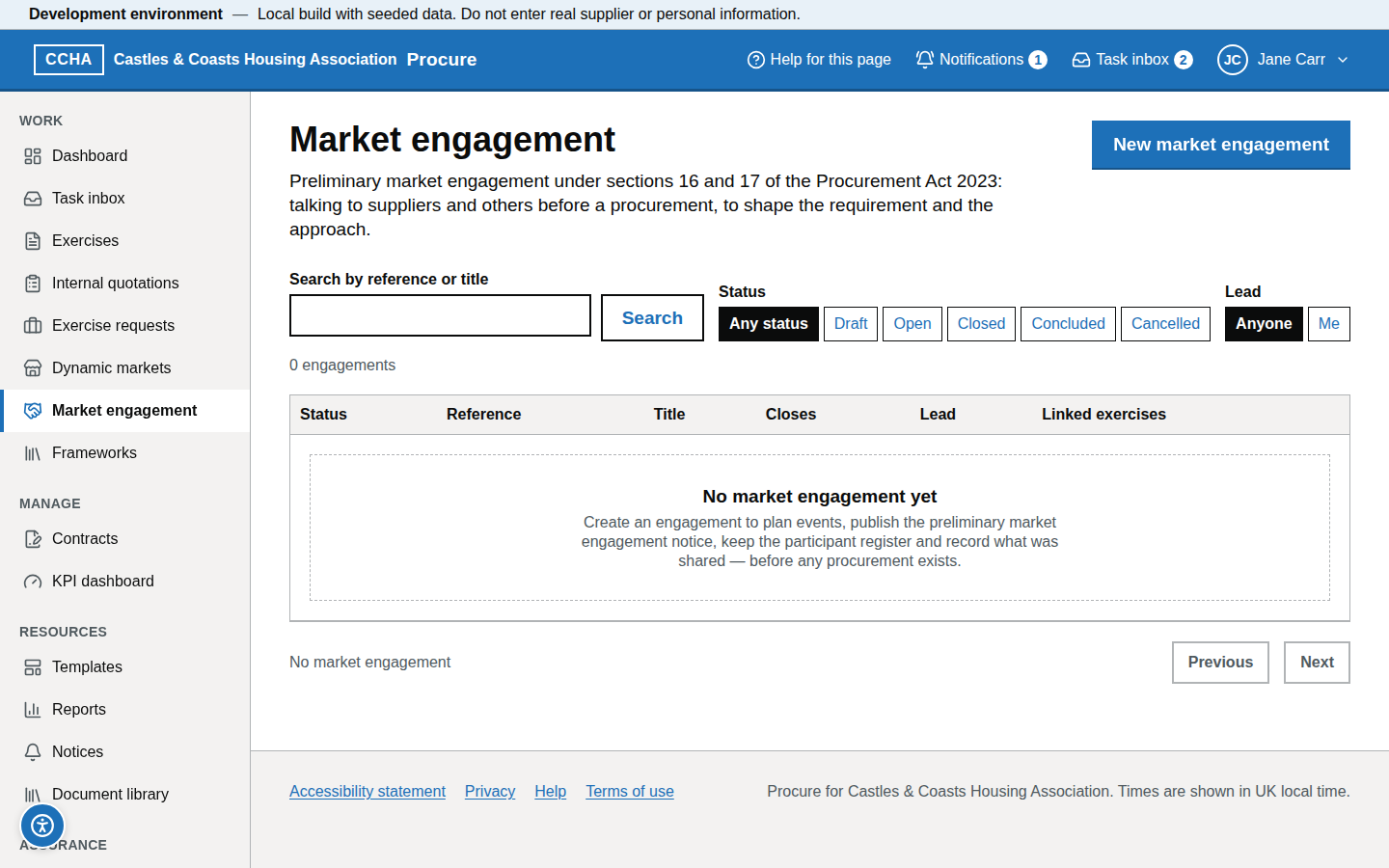
Preliminary market engagement is how you talk to suppliers and others before a procurement, to shape the requirement and the approach (Procurement Act 2023, sections 16 and 17). It is its own record under Market engagement — not an exercise and not a tender — so it can exist before any procurement does. You can also start one from Exercises → New exercise → Start preliminary market engagement.
Steps
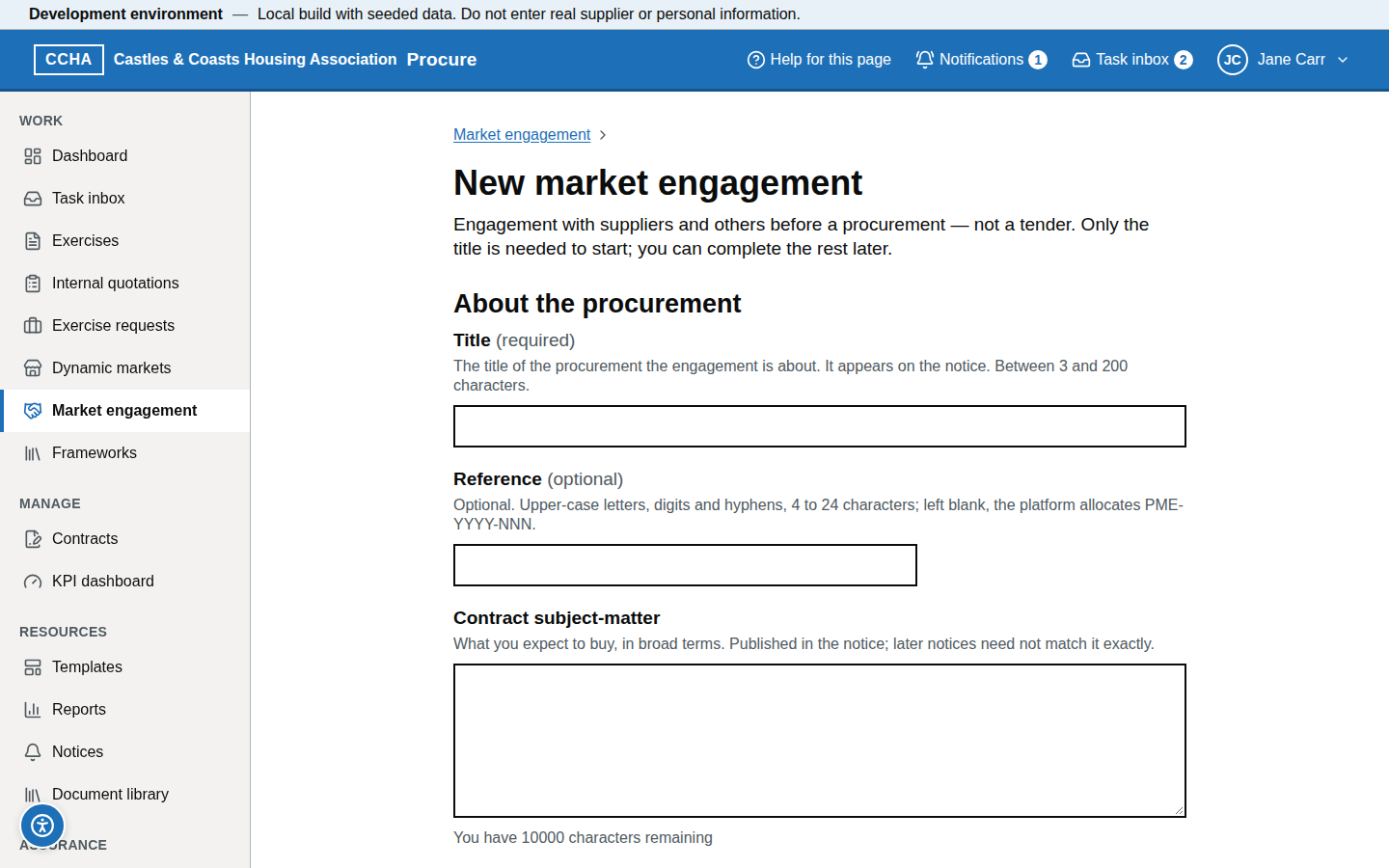
- Market engagement → New market engagement. Only the title is needed to start. Then complete the rest on the Details tab: the subject-matter, the section 16(1) purposes, the procurement route, how you will engage, the events (type, start and end in UK time, location or joining link, places, accessibility arrangements, recording), the expression-of-interest period, how numbers will be reduced if you are oversubscribed, the closing date, and any questions for suppliers (the call for information).
- Choose the procurement route. Sections 16 and 17 bind only a competitive tender above threshold — and "Not decided yet", which is treated the same way until you choose. For the other routes engagement is allowed, a notice is optional and nothing in those sections is enforced.
- Record the steps against unfair advantage (section 16(3)): what you will do so that suppliers who take part are not advantaged, for example sharing the same information with everyone and publishing it with the tender.
- Notice tab → Compile the notice → check it and publish it (see "Compile, validate and publish a notice"). The UK2 notice is built from the engagement: closing date, process, each event and the expression-of-interest period. If you will not publish one, choose No notice on the Details tab and give the reasons; they appear in the tender notice of every linked procurement. For engagement that has already happened, tick This engagement has already taken place; you then record it as closed and its notice says the engagement has been conducted.
- Overview lists exactly what is still needed before you can Open to suppliers. Once open, signed-in suppliers can express interest, register for events and answer your questions until the closing date.
- Participants tab: suppliers who expressed interest appear automatically; Add a participant records anyone you engaged with outside the portal, including people and bodies that are not suppliers. Update records selection, the events attended and contact details; leave the selection note, contact name or contact email blank, or set SME to "Not known", to clear it. Assess advantage records, for each participant, no unfair advantage, advantage mitigated (say how) or advantage cannot be avoided (say why).
- Information log tab: add an entry for everything you shared and received — who had it, whether it is confidential or intellectual property, and whether it will be released to all bidders. You can attach one file to an entry; it is attached only after a clean virus scan. At present only the person who uploaded the file can open it and the page offers no link to it — colleagues see that a file is attached — so put what matters in the summary.
- Conflicts tab: declare any conflict of interest, or that you have none, as you do on an exercise.
- Close engagement, then Outcomes and decision: what you learned, what changed in the requirement, the barriers small and medium-sized enterprises face, and the decision to proceed or not with your reasons. Conclude engagement.
- Links tab: Create procurement from this engagement starts a new exercise with the engagement's details and links the two, or link an exercise or Dynamic Market that already exists.
What you should see
The engagement moves Draft → Open → Closed → Concluded (or Cancelled). On a linked above-threshold open or competitive flexible exercise, the Statutory checks step shows the engagement and "UK2 notice published — section 17(1)(a) satisfied", so nothing is entered twice.
Common problems
- "Open to suppliers" is refused. The message lists each outstanding item with a link to the field — most often the notice has not been published yet, or the closing date is in the past.
- An advantage cannot be avoided. The supplier must be treated as an excluded supplier in every linked procurement (section 16(4) and (5)). The exercise's exclusion assessment shows the flag, and no award can be recommended or made to that supplier until its exclusion is recorded on the ground "Unavoidable unfair advantage from preliminary market engagement" — or you revise the assessment because the advantage has since been avoided.
- Information was shared with only some suppliers. The log warns you. Release it to all bidders in the tender documents, or record why not.
- The closing date has passed but the status is still Open. Suppliers can no longer take part; choose Close engagement to make it formal.
- A link cannot be removed. A link to an exercise can be removed only while that exercise is a draft.
- "This engagement is now …" or "was changed while you were working". A colleague changed it at the same moment. Nothing you asked for was done and the page has reloaded; check it and try again if it still applies.
- "This supplier is already a participant". It expressed interest, or a colleague added it, while you were filling in the form. Update its entry in the list instead.
- "The file is still being scanned". Wait a few seconds and save the entry again. A file that fails the scan is not attached.
- An event joining link is refused. It must start with
https://. - We decided not to proceed. Record the reasons when you conclude. The platform does not produce a procurement termination notice for an engagement.
Manage Dynamic Market applications, members and fees
A Dynamic Market is a list of suppliers that have met published conditions; call-off competitions are run among its members (Procurement Act 2023, sections 34 to 40). The market page (/b/markets/<id>) has tabs for Overview, Announcements, Applications, Members, Call-offs, Settings and Notices.
Steps
- Fees (Settings tab, or when you create the market). Answer "Does this market charge fees to suppliers awarded a contract?". The only fee allowed is a fixed percentage of the estimated value of each contract awarded (section 38). Type it as a percentage, for example 1.25, and describe how it will be charged. The position is published in the intention notice and cannot be changed once the market is established.
- Assess an application (Applications tab → Assess). Read the supplier's declarations, evidence and Central Digital Platform record. To accept, record whether the supplier is "Not an excluded or excludable supplier" or "An excludable supplier — admitted after consideration" (then give your reasons, at least 20 characters), and tick "I have checked that the supplier satisfies each condition for membership" (section 36(6)). The platform checks the debarment list and the supplier's own declaration when you record the decision. To reject or ask for information, give the reason the supplier will receive.
- Remove a member (Members tab → Remove from market). First tell the supplier that you have decided to remove it, and why (section 37(4)). Then choose the ground — the five grounds are those of section 37; the first is marked Must remove — enter the reasons as you gave them to the supplier and the date and time the supplier was informed. The supplier's users are e-mailed the ground and the reasons. The member stays listed as Removed with the ground, the reasons and the dates.
- Before a call-off is opened. Decide every application made before the call-off's tender deadline (section 34(4)). The Call-offs tab shows how many are undecided for each call-off that has not been opened.
- Intention notice content (when you create the market at
/b/markets/new, or on the Settings tab). The dynamic market intention notice states things only you can say (Procurement Regulations 2024, regulation 25(2)). You can save the market with them unanswered, but the intention notice cannot be published until they are given:- Intention notice: taking part (
#market-notice-content) — how documents about the market may be obtained, how a supplier applies to join, whether the market is mainly for goods, services or works, the CPV codes for what will be bought (separate from the market's categories, which are your own headings), and how the conditions for membership are verified. - Intention notice: coverage and dates (
#market-notice-coverage) — whether the market may be used to award contracts covered by the GPA and by the CPTPP, and special regime contracts (concession, defence and security, light touch, utilities) and which; which contracting authorities will or may use it; the areas it covers (the whole United Kingdom or ITL areas); the estimated date it will be established; and whether it is open-ended or the estimated date it will cease. None of these questions has a default answer. - Intention notice: other persons establishing the market — only where it is established jointly: each joint establisher's name, Central Digital Platform identifier, contact postal address and e-mail address, and which is the lead authority.
- Intention notice: a person acting on your behalf — only where another person establishes or runs the market for you: fill in all five boxes, or none.
- Intention notice: taking part (
What you should see
An accepted application shows its admission check (exclusion status, conditions confirmed, what the debarment list showed). The Overview tab shows the fees position in words, for example "1.25% of the estimated value of each contract awarded". The Overview tab also has Intention notice content, which shows each answer — "Not answered" is kept apart from "No" and "None" — with Change the intention notice content, a link to the Settings tab.
A removed supplier no longer appears when you invite members to a new call-off, and it may apply again. Removing a member, or rejecting an application, also takes the supplier out of the market's call-offs that have not been assessed yet: an alert headed "<supplier> was removed from the market and taken out of its call-offs" (or "The application from <supplier> was rejected and it was taken out of the market's call-offs") lists each call-off with "invitation revoked". A tender the supplier has already submitted there is disregarded when tenders are assessed, because membership is tested at that moment (section 34). Competitions where an award has already been recommended, and contracts the supplier holds, are not changed.
Common problems
- "This supplier may be an excludable supplier". The debarment list or the supplier's own declaration shows a possible discretionary exclusion ground. The dialog switches to "An excludable supplier — admitted after consideration": consider whether to admit it and give your reasons, or reject the application.
- "It is an excluded supplier … and cannot be admitted". The supplier is on the debarment list by reference to a mandatory exclusion ground, or has declared one. Acceptance is not available; reject the application with the reason.
- The fees cannot be changed. Fees are set by the documents establishing the market and are a fixed percentage, so they are read-only once the market is established. A market established before fees were recorded can record "No" once, and nothing else. Cease the market and establish a new one if different fees are needed.
- Rule DM-007 on the intention notice. The notice must say whether fees are charged. Record the position on the market's Settings tab, then recompile the notice.
- Rules DM-010 to DM-012 on the intention notice. An intention notice answer is missing. The finding links to the section of the Settings tab that holds it; answer it, save the market, then compile the notice again.
- "The invitation could not be revoked" in the alert after removing or rejecting a supplier. Your decision stands, but the supplier still holds an invitation to that call-off. Revoke it under Invited suppliers on the call-off's Conflicts and proceedings tab (Revoke invitation).
- "Name the condition for membership that is not satisfied". For the ground "does not satisfy the conditions for membership" the reasons must name the condition's reference, for example "insurance".
- "The time given is in the future". The supplier must already have been informed before it is removed. Times are UK time.
- "Name the entry on the published list". For the debarment ground, if the imported copy of the debarment list does not match the supplier on an identifier, enter the published entry you are relying on.
Record a framework and call off from it
A framework is an agreement that sets the terms for contracts awarded during its term (Procurement Act 2023, sections 45 to 48). At present you can record only a framework another organisation set up that CCHA is entitled to use; setting up a framework of your own is not available yet. A purchase under a framework is a call-off: an exercise with the procedure Call-off from a framework. No tender notice is published for a call-off, because only suppliers that are party to the framework can be awarded the contract.
Steps
- Frameworks → Record a framework. Enter the title and the regime the framework was awarded under, then Create draft and continue. Choose Procurement Act 2023 only if the framework's own notice says so. A framework awarded under the Public Contracts Regulations 2015 (or another regime) is still governed by those rules: call-offs are run and recorded here, but no Procurement Act notice is published for them — when a call-off is awarded you get a task to meet that regime's publication duties by hand.
- Work through the steps on the draft. Each shows what is still needed to activate:
- Identity and regime — the establishing authority, any body that administers the framework, the unique identifier of the framework's procurement (every notice for a call-off carries it), the link to its notice (https), what can be bought, and the contracting authorities entitled to use it, by name or by category. Under Documents on this step you can attach files such as the framework agreement or its notice: each is virus-scanned and is attached only when you choose Save documents. At present only the person who uploaded a file can open it; other staff see that it is attached but cannot open it.
- Term and value — start and end dates (a contract can be awarded up to and including the end date), the estimated value of the framework in pounds, the price or pricing mechanism, any fee charged to suppliers, and the establishing authority's reasons if the term is more than four years. While the framework is a draft you can empty a date, the estimated value, the contract type, the entitled authorities or the supplier limit again if it was entered by mistake; once it is active those can no longer be removed.
- Selection process — the routes the framework itself allows: a competitive selection process, award without competition, or both. For award without competition with more than one supplier, record where the framework sets out the core terms and its objective mechanism for choosing the supplier (rotation, ranked, lowest catalogue price or another). For a competitive selection process, record the award criteria with the lowest and highest weighting a call-off may give each, and whether conditions of participation are allowed.
- Lots — only if the framework has them; a lot can have its own value and its own selection process.
- Suppliers — the suppliers party to the framework, lot by lot, with their rank where the framework ranks them. The supplier must already be registered on the platform.
- Access check — seven confirmations that the framework is suitable and CCHA may use it: established by a contracting authority; its notice published; CCHA clearly identified as entitled to use it, with the name or category that covers it; the goods, services or works are covered; the framework sets out what section 45(5) requires; call-offs awarded so far do not exceed its estimated value; and the liability position is understood. Add a note of what you checked and, if you wish, one file of evidence for each item (virus-scanned, attached when you save, and for now openable only by the person who uploaded it). You can save progress and finish later.
- Check and activate — lists anything outstanding, each item linked to its step. Activate framework when the list is empty.
- Once active, the framework has tabs. Overview: status, days left (marked Expiring soon from 180 days), value left, and Suspend, Resume or Terminate, each with a reason. Lots and suppliers: add a supplier, or Change status — suspended or removed record what the establishing authority did; excluded records an exclusion under section 48 and needs a reason of at least 20 characters and, where the supplier is excludable only because of an associated person, the date it was given a reasonable opportunity to replace that person. The table shows, for a supplier that is not active, the reason and the date its status changed, and that opportunity date where one was recorded. Call-offs: every call-off with its route, supplier, value and contract. Value: the estimate, what CCHA has awarded and approved, and the total awarded by all users as reported by the framework's owner — record that figure with the date it was correct, and Reconcile call-offs at any time. Access check: record it again when it is due for review (twelve months after it was last recorded).
- To call off: Exercises → New exercise, choose Call-off from a framework, then the framework and, if it has lots, the lot. Only frameworks that are active, within their term and have a complete access check inside its review date can be chosen; any other framework is listed underneath with the reason it cannot take a call-off. You can also start a call-off from a call-off template (Exercises → From template), which asks for the framework and lot in the same way, or when accepting a department's exercise request, by choosing Call-off from a framework as the procedure. The exercise is closed to invited suppliers; there are no lots, stages, reservation or tender notice.
- On the exercise's Call-off record step (it takes the place of Statutory checks), record why the requirement is within the framework's scope and how the contract is awarded. A draft can be saved incomplete; the step lists what is still needed before approval.
- Competitive selection process (section 46): choose the award criteria from those the framework was awarded on and weight them within the framework's ranges so they total 100; set any conditions of participation the framework allows, saying why each is proportionate; on the Visibility and invitations step use Invite all framework suppliers, or record why a supplier is not invited — only the lot's active suppliers can be invited. A voluntary standstill period of at least eight working days is switched on by default above the threshold.
- Award without competition (section 45(4)): choose the basis — only one supplier is party to the framework, or the framework sets out the core terms and an objective mechanism — explain why it applies in at least 50 characters (the explanation is published in the contract details notice), record how the mechanism identified the supplier, and choose that supplier.
- Request approval as usual. The first call-off under each framework must be approved by a senior user.
- For a competitive selection process, publish the exercise to its invitees and evaluate as for any closed exercise; suppliers see the opportunity marked Call-off under the framework's reference and title, with the lot where the framework has lots. For an award without competition there is nothing to publish: a senior user chooses Award without competition on the approved exercise's overview and records the reason (at least 20 characters). If the exercise moves to award recommended but the award was not recorded, the overview says so and Record the award on the same panel finishes it — enter the reason again; it is safe to repeat, and nothing changes if the award was already recorded. Either way the contract award notice, standstill and contract follow as usual, and the notices name the framework, its procurement identifier and the lot.
What you should see
The framework moves Draft → Active, and may be Suspended, Expired (from the day after its end date, with no action needed) or Terminated. The exercise overview shows the framework, lot, route and regime; the contract shows the framework and lot it was called off from; and the framework's Call-offs and Value tabs include the new call-off.
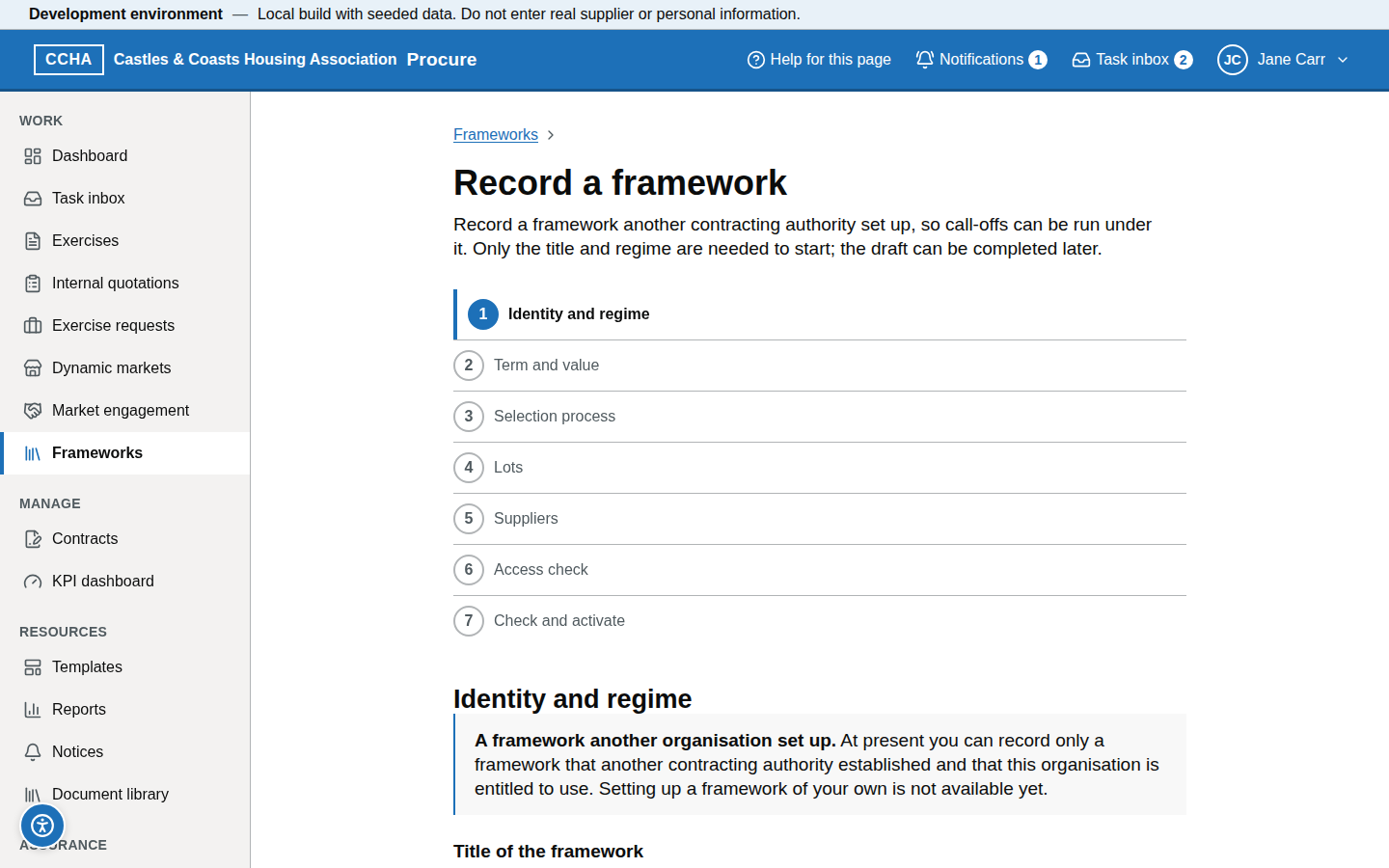
Common problems
- "Activate framework" is unavailable. The list above it names each outstanding item with a link to its step. The commonest are a missing procurement identifier, no supplier on a lot, and an incomplete access check.
- The framework cannot be chosen when I create a call-off. It is listed under the picker with the reason: still a draft, suspended, expired, terminated, no complete access check, or its access check overdue for review. Follow its link to put that right.
- A file cannot be attached to a framework or its access check. The message names the file and says why: its virus scan has not finished (wait and save again), the scan failed or found a threat (remove it and upload again), or the file was uploaded by a colleague — only the person who uploaded a file can attach it.
- A field cannot be changed. Once a framework is active only its description, notice link and documents can change; its terms are what the establishing authority concluded. Suppliers can still be added and their status changed.
- A recorded date or value cannot be cleared. Enter the correct date or value instead.
- Approval is refused: "a senior user must approve it". This is the first call-off under the framework. Ask a senior user to approve the exercise.
- Approval is refused: the estimated value exceeds what is left. The call-off's estimate is more than the value left on the framework or lot. Check the framework's Value tab; ask its owner for the current total awarded by all users.
- "The framework's objective mechanism identifies a different supplier". The framework ranks its suppliers and you chose one that is not first. Record why the first was passed over — for example it declined or cannot perform — in at least 50 characters.
- A supplier cannot be awarded the contract. Only an active supplier on the call-off's lot can be, and an exclusion assessment of that supplier must be recorded on the exercise before the award.
- Terminating is refused because call-offs are in progress. Award or abandon them first. If the framework must end now, a senior user can terminate it anyway; those call-offs can then no longer be awarded.
- The call-off is under a 2015-regime framework. No Procurement Act notice is compiled: the contract award notice and the contract details notices are not offered on the Notices tab of the call-off or of its contract, which explain why instead. Complete the task raised on award to publish what the Public Contracts Regulations 2015 require.
- A contract details notice fails rule CD-012. The explanation of why section 45(4) applies is missing or shorter than 50 characters. Once the call-off is approved only a senior manager or a system administrator can correct it: ask one to open the notice and use Explanation of the award without competition under the notice form, then choose Recompile from source and check compliance again.
Log an internal quotation
Steps
- Internal quotations → Log a quotation.
- Enter the title, department, value, the suppliers asked (name or registered supplier) with their quotes, the chosen supplier and the reason.
- Record how the national procurement policy statement was taken into account, and the barriers for small and medium-sized enterprises: what barriers they may face in competing and how you removed or reduced them (Procurement Act 2023, section 86). A quotation is awarded without approval, so both are recorded here.
- Attach the written quotes and choose Log quotation. The log allocates
IQ-YYYY-NNNN("Logged as IQ-YYYY-NNNN").
What you should see
The quotation in the log with its reference and attachments.
Common problems
- Fewer than three quotes. Allowed (at least one supplier is needed) and not flagged by the log; record the reason in Reason.
- Value above the quotation limit. A value at or above the applicable threshold is refused; run an exercise instead. From £30,000 the log warns that a below-threshold tender notice may be required.
Run and schedule reports
Steps
- Reports opens on the Overview charts. The Spend, Contracts, Procurement and Suppliers and performance views chart the same data you can read in the registers; every chart states its main finding in a sentence and has View as table beneath it.
- Report library → choose a definition, for example Exercise summary, Contract summary, All contracts — register, PA23 notice compliance log, Audit extract or Spend by department.
- Choose Run, set the parameters and Format, and choose Run report; download the CSV, Excel (XLSX) or PDF file when the run completes.
- Schedule a report daily, weekly or monthly; scheduled runs are delivered at 07:00.
What you should see
A run row with status and a download link.
Common problems
- The run failed. Open it for the reason; large date ranges may time out — narrow the filter.
- A column is missing. Ask for the report definition to be extended.
Search the audit trail
Steps
- Open Audit explorer. The warning "Only open the audit log for a permitted reason" appears every time you open it, and nothing from the log is shown until you choose I have a permitted reason – open the audit log. Open the log only for a permitted reason, such as an investigation, a complaint, a legal or regulatory request or an authorised check; your access is recorded, and misuse may constitute an offence under the Computer Misuse Act 1990.
- Filter by User, Department or team, Table, Row id, Exercise, Action, From and To, then choose Show results.
- Choose Details on a row to see the before and after values, the actor, the time and, where it was recorded, the IP address.
- Check the chain status at the top ("Chain verified ✓ <date and time>") and Export the filtered rows.
What you should see
The filtered rows and the nightly chain verification result.
Common problems
- Nothing for a supplier's answers. Supplier answers are never written to the audit log; only events about them are.
- Chain status not OK. Stop and contact the helpdesk; the report names the first broken link.
Manage the document library
Steps
- Document library: browse the folders, search by name, filter by Tag or show Templates only.
- Upload a new document, or Upload new version on an existing one; earlier versions stay available and show what superseded them.
- Tag documents and mark templates (ITT, specification, terms, letter) so that they appear in the exercise pickers.
What you should see
Folders, versions and scan status per document.
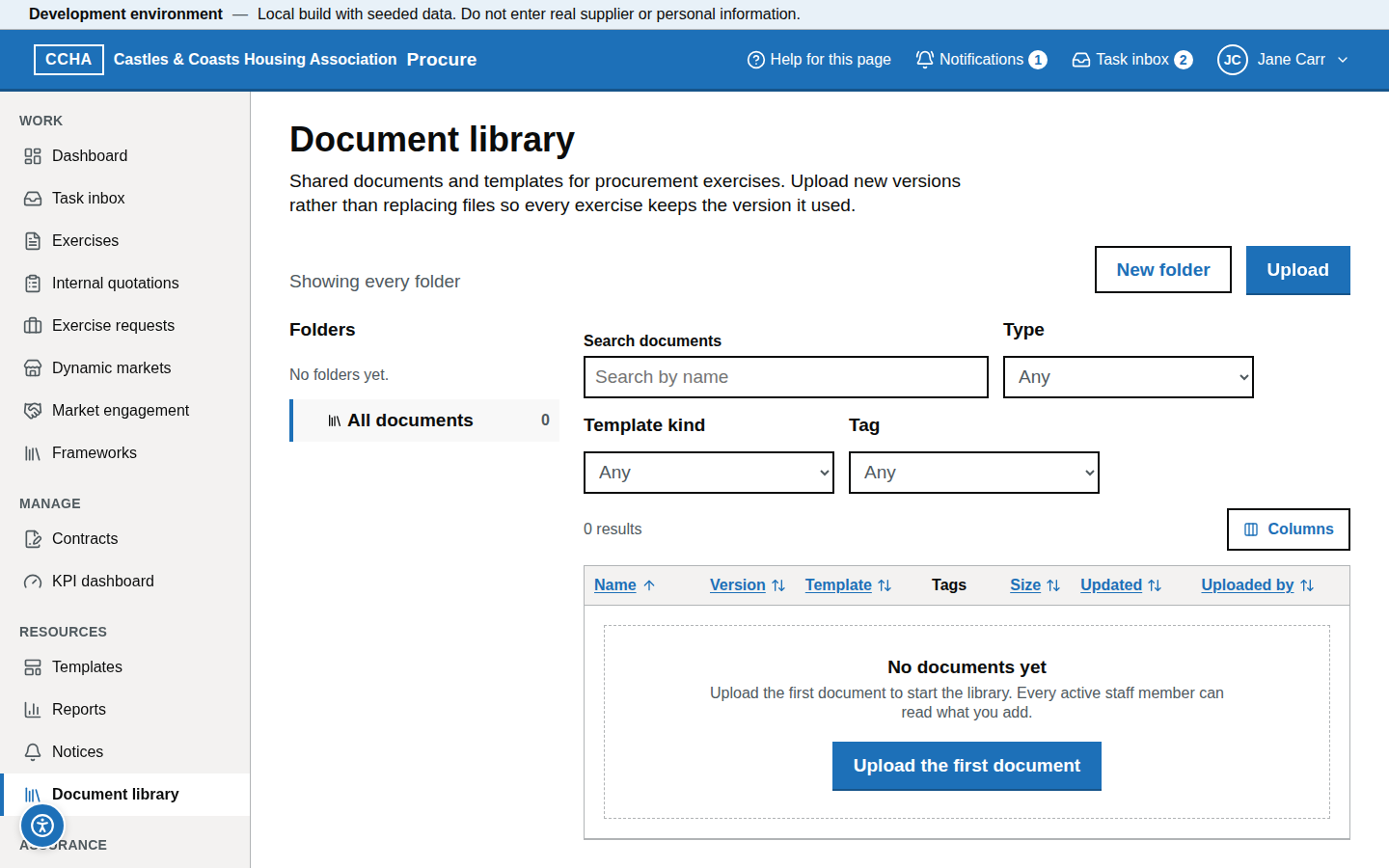
Common problems
- Cannot delete a document. The library has no delete: documents are retained. Upload a new version instead; the earlier one is marked Superseded.
- Upload rejected. Check the file type and size limits in the help panel.
Accessibility
Steps
- Every action is reachable with the keyboard: Tab through controls, Enter to activate, Escape to close panels. There are no single-key shortcuts; see keyboard-only use.
- Zoom to 200 % or use a 360 px window; navigation collapses and tables stack.
- Pages are built for screen readers (status messages are announced; forms follow GOV.UK patterns with visible labels and error summaries), but the service has not yet been tested with screen-reader software — that audit is scheduled.
- The accessibility statement is linked in the footer.
What you should see
A visible focus ring on every control; no content lost at 360 px.
Common problems
- Focus disappears after a dialog. Report it with the page name; focus should return to the control that opened the dialog.
- A colour is hard to read. Every RAG value is accompanied by its text, never colour alone.
Getting help (help panel, knowledge base, helpdesk hours)
The ? button (Help for this page) in the header opens the help panel with the article for that screen and, where one is planned, a Watch the video guide for this page link (the videos are not yet recorded; the link says so). From the panel you can open the full guidance or search the help by title and heading. Take a guided tour, in the same panel (or Guided tours in your account menu), walks you through a task step by step and follows you from page to page (Take a guided tour). Support contact details and hours are on the Help page (/help#contact in Geckr Procure).
Glossary links
Glossary: tender notice · competitive flexible procedure · threshold band · standstill · assessment summary · contract award notice · contract details notice · Dynamic Market · exercise · lot · section · moderation · RAG.