Evaluator guide
Castles & Coasts Housing Association (CCHA) — Buyer & Platform Documentation Audience: CCHA staff | Platform: Geckr Procure
Who this is for
Staff assigned to score submissions on a particular exercise: quality evaluators (technical and social value questions) and price evaluators. You are assigned per exercise and see only the exercises and sections you are assigned to. Sarah Wilson, Raj Patel and Emma Clarke are the evaluator personas in the demo tenant.
Before you start (sign-in, MFA/magic link, browser)
- Sign in with your CCHA email address and password (SSO once connected). MFA is not required for evaluators unless you also hold a senior or procurement role.
- A tablet works well for scoring; the workspace is responsive and keyboard-operable.
- You will not see the exercise until the procurement team has assigned you and you have declared any conflicts of interest.
Your dashboard and task inbox
Your task inbox (/b/tasks) shows tasks titled by the exercise reference — "Evaluate CCHA-YYYY-NNNN" and "Re-score Q2.3 for … — CCHA-YYYY-NNNN"; the line below names the exercise. Your cases are listed at /b/evaluate/[exerciseId] with your progress per case, and the My evaluations card on your dashboard lists your open evaluation and moderation tasks. The Evaluate task closes when moderation starts; after that, open the exercise from Exercises (the register lists only your own department's exercises).
Accept an assignment and declare conflicts
Steps
- Once the tender has been opened, open the exercise from Exercises and choose Score your assigned submissions (or open the "Evaluate CCHA-YYYY-NNNN" task once the exercise moves to evaluating). Exercises lists only your own department's exercises; for another department's exercise, use the task or its email.
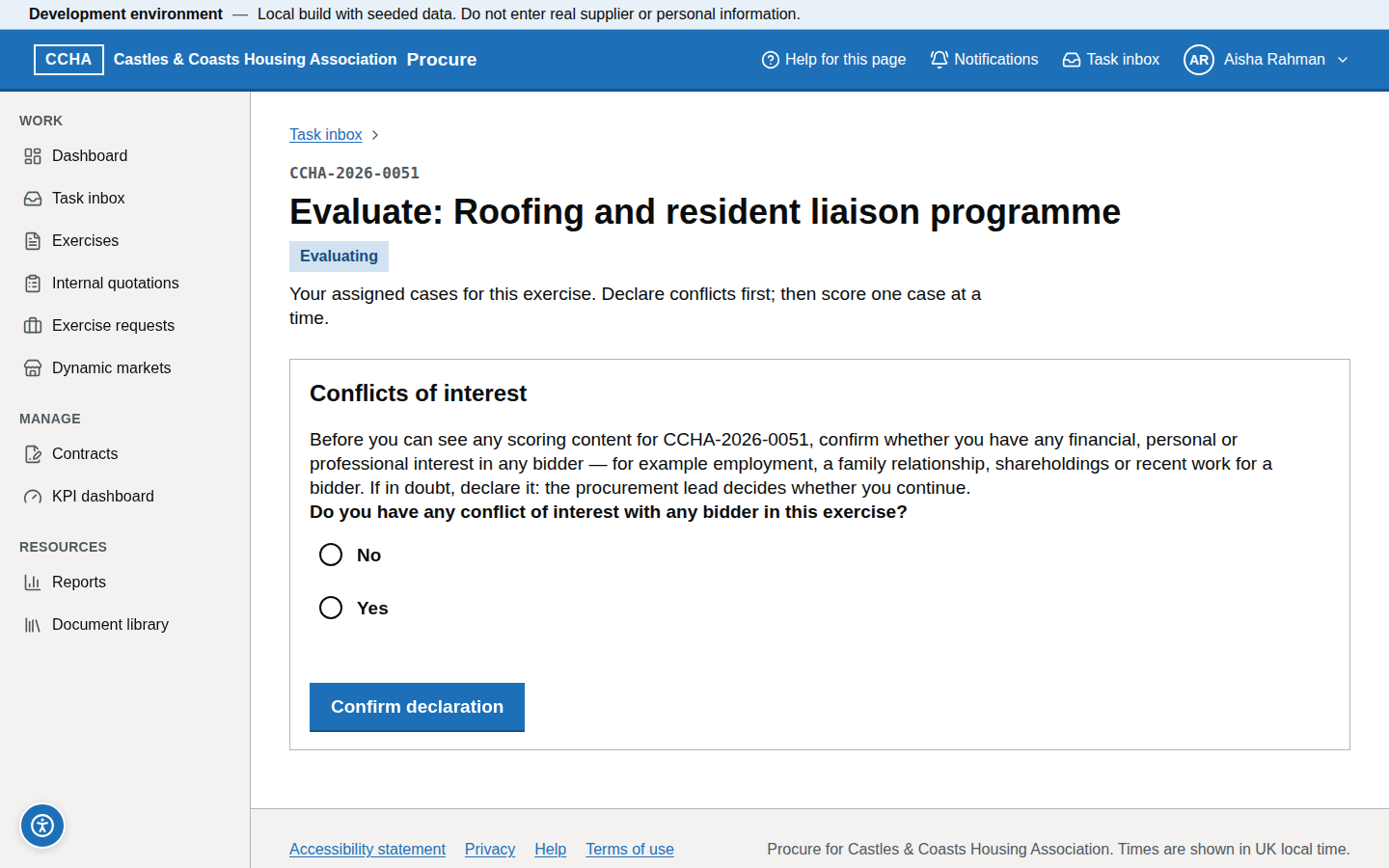
- Under Conflicts of interest, answer "Do you have any conflict of interest with any bidder in this exercise?" with No or Yes. For Yes, describe the interest and the bidder concerned in Details (at least 10 characters).
- Choose Confirm declaration. If you declare a conflict, the procurement lead receives a task to review it; you can start scoring only after your declaration is recorded and, for a conflict, the lead has confirmed that you can continue.
What you should see
After No, your assigned cases; after Yes, "Thank you — your declaration has been recorded", with scoring content hidden until the lead decides. The "Evaluate" task appears when the exercise moves to evaluating.
Common problems
- I recognise a supplier. Declare it; the lead decides whether you continue.
- No task yet. You are assigned but the exercise has not yet moved to evaluating (the tender is opened first, and on a blind exercise every case must pass the independent review).
Score a submission
Steps
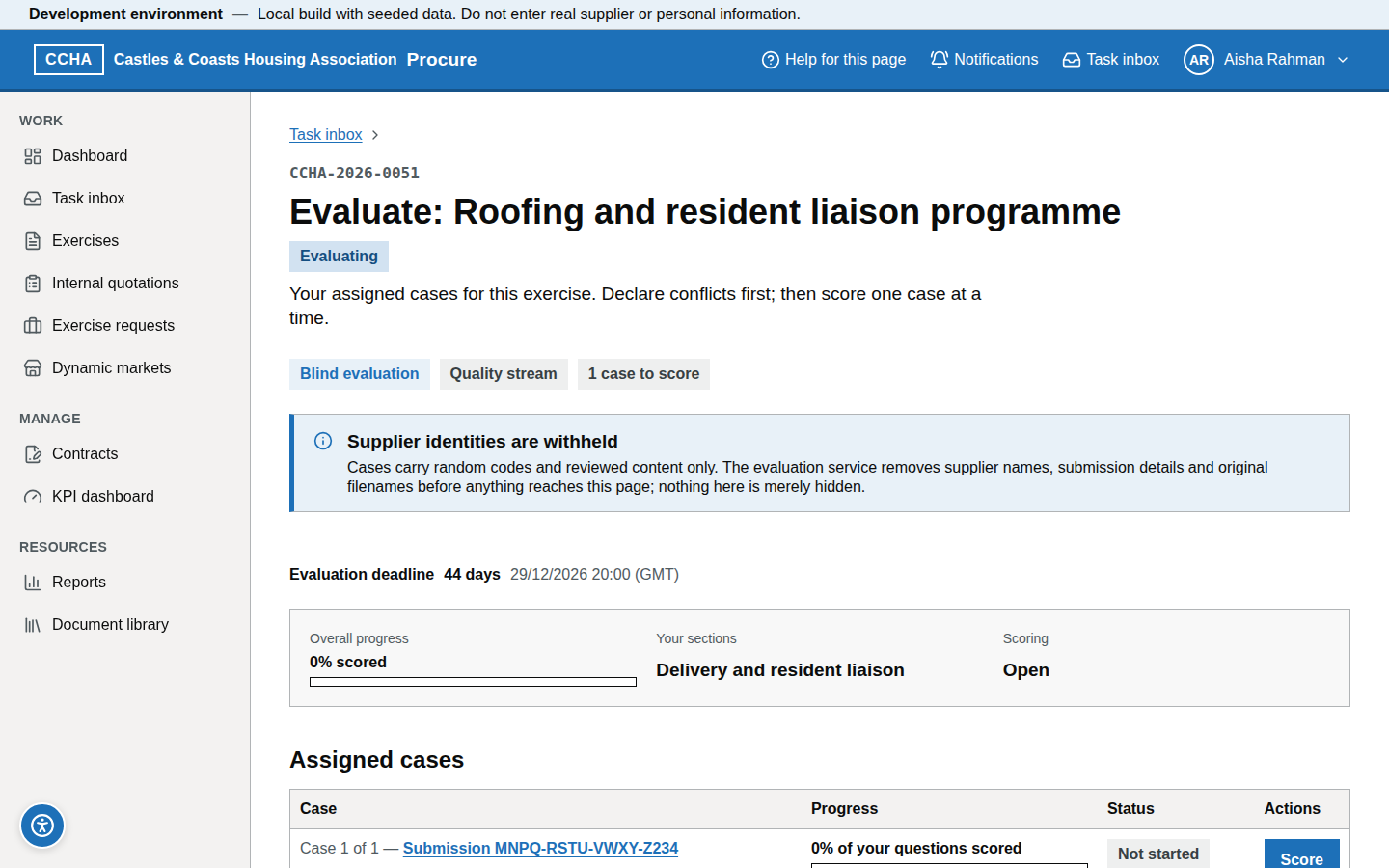
- Open Evaluate: <exercise> and, under Assigned cases, choose Score for a case (one submission at a time; shown by case label only if blind evaluation is on).
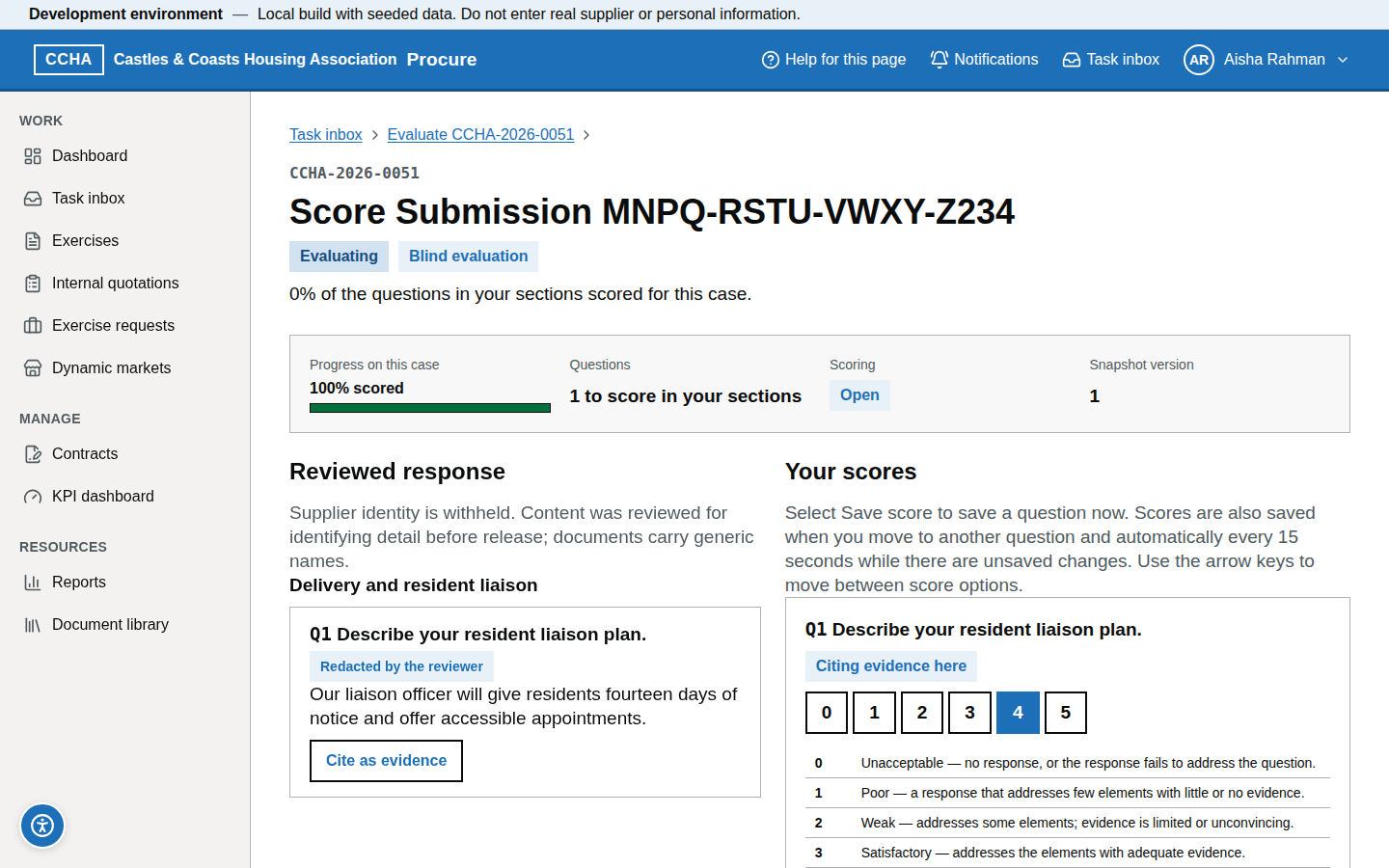
- For each question in your sections read the response and any uploaded evidence, choose a score within the maximum, and write a comment that explains the score against the guidance (a comment of at least 20 characters is required for a score of 0–2, the maximum score or a fail).
- Use Cite as evidence next to an answer or document to add it to the question's Evidence cited list where useful.
- Save as you go; scores are private to you until moderation.
What you should see
The reviewed response on one side and Your scores on the other: the question text, the scoring guidance, your score and comment; a Progress on this case bar.
Common problems
- I cannot see the price section. Price is scored automatically and is visible only to price evaluators and moderators.
- A pass/fail question. Choose Pass or Fail; a fail needs a comment and stops the tender at the gate.
Use scoring guidance
Steps
- Read the scoring guidance table under the score options of each scored question (by default 0 Unacceptable … 5 Excellent, or the descriptors the procurement team set for the question).
- Match the response to the descriptor before choosing a number; write the comment in terms of the descriptor.
- Be consistent across suppliers; the moderator sees all comments together.
What you should see
The scoring guidance for the question with the descriptor for each score.
Common problems
- Half marks. Scores are whole numbers; explain nuance in the comment.
- Guidance seems wrong. Tell the procurement lead; guidance cannot change after publication, but it can be clarified in moderation.
Save and resume
Steps
- Choose Save score, or scores save when you move to another question and automatically every 15 seconds while there are unsaved changes; the status shows "Saved at hh:mm (BST)" ("GMT" in winter).
- Close the browser at any time; return from your task inbox or
/b/evaluate/[exerciseId]. - Progress per case is shown as a percentage.
What you should see
"Saved at hh:mm (BST)" under the question you changed.
Common problems
- Lost connection. The question shows "Not saved — …" and keeps what you entered; choose Try again once you are reconnected.
- Two devices at once. The last save wins; use one device per session.
Respond to a re-score request
Steps
- Open the task "Re-score <question> for <case> — CCHA-YYYY-NNNN" raised by the moderator, and read the moderator's note in the task.
- Re-read the response and either change your score and comment or keep the score and update the comment to give your reason.
- Choose Save score; the moderation grid updates and the request and its task close.
What you should see
"A moderator has asked you to re-score" above your scores and the question marked Re-score requested; every other question is read-only.
Common problems
- I disagree with the moderator. Keep your score and say why; the moderated score is set with a rationale either way.
- Moderation locked before I answered. The lock is refused while a re-score is pending; contact the moderator.
Complete your evaluation
Steps
- When every question in your sections is saved for a case, choose Mark this case complete.
- Complete each case; Overall progress shows 100 % for you.
- When every evaluator is complete, the moderators receive a "Moderate" task and the procurement team or a senior user moves the exercise to moderation.
What you should see
"Evaluation complete" and progress at 100 %; your scores for that case become read-only.
Common problems
- Mark this case complete is disabled. A question is unscored, unsaved or missing a required comment; the footer says how many questions are saved.
- I need to change a score after completing. Ask the moderator to request a re-score.
Getting help (help panel, knowledge base, helpdesk hours)
The ? button (Help for this page) in the header opens the help panel with the article for that screen and, where one is planned, a Watch the video guide for this page link (the videos are not yet recorded; the link says so). From the panel you can open the full guidance or search the help by title and heading. Take a guided tour, in the same panel (or Guided tours in your account menu), walks you through a task step by step and follows you from page to page (Take a guided tour). Support contact details and hours are on the Help page (/help#contact in Geckr Procure).
Glossary links
Glossary: evaluator · moderator · blind marking · scoring guidance · pass/fail gate · moderation · abnormally low tender.