Signing in, signing out and staying secure
Castles & Coasts Housing Association (CCHA) — Buyer & Platform Documentation Audience: CCHA staff | Platform: Geckr Procure
How to sign in to Geckr Procure with a password or a sign-in code sent by email, how two-step verification and recovery codes work, what to do if you lose your authenticator app or forget your password, and how signing out works.
Who this is for
Everyone with a Geckr Procure account. Staff usually sign in with a password; suppliers usually sign in with a 6-digit code sent to them by email. If you do not have an account yet, start with Welcome to Geckr Procure.
Before you start
- Know which email address your account uses. Suppliers: the address you registered or were invited with. Staff: your CCHA work address.
- A code from a sign-in email must be entered in the same browser you asked for it in, within 10 minutes.
- If your account uses two-step verification, have your authenticator app or your recovery codes to hand.
- On a shared or public computer, always sign out when you finish.
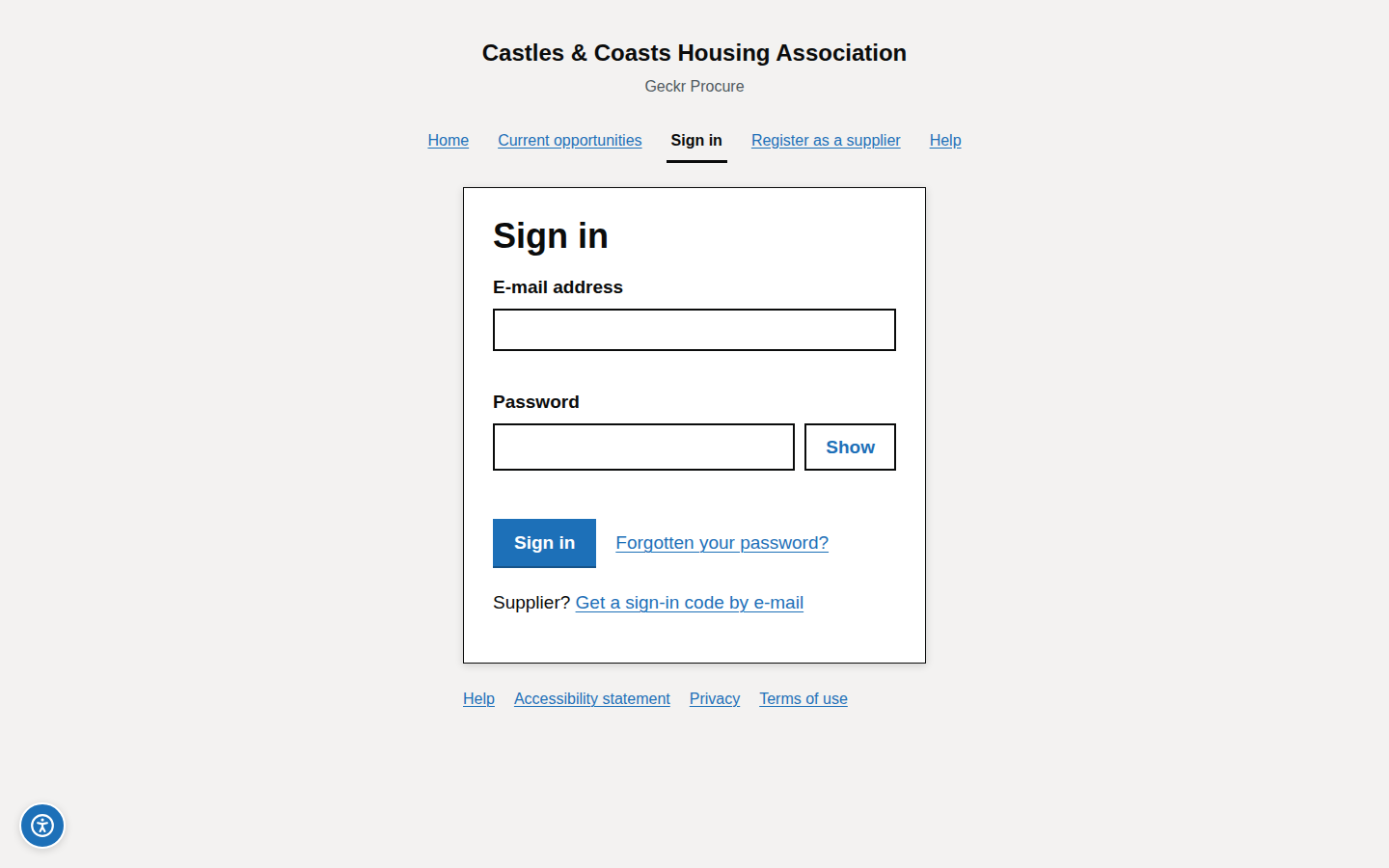
Sign in with your e-mail address and password
Steps
- Choose Sign in on the home page, or go to
/auth/sign-in. - Enter your E-mail address and Password, then choose Sign in.
- If your account uses two-step verification, enter your code — see Enter your authenticator code.
What you should see
Your dashboard. If you were sent to the sign-in page from a particular page, you are returned to it.
Common problems
- "You have not been signed in". The email address or password is wrong. The message does not say which, for security. Check both, or use Forgotten your password?.
- You are sent to Set up multi-factor authentication. Your role needs two-step verification and it is not set up yet. See Set up two-step verification.
Sign in with a sign-in email
Suppliers can sign in without a password. The sign-in email contains a 6-digit code, which you type in on the page where you asked for it.
Steps
- On Sign in choose Get a sign-in code by e-mail, or go to
/auth/magic-link. The Get a sign-in code page opens. - Enter the address you registered with in E-mail address and choose E-mail me a code.
- On Check your e-mail, enter the 6-digit code from the email in Code from the e-mail and choose Sign in. Do this in the same browser, within 10 minutes.
- If your account also uses two-step verification, enter your authenticator code when asked.
What you should see
Your supplier dashboard.
Common problems
- Nothing arrives. For security the page always says a code has been sent, even if the address is not registered. Check your junk folder and that you used the right address, then choose Send another code. Only the newest code works: "Codes sent before it no longer work."
- You typed the wrong address. Choose Use a different e-mail address.
- "That sign-in code cannot be used". You are returned to Sign in with this message when the code you entered is wrong, has expired or has already been used, or was entered in a different browser from the one that asked for it. Choose Get a sign-in code by e-mail again and ask for a new code in the browser you want to use.
- "Staff sign in with a password". Sign-in codes are for suppliers. Staff sign in with their email address and password on the Sign in page.
- "Too many requests". Wait a few minutes before asking again.
Sign in with Microsoft, Google or Apple
CCHA staff can sign in with their CCHA Microsoft work account where Geckr has set this up for CCHA: the Sign in page then shows Sign in with Microsoft. Google and Apple sign-in are not available, and suppliers cannot sign in with Microsoft.
Steps
- Staff: on Sign in, choose Sign in with Microsoft, then sign in on the Microsoft page if asked. See Sign in with Microsoft.
- Everyone else, or if there is no Microsoft button: sign in with your email address and password (Sign in with your e-mail address and password) or, as a supplier, with a sign-in code (Sign in with a sign-in email).
What you should see
After Microsoft, your dashboard, or a request for your authenticator code if your role needs two-step verification.
Common problems
- "Your Microsoft account is not set up for Geckr Procure yet". No Geckr Procure account is linked to your Microsoft account. Staff: ask your system administrator. Suppliers: sign in with a sign-in code instead.
- "Microsoft sign-in did not complete". Try again, or sign in with your email address and password.
Enter your authenticator code
If your account uses two-step verification (multi-factor authentication), signing in with a password or a sign-in code is followed by a code from your authenticator app.
Steps
- On Check your authenticator app, open your authenticator app and find the Geckr Procure entry.
- Type the 6-digit code into Enter the 6-digit code from your authenticator app and choose Verify code.
What you should see
Your dashboard.
Common problems
- The code is refused. Codes change every 30 seconds and depend on your device's clock. Wait for a new code. After five failed attempts the page shows Having trouble with your authenticator app? — use a recovery code instead.
- "Too many attempts. Wait a few minutes and try again." After 6 wrong codes (authenticator or recovery codes together) in 15 minutes, two-step verification is locked for 30 minutes. Past 20 wrong codes in a day, each further wrong code locks it again. A correct code clears the count. Wait, then sign in again; if you think someone else is trying to sign in as you, tell your system administrator (staff) or CCHA Procurement (suppliers).
- "Your sign-in has timed out. Sign in again with your e-mail address and password to continue." The code was entered more than an hour after your password or sign-in code, or in a different browser from the one you signed in with. The code was not checked. Sign in again from the start, in one browser, and enter the code straight away.
- It is not your account, or you want to stop. Choose Sign out at the foot of the page.
Use a recovery code
Recovery codes are the one-time codes you saved when you set up your authenticator app.
Steps
- On Check your authenticator app, choose Use a recovery code instead.
- Enter one of your codes in Enter one of your recovery codes. Spaces and dashes are ignored.
- Choose Verify code. Cross that code off your list: each works once.
- To go back to the app, choose Use your authenticator app instead.
What you should see
Your dashboard. Profile settings or My profile then shows "You signed in with a recovery code" under Recovery codes.
Common problems
- You are running out of codes. On Profile settings (staff) or My profile (suppliers), under Recovery codes, choose Check how many codes I have left, or Create new recovery codes for a fresh set. If Confirm it is you appears, enter your password, or choose E-mail me a code instead. A new set replaces the old one: your old codes stop working, and the new ones are shown only once, so store them straight away.
If you have lost your authenticator app
Steps
- If you still have a recovery code, sign in with it — see Use a recovery code.
- Staff: ask your system administrator to reset your multi-factor authentication. They will check who you are by a second channel first. The reset deletes your authenticator and signs you out everywhere.
- Suppliers: ask an administrator of your organisation to choose Reset two-step verification for you on Organisation users. They record how they checked who you are, and you are told by email. Your authenticator and recovery codes stop working and you are signed out everywhere. If you are your organisation's only administrator, contact CCHA Procurement through Help.
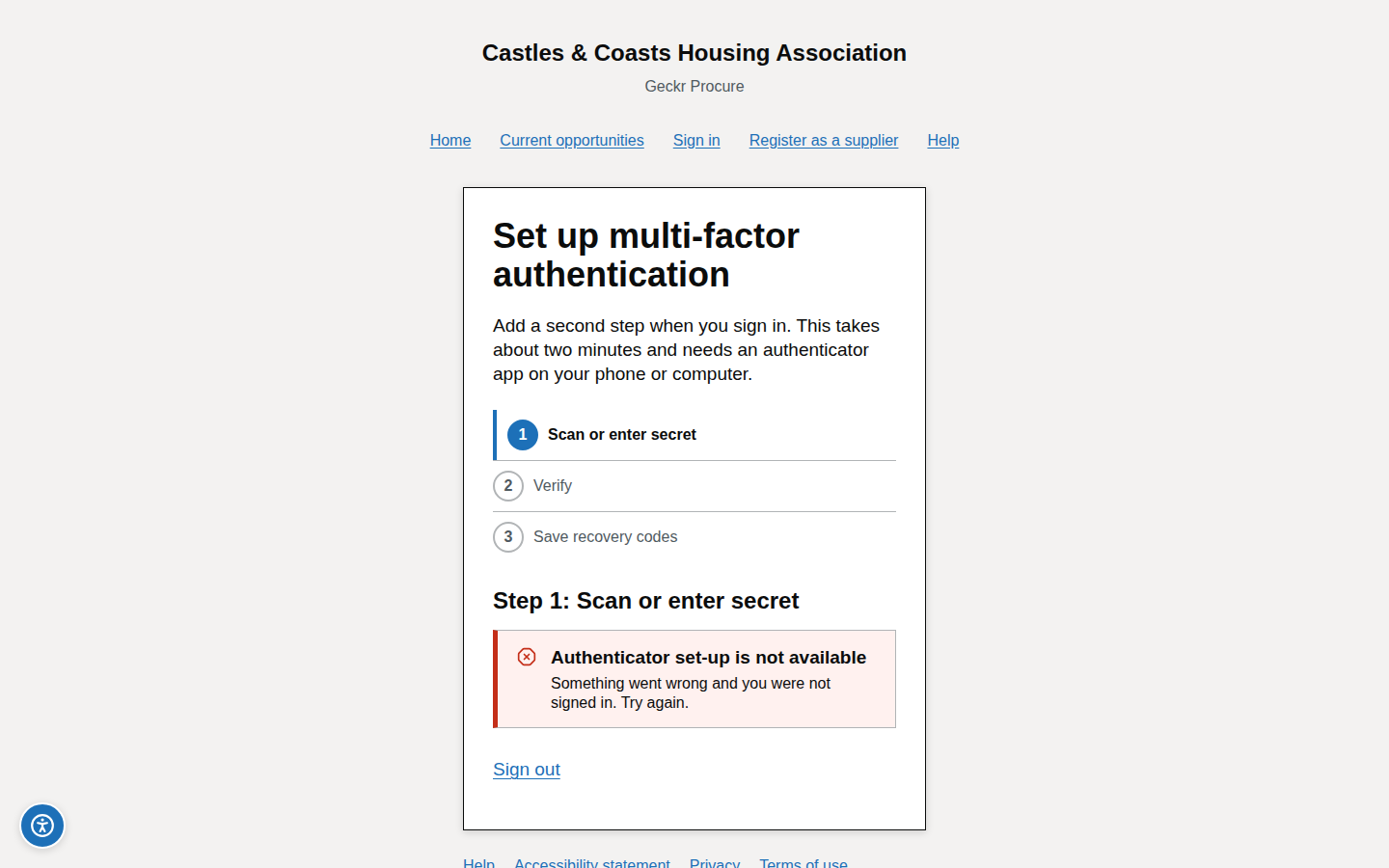
- Sign in again. You are taken to Set up multi-factor authentication: add Geckr Procure to your new app and save the new recovery codes.
What you should see
After the reset, the set-up page; after set-up, your dashboard.
Common problems
- A system administrator has lost their own authenticator. Administrators cannot reset their own; another system administrator must do it.
- You have a new phone. Many authenticator apps can move accounts to a new phone. If yours cannot, follow the steps above before you wipe the old phone.
Reset a forgotten password
Steps
- On Sign in choose Forgotten your password?, or go to
/auth/reset. The Reset your password page opens. - Enter your E-mail address and choose E-mail me a reset code.
- On Check your e-mail, enter the 6-digit code from the email in Code from the e-mail, in this browser within 10 minutes, and choose Continue.
- On Choose a new password enter a New password and Confirm new password, then choose Save new password. Use at least 12 characters, not a common password and not your name or email address.
- Choose Sign in and sign in with your new password.
What you should see
"Your password has been changed" and "Sign in with your new password". For your security you are signed out of the reset session.
Common problems
- Nothing arrives. The page says a code has been sent even if the address has no account. Check your junk folder, then choose Send another code, or Use a different e-mail address.
- "That code is not correct or has expired". Check the email, or choose Send another code. Only the newest code works.
- "That is your current password". Choose a different one.
- You sign in with a code and never had a password. Suppliers can set one from My profile — see Change or set your password.
Sign out
Steps
- Open the account menu (your name in the header).
- Choose Sign out.
What you should see
The sign-in page with "You have signed out".
Common problems
- You were signed out after signing in somewhere else. Your account can be signed in in only one place at a time: signing in on another device or browser ends your session everywhere else.
- You want to sign out of another computer. On Profile settings (staff) or My profile (suppliers), Where you are signed in lists your sessions, with Sign out of for any other device and Sign out everywhere (this browser included). If you think someone else is using your account, choose Sign out everywhere, change your password and tell your system administrator (staff) or CCHA Procurement (suppliers).
Automatic sign-out when you are inactive
To protect procurement information, you are signed out after a period without activity: 30 minutes for staff and 60 minutes for suppliers. Activity means using the page: typing, clicking, scrolling or opening another page. A page that updates by itself, such as new messages or clarifications appearing, does not keep you signed in.
Steps
- A minute before the time runs out, the dialog You will be signed out soon counts down the seconds.
- Choose Stay signed in to carry on, or Sign out to finish now.
- If the time runs out, Your session has ended appears. Choose Sign in again.
What you should see
After signing in again you return to the page you were on, with the message "You were signed out after a period of inactivity" on the sign-in page. Work you saved is kept; supplier response answers save automatically as you type.
Common problems
- "Your session has ended" without a warning. Your session ended for another reason: for example you signed in on another device or browser, or an administrator changed your account. Sign in again.
Keep your account secure
- Use your own account only. Never share a password, sign-in code, authenticator or recovery code, including with colleagues.
- Enter a sign-in code only on the Geckr Procure page where you asked for it.
- Store recovery codes away from your phone, for example in a password manager.
- Sign out on shared computers.
- Tell CCHA straight away if you keep receiving sign-in emails you did not ask for, or see activity you do not recognise.
Getting help
- Account and organisation questions
- Help (
/help) — signing-in help and CCHA's support contacts. - Related: Your staff account: first sign-in · Registering your organisation as a supplier · Managing your own account.
Glossary links
Multi-factor authentication · Recovery code · Sign-in code · Magic link