Managing your own account
Castles & Coasts Housing Association (CCHA) — Buyer & Platform Documentation Audience: CCHA staff | Platform: Geckr Procure
How to change the settings that belong to you rather than to your organisation: your display name, email address (suppliers), password, two-step verification and recovery codes, email notifications and display settings, and how to get a copy of your data or leave.
Who this is for
Everyone with a Geckr Procure account. Staff and suppliers have slightly different pages; each task says which applies. Organisation details are covered separately: Managing your supplier organisation for suppliers and Managing staff accounts and the organisation for CCHA system administrators.
Before you start
- Open your settings from the account menu (your name in the header): staff choose Profile settings; suppliers choose My profile.
- Changes on these pages affect only your own account. They never change your organisation's details.
- Some things about your account are controlled by an administrator: your roles and, for staff, your email address and department.
| Setting | Staff — Profile settings | Suppliers — My profile |
|---|---|---|
| Display name | Yes | Yes |
| Email address | Shown; changed by a system administrator | Change your e-mail address |
| Password | Change password | Set a password or Change password |
| Two-step verification | Status shown, with Set up two-step verification until it is set up | Status shown, with Set up multi-factor authentication until it is set up |
| Recovery codes | Recovery codes, once two-step verification is set up | Recovery codes, once two-step verification is set up |
| Signed-in devices | Where you are signed in | Where you are signed in |
| Email notifications | Notification preferences | Notification preferences |
| Department and roles | Shown; changed by a system administrator | Not applicable; your role is on Organisation users |
| Your data | Download my data | Download my data |
Change your display name
Your display name is how colleagues and CCHA see you.
Steps
- Open Profile settings or My profile.
- In Display name enter the name you want (1 to 255 characters).
- Choose Save display name.
What you should see
"Display name updated" (staff) or "Your display name has been saved." (suppliers). The new name appears in the header.
Common problems
- The name was not saved. Your entry is still shown, with a message saying why. Check it, then try again. If it says your session has ended, sign in again in another tab and save again.
- Staff: Save display name cannot be chosen. It becomes available once you have changed the name.
Your e-mail address
Your email address identifies your account. Staff cannot change it themselves; suppliers can, after proving the new address is theirs.
Steps
- Staff: ask a system administrator to change it. When they save it you are signed out everywhere, and from then on you sign in with the new address.
- Suppliers: on My profile, under Change your e-mail address, enter the New e-mail address and choose Send a code to the new address. If Confirm it is you appears, enter your password, or choose E-mail me a code instead to get a code at your current address.
- Open the email sent to the new address, enter the code in Code from the e-mail within 30 minutes and choose Confirm new address.
- Choose Sign in again and sign in with the new address.
What you should see
Staff: the new address on Profile settings after you sign in with it. Suppliers: "Your e-mail address has changed", then the new address on My profile after you sign in with it. You are signed out everywhere when the address changes, and your old address is told about the change.
Common problems
- Suppliers: "This is already your e-mail address". Enter the address you want to change to.
- Suppliers: no code arrives. Nothing changes until you enter the code. Check the spelling of the new address and your junk folder, or choose Use a different address. For security the page does not say whether an address can be used.
- Suppliers: "Use your business e-mail address, not a CCHA staff address". A supplier account cannot move to a CCHA staff address.
- Suppliers: "You have asked to change your e-mail address too many times today". You can start an address change three times in 24 hours. Try again tomorrow.
- Suppliers: "Sign in again to change your e-mail address". An address change must start within 15 minutes of signing in or confirming it is you. Sign in again, or confirm it is you when asked, and start again.
- You want to keep your old account as well. One account has one address. To add a second person or address, your organisation's administrator invites it from Organisation users.
Change or set your password
Steps
- Staff: on Profile settings go to Change password. Suppliers: on My profile the section is called Set a password if you have only ever signed in with an emailed code, or Change password if you already have one.
- If asked, enter your Current password.
- Enter a New password and the same in Confirm new password. Use at least 12 characters, not a commonly used password, and not your name, email address or phone number.
- Choose Change password (or Set password).
What you should see
"Password changed" (staff), or "Your password has been changed." or "Your password has been set." (suppliers). Use it next time you sign in.
Common problems
- "Your current password is incorrect" (staff) or "Your current password is not correct" (suppliers). Check it, or reset it by email from the sign-in page — see Reset a forgotten password.
- "You have used that password recently". Choose a different one.
- "This password contains your e-mail address or name". Choose a password that does not include your address, the part before the @ or your name.
- "This password is too predictable (repeated or sequential characters)". Choose a longer phrase of unrelated words.
- "Sign in again to verify your identity before changing your password". Sign out, sign in again and repeat the change.
- Supplier who has just set a password. The page offers Set up two-step verification — see the next task. A supplier who signs in with a password must use an authenticator app with it: if you have not set one up, you are taken to the set-up page the first time you sign in with the password.
Set up two-step verification later
Steps
- Suppliers: on My profile, next to Multi-factor authentication: Not enabled, choose Set up multi-factor authentication.
- Staff who are not required to use it (department users, contract managers, evaluators): on Profile settings, under Your profile, choose Set up two-step verification.
- Follow Set up two-step verification. When you finish you return to your profile page.
What you should see
Multi-factor authentication shows Enabled (suppliers) or Enrolled (staff), and a Recovery codes section appears, with Check how many codes I have left and Create new recovery codes.
Common problems
- "Multi-factor authentication is already set up". Your account already has an authenticator app. To move it to a new device, see If you have lost your authenticator app.
- Staff see Enrolment required. Your role requires it; you will be asked to set it up when you next sign in.
- You have used most of your recovery codes. Choose Create new recovery codes. Your old codes stop working, and the new ones are shown only once.
Choose your e-mail notifications
Steps
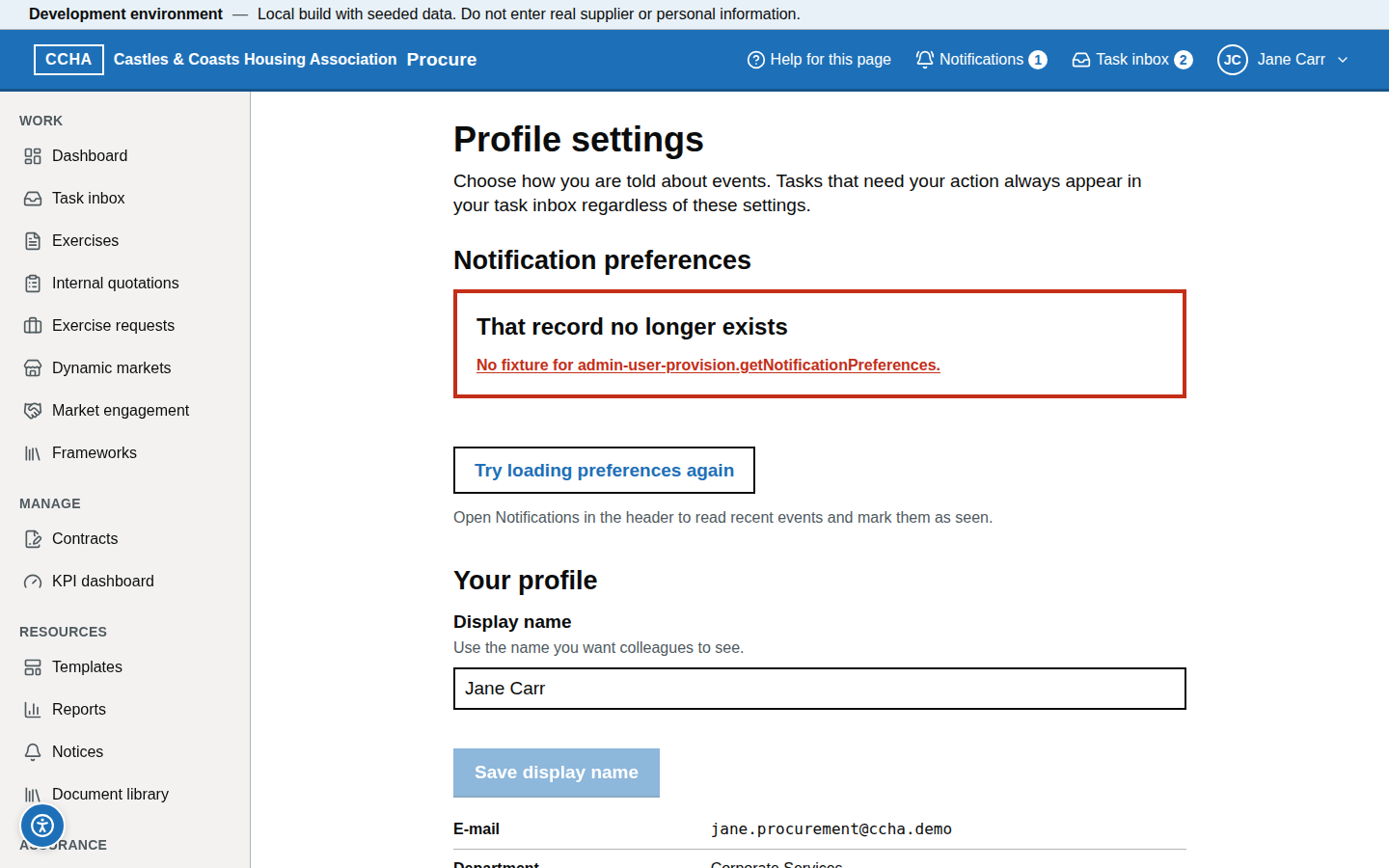
- On Profile settings or My profile go to Notification preferences.
- Under Optional e-mail notifications tick the categories you want by email, such as Tender and market activity (tender updates, published clarifications and market announcements) and Contract and workflow activity (advance contract-expiry alerts, routine KPI reminders, contract messages and workflow updates). The categories offered depend on your account.
- Choose Save preferences.
What you should see
"Notification preferences saved", then "Your preferences are up to date".
Common problems
- You still receive some emails after switching everything off. Important messages are always sent: security messages and invitations; deadline and assigned-work reminders; statutory notices, standstill updates and procurement records; audit integrity and critical contract alerts.
- Notifications are missing from the website. These settings control email only. Notifications in the header and your Task inbox are not affected.
- "There are no optional e-mail categories available for your account". Everything you receive is in the always-sent list.
Check your roles and department
Staff only. Roles decide what you can see and do.
Steps
- Open Profile settings and find Your profile.
- Read Department and Roles.
What you should see
Your department (or "Not assigned") and a badge for each role.
Common problems
- A role or department is wrong or missing. Roles come from your team memberships and are managed by system administrators. Ask your system administrator. Evaluator and contract access is given on each exercise or contract.
Adjust accessibility and display settings
Text size, page zoom, contrast, link underlining, text spacing, a more readable font, a stronger focus outline and reduced motion are set from the Accessibility button on every page. They are remembered on each device. See Accessibility and display settings.
Download a copy of your data
Steps
- On Profile settings or My profile go to Your data.
- Choose Download my data and wait while "Preparing your data…" shows.
- When "Your data is ready" appears, choose Download followed by the file name.
What you should see
An archive of the personal data the service holds about you: your account and profile, your activity, tasks and notifications, messages and clarifications, and the records you wrote or that are addressed to you. It is available to you only, and is deleted automatically after a few days (the page shows the date).
Common problems
- You need a reviewed copy. Other people's details in shared records may need redacting. Ask your organisation's data protection contact. For CCHA's data protection contact, see the Privacy notice.
- The download link has expired. Choose Download my data again.
Leaving or closing your account
There is no button to close your own account.
Steps
- Staff: tell your system administrator. They deactivate your account; your history stays in the audit trail.
- Supplier members: ask your organisation's administrator to remove you on Organisation users. You cannot remove yourself.
- Supplier administrators: first make sure another colleague is an Administrator, then ask them to remove you — see Hand over administration.
- To ask for your personal data to be erased or restricted, contact the data protection contact named in the Privacy notice. Procurement records must be kept for a set time by law, so some information may be kept.
What you should see
Once removed or deactivated, you can no longer sign in to that organisation's account.
Common problems
- You are moving to another supplier organisation. One account belongs to one supplier organisation. Ask to be removed from the old one first, or join the new one with a different address.
Getting help
- Account and organisation questions
- Help (
/help) for support contacts. - Related: Signing in, signing out and staying secure · Welcome to Geckr Procure · Supplier guide · Administrator guide.
Glossary links
Display name · Multi-factor authentication · Recovery code · Task